Outlook Recall Message Not Working – How to Fix

Outlook’s recall message is an excellent tool for taking back an email that you didn’t mean to send or if you spotted a typo just a second too late. Imagine the horror, then, when you find that the “Recall this message” button is greyed out and you can’t take things back. Not to worry: in this article, we’ll look at fixes to try with a troublesome Outlook recall message not working.
What Outlook Recall Message Needs to Work
It’d be great if we could recall every message that we weren’t ready to send, or didn’t mean to, but unfortunately, it isn’t that simple. Outlook’s recall feature works only under a certain set of circumstances that requires:
- Both the sender and recipient have Microsoft 365 or Exchange Online within the same organization.
- The recipient must be using a supported Exchange Online mailbox.
- The recipient’s client supports the recall feature.
- The message has yet to be opened (although newer versions allow this under certain conditions).
If your recipient did not receive recall message, Outlook or their account type might be to blame. Even with all this in place, you may still find that the feature itself is still greyed out. In that case, it’s time to look at fixes.
Outlook Recall Message Not Working – Fixes to Try
Below we’ve got a few troubleshooters that’ll hopefully help get your recall feature enabled again:
Double Check Your Account
As mentioned above, Outlook’s recall feature is available in Microsoft 365. It’s important to note that the Microsoft 365 Basic tier has no access to the Recall feature. If the option is greyed out, then ensure you aren’t logged in with a Basic account and that your Microsoft Outlook (and other apps) are actually activated.
Try the Web Version
If your desktop app isn’t giving you the option to recall, you can always give it a try on the web version. Here’s how to do it:
Step 1. Open Outlook in your browser and head to “Sent messages” by clicking it in the side panel.
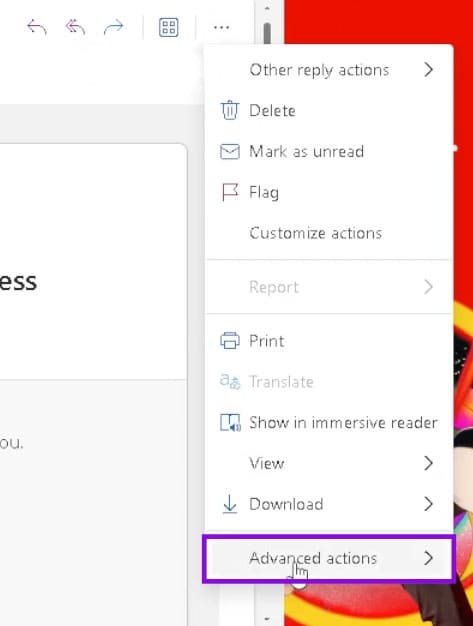
Step 2. Open the message, choose “Advanced actions,” then select “Recall message” if available.
Step 3. A window will pop up. Select “Delete unread copies of this message.” If you want confirmation, check “Tell me if recall succeeds or fails for each recipient.”
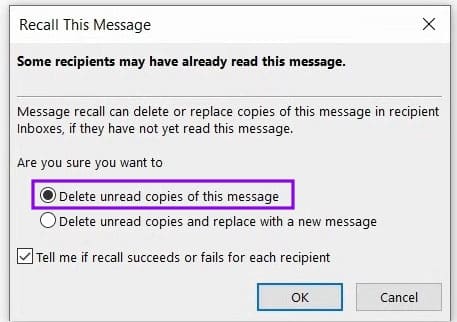
Step 4. Click “OK” to finalize.
Try the Undo Feature

If you didn’t know about it, Outlook also comes with an Undo Send feature, which allows you to quickly undo sending a message a few moments after you send it. Here’s how to adjust the feature and its settings:
Step 1. Click the Settings icon at the top-right of the Outlook app, or via the “File” tab and sidebar.
Step 2. Click “Mail” in the sidebar and select “Compose and reply.”
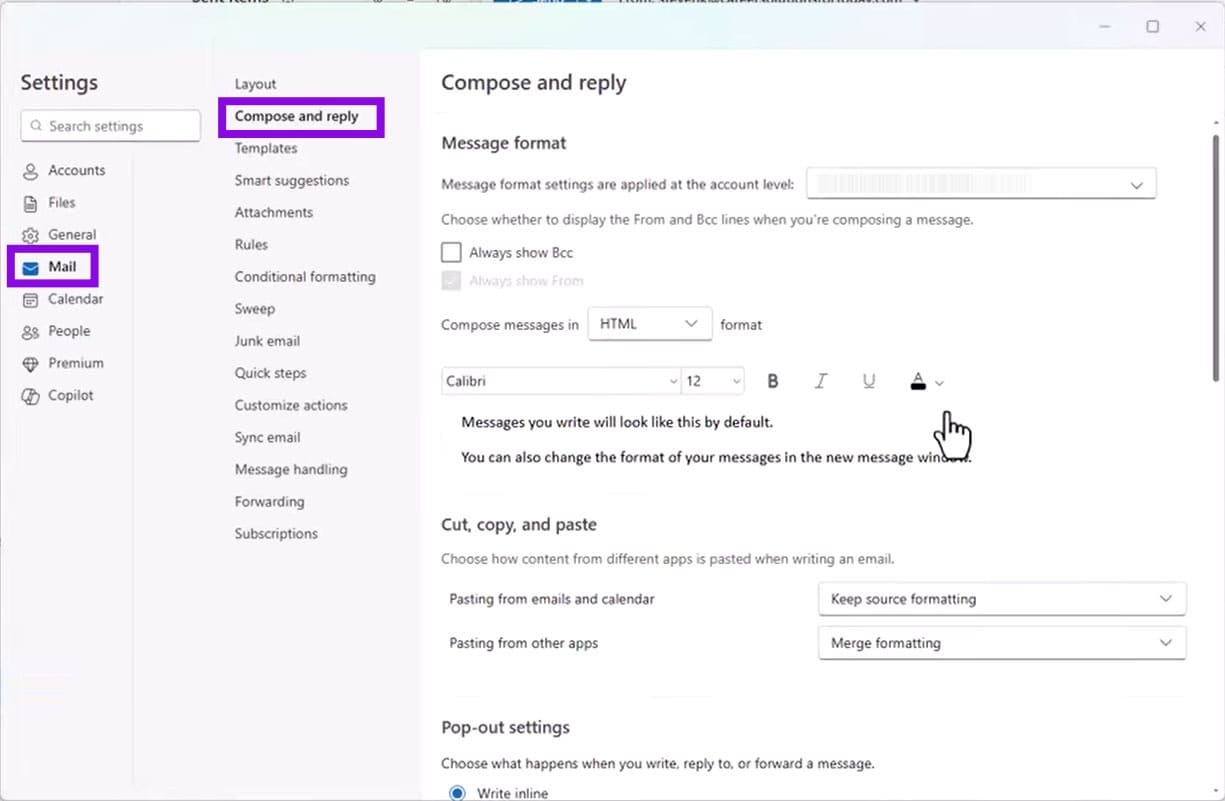
Step 3. Scroll all the way down to “Undo send,” then drag the slider right to the end and the longest time possible, which will be 30 seconds.
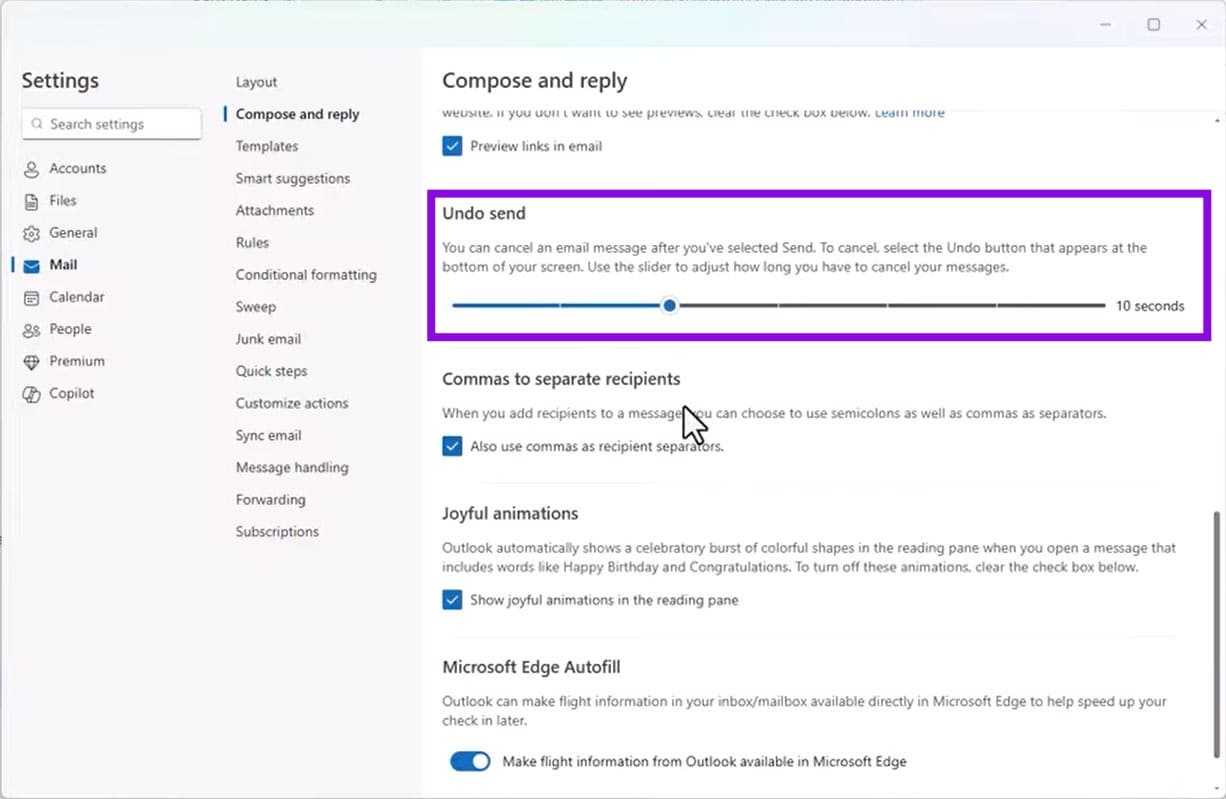
Unfortunately, this won’t fix emails already sent, but it can provide a useful window for undoing the next one.
Send a Follow-Up Mail
Unfortunately, a message that’s been sent has a high chance of being opened already. It’s probably a good idea to send a follow-up message as soon as possible, apologizing for the mistake and sending the correct version soon after.
How to Edit a Photo in Photoshop Online (AI + Manual Techniques)
Read Next