How to Remove AI Actions From File Explorer Menu in Windows 11

It’s pretty obvious Microsoft has been pushing for practically every aspect of Windows to have AI features. But what if you don’t want to deal with generative or analytical AI on a daily basis, especially when you just want to search for your files? Here’s how to remove AI actions from File Explorer menu options.
Note that this only applies to Microsoft 365 subscribers, as that’s where Copilot is enabled for File Explorer.
Option 1: How to Remove AI Actions From File Explorer Menu
If you’re using the latest Windows build and have AI actions available, you need to go to Settings to disable them. This will remove AI actions throughout the system.
Step 1. Open Settings with “Win + I.”
Step 2. Go to the “Apps” section on the left, then select “Actions.”
Step 3. Uncheck the option “Microsoft 365 Copilot.”
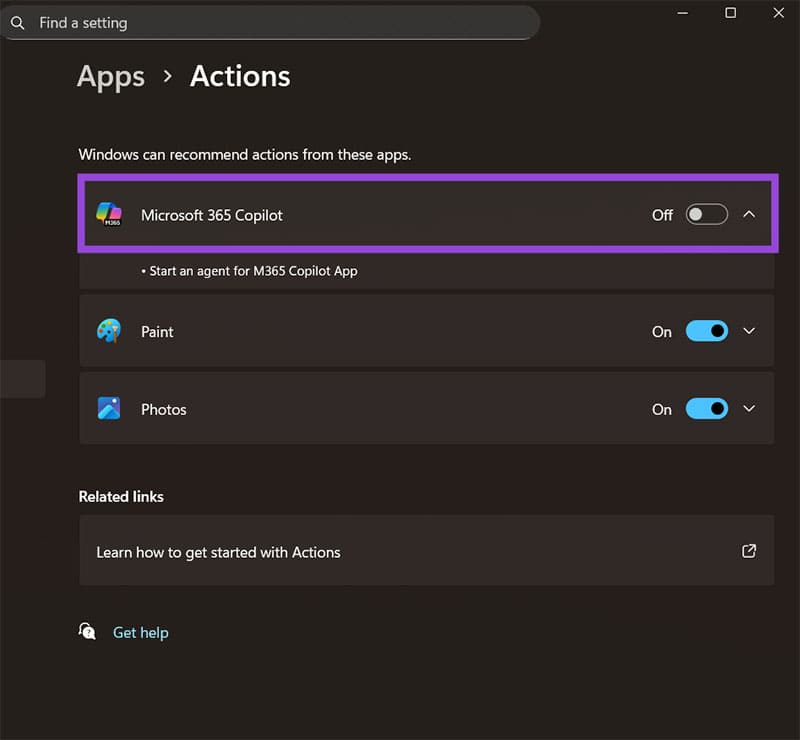
You may also uncheck the other options, depending on how many AI tools you want to use for those specific apps.
Notably, once turned off, Microsoft 365 Copilot will stop providing any action prompts on the entire system. So if you still want to use it in other apps, this solution won’t work.
Option 2: Remove AI Actions in Windows 11 File Explorer via Registry Edits
Another option to remove the AI actions is to modify the File Explorer context menu itself. This registry change can be easily undone if you decide you want AI actions, but make sure to create a backup of it first.
Step 1. Open the “Run” utility with “Win + R.”
Step 2. Type in “regedit” and hit Enter. Confirm the User Account Control when prompted.
Step 3. In the Registry Editor, open “File,” then select “Export.” Save the file somewhere where you’ll remember it. This will be the backup.
Step 4. Navigate to: HKEY_LOCAL_MACHINE\SOFTWARE\Policies\Microsoft\Windows
You can input this address in the navigation bar, but you have to drag over the entire entry to select the existing one first.
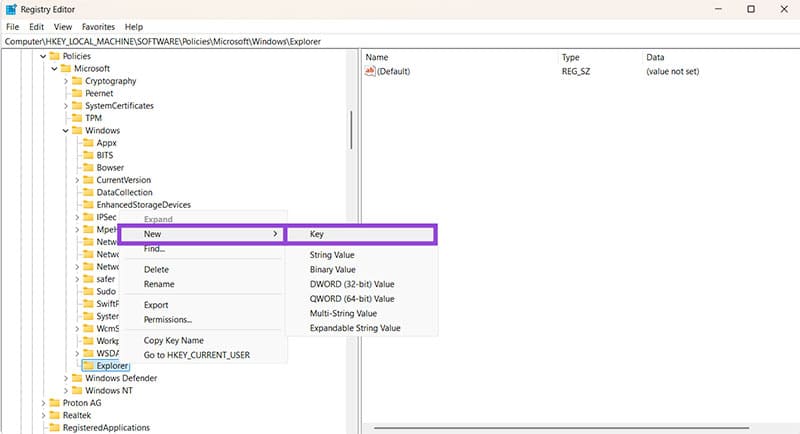
Step 5. In the folder, right-click and select “New” then “Key.” Name it “Explorer.”
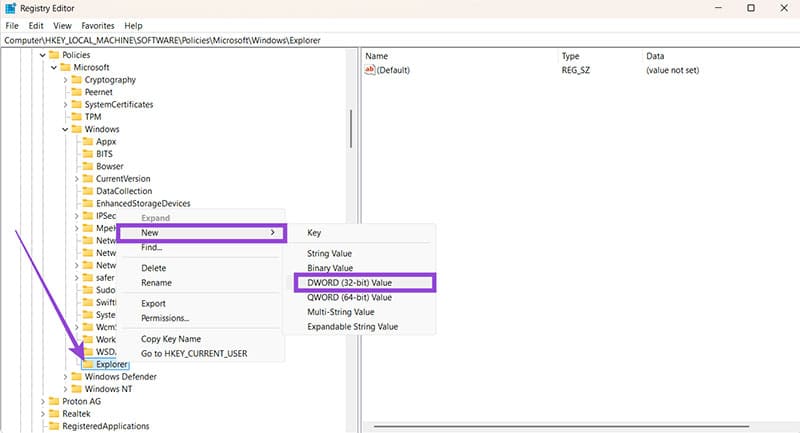
Step 6. In the newly-made key, create a NEW DWORD-32 bit. Name it “HideAIActionsMenu.”
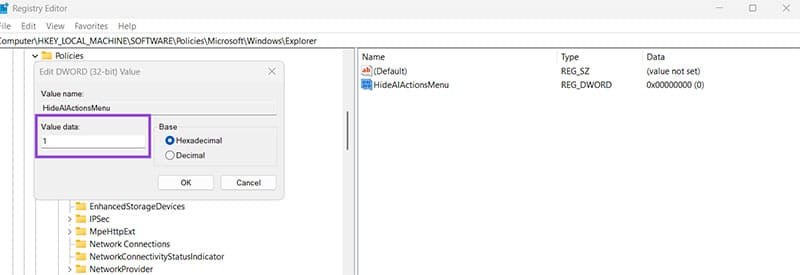
Step 7. Double-click on the value and change it to “1.”
Step 8. Exit the Registry Editor (which automatically saves it).
You can revert the change by setting the value to “0” later, which re-enables the AI actions in the context menu (provided they haven’t been disabled in a different manner).
It should be noted that this change also applies globally to all accounts on the PC. This makes it a better choice if you’re a work admin and want to limit AI usage on company computers.
Can You Remove AI Actions From Windows 11 Permanently?
Unfortunately, it looks like every new update brings us closer to Windows having AI as a core feature rather than a useful set of tools.
As such, don’t be surprised if a future Windows update reverts some of your settings, or if the option to disable AI actions disappears from the Settings screen. The registry change should be more permanent, but the name of the key might change over time.
What to Do When the Wi-Fi Keeps Disconnecting on PC
Read Next