What Is Steam Error Code 2001 and How to Fix It
Steam error code 2001 seems to only appear on a specific title, Warhammer 40K: Darktide, and prompts users that they don’t have a connection to the game server or forcefully shuts down the game. Beyond that, the error seems to affect users at random, which means it might not be fixable on all devices. Here are some common troubleshooting steps on how to fix Steam error code 2001.
Option 1: Checking System Requirements
At its core, error 2001 seems to stem from the game trying to check your graphics drivers and failing to find a match for its requirements. Notably, this also means that you should double-check that you’re using the correct graphics card for the game.
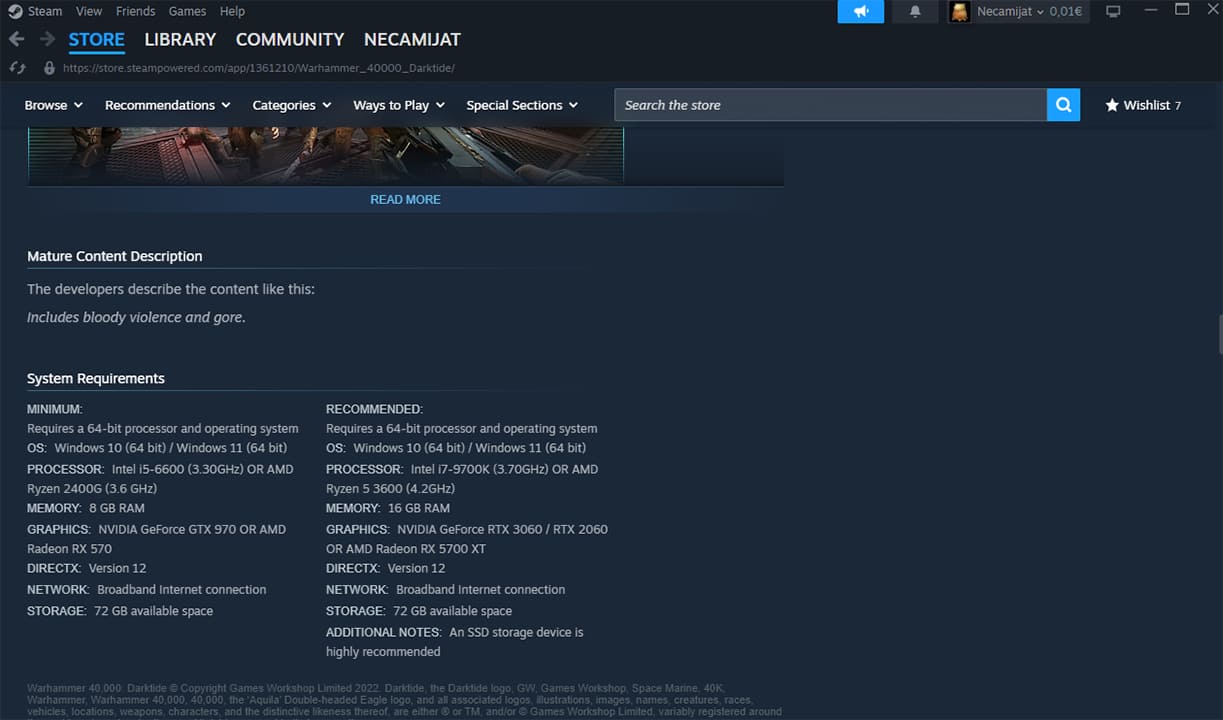
Additionally, if you manage to turn on the game but it displays an error mid-run, try lowering your graphics settings. This can help if you’re running a graphics card that’s barely above the minimum recommendations.
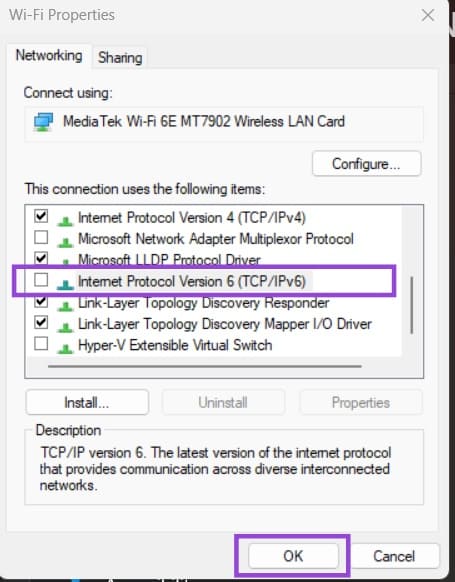
Option 2: Fix Steam Error Code 2001 – Disable IPv6
In some cases, the game might try to connect to the servers using the wrong DNS settings, which results in a disconnect. Some users reported that IPv6 is the problem, so you can try to disable it in your router settings.
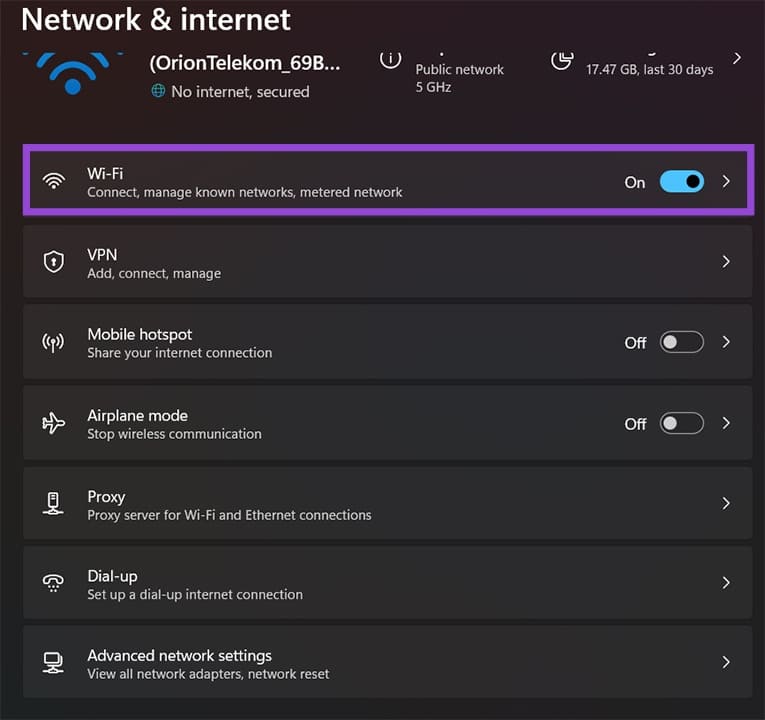
Step 1. Close the game and Steam, then open Settings and go to “Network & internet.”
Step 2. Click on the network you’re connected to.
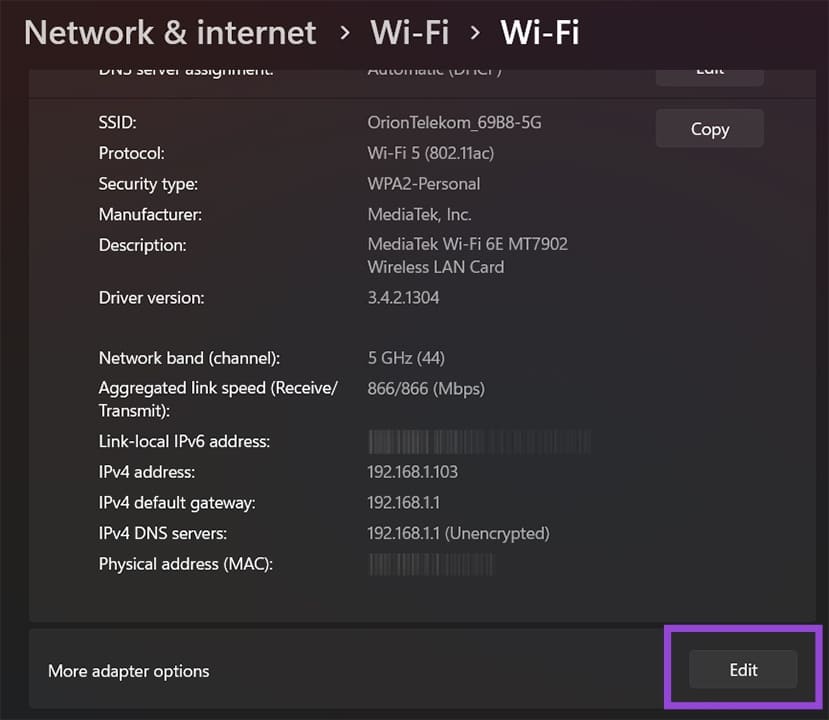
Step 3. Go to “Hardware properties,” then hit “Edit” next to “More adapter options.”
Step 4. In the new pop out window, untick “Internet Protocol Version 6” and click “OK.”
Option 3: Update Graphics Drivers
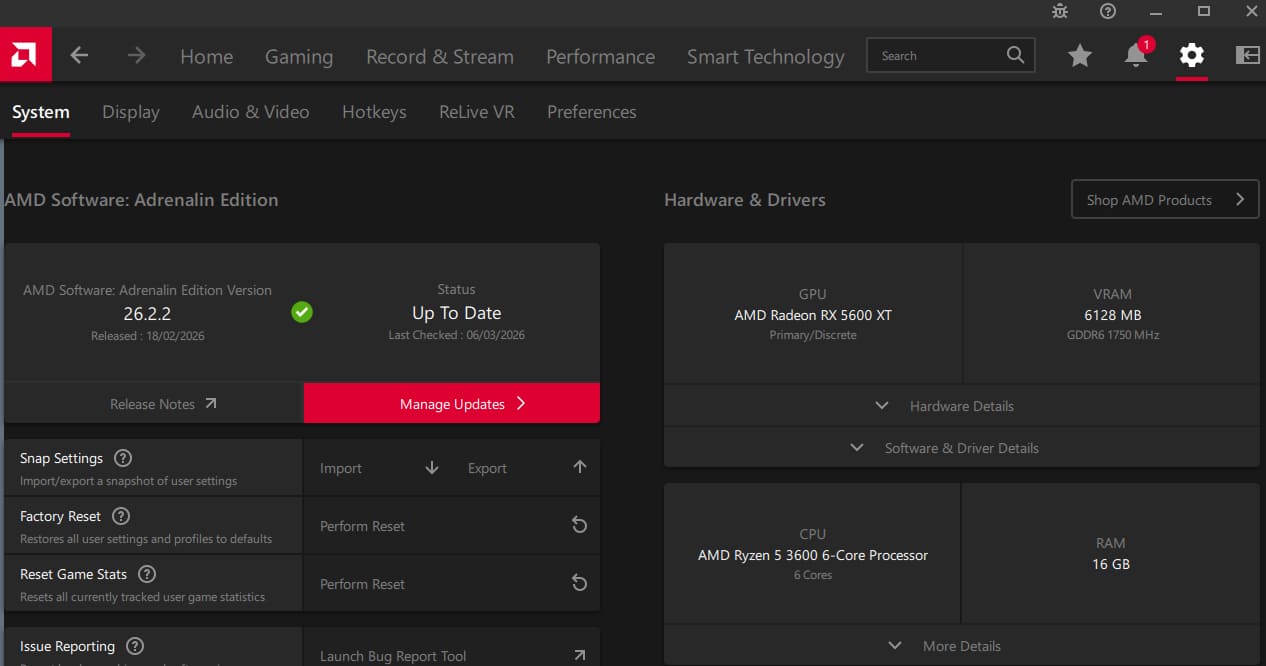
If you experience severe lagging or stuttering in the game before it eventually closes and shows an error, your graphics drivers might need to be updated. This will be different based on your graphics card, but you should be able to go to your graphics app and initiate an update.
Step 1. Click on your toolbar and expand the icons to open your graphics app (in this example we’re using AMD Adrenalin).
Step 2. Go to “Updates” or “Settings” (most apps will use a cog icon).
Step 3. Click on “Download update” or “Manage updates” then follow the installation process.
Option 3: Contact Steam Support
While the game has been out for a while now and should be optimized for most systems that meet its requirements, you can still get to Steam support to try and fix issues.
Step 1. Click on “Help” on the Steam app and select “Steam Support.”
Step 2. Find the game from the list or go to “Games, Software, etc.”
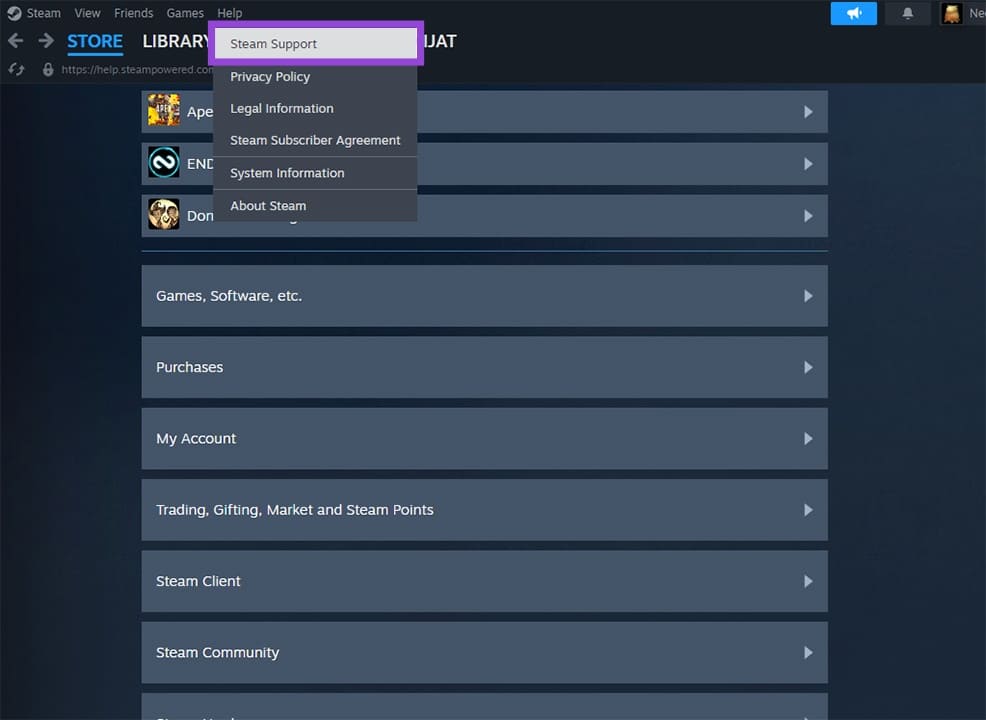
Step 3. Go through the menus and choose “Gameplay,” which will ultimately point you to the developer website. In there, you can try to find more specific examples if you provide a precise screenshot of how the error happened to you.
Step 4. If you can’t get the game to work, go to the “I’d like to request a refund” option. If you’ve played the game for less than two hours, you should get a refund relatively easily. Otherwise, you’ll get contacted by Steam’s support team to verify that the game won’t run and can be refunded.
How to Deal With Windows Error Code 0x800f0983
Read Next