What to Do When There’s No Unique Function in Excel

Excel has a staggering number of useful functions at your fingertips to help you sort, calculate, and parse data. One of the more recent functions, the UNIQUE function, returns a list of unique values or rows from an array or range. If you’ve found that this isn’t available or isn’t functioning, then this article is here to help.
We’re looking at what to do when there’s no UNIQUE function in Excel.
No Unique Function in Excel? Try These Troubleshooters
Let’s get straight into it. If you can’t find the UNIQUE function or make it work, we’ve got some fixes for you below:
Check Your Version
This is easily the biggest reason you can’t access the UNIQUE function. It’s important to note that UNIQUE is only available on newer versions of Excel, specifically 2021, 2024, and Microsoft 365. It’s not UNIQUE either, with functions like TEXTSPLIT, LAMBDA, and BYROW not working. Any version earlier than 2021 won’t work.
To check your Excel version:
Step 1. Click on the “File” tab in Excel and choose “Account” from the sidebar.
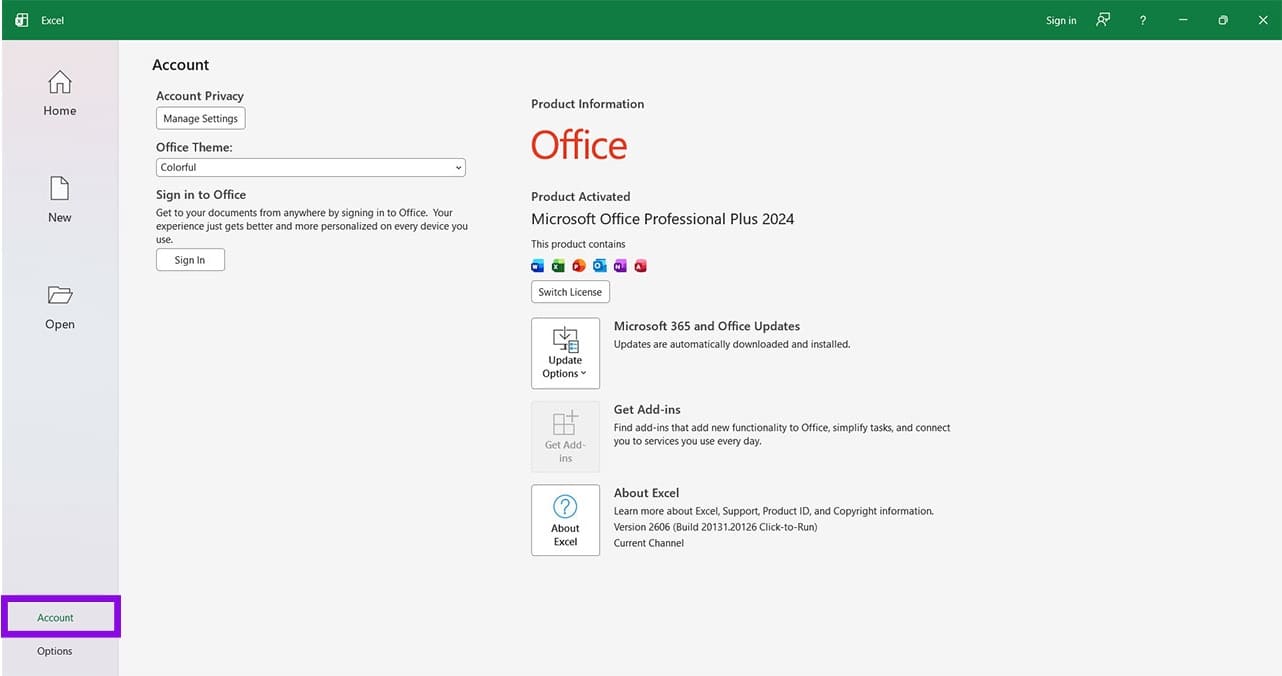
Step 2. In the main window, you’ll see what version of your software you have.
Update Excel
Just as important as your version of Excel is whether or not it’s fully upgraded. To ensure you don’t run into software conflicts and bugs, ensure you’re running the latest. Here’s how to do so:
Step 1. Click on “File” and head to “Account.”
Step 2. In the main window, click the “Update Options” button.
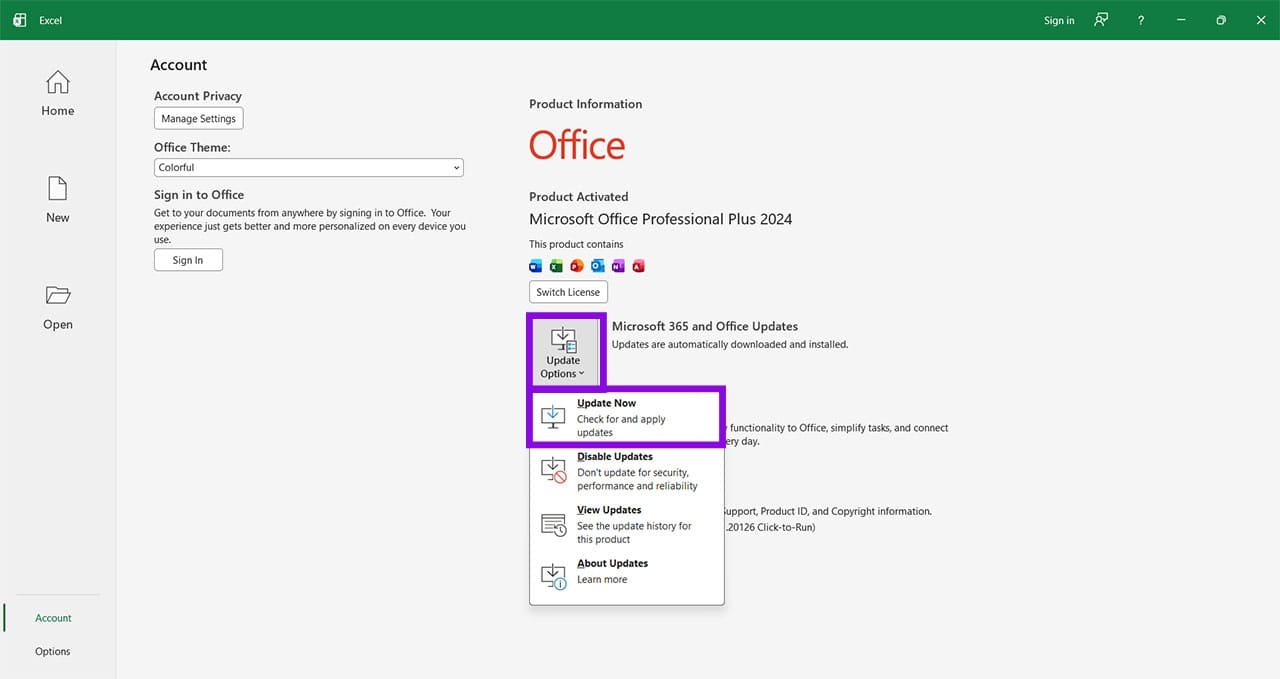
Step 3. Click the “Update Now” option and follow the steps to complete.
Check Your Workbook
Your Excel version may be up to date, but what about the workbook you’re currently editing? Older Excel formats are just as problematic when it comes to modern functions not working. Ensure that your format is “.xlsx” and, if it isn’t, fix it as follows:
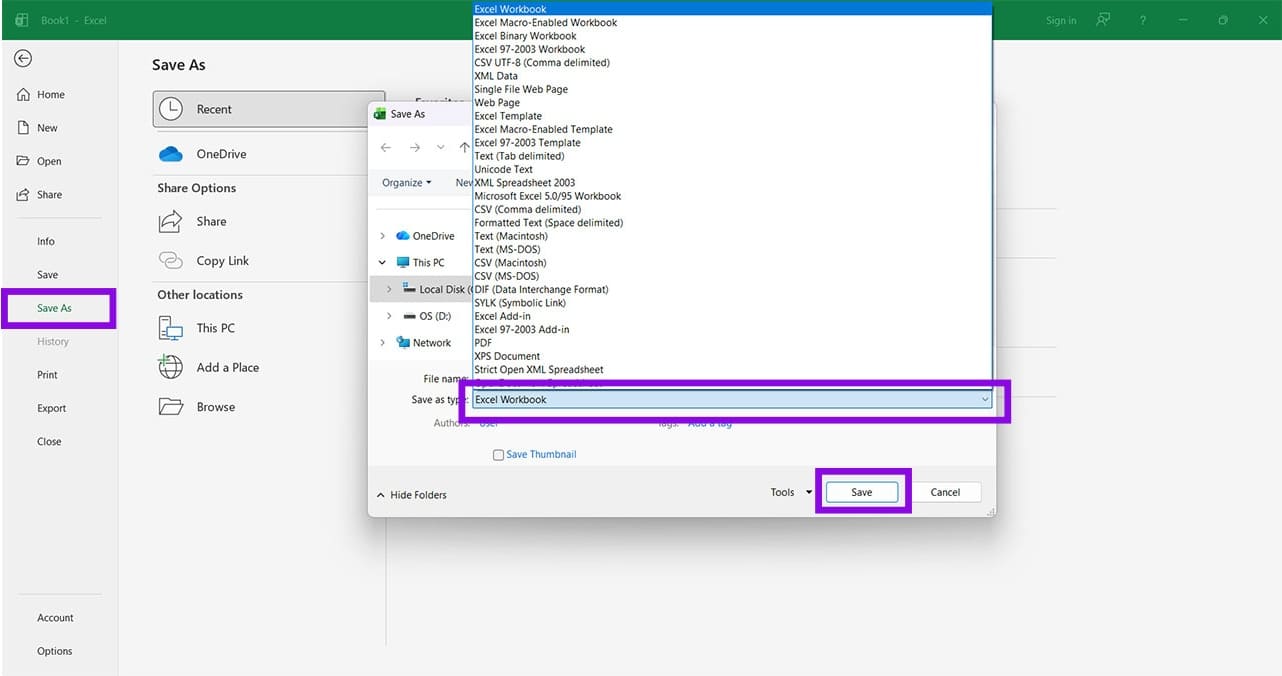
Step 1. Head to the “File” tab and click “Save As” in the sidebar.
Step 2. In the Explorer window, ensure your file is saved in the “.xlsx” format. Choosing “Excel Workbook” from the dropdown list will do this. Click “Save” to finalize.
Check Your Syntax
What if you can get the UNIQUE function, but it isn’t working? Even though newer versions of Excel make it harder to make formatting errors on functions, it could still be that your UNIQUE function is improperly formatted.
Check that your brackets are in the right place, the actual range is valid, and that no double spaces or strange symbols are inserted by accident.
Ensure Automatic Calculation Is On
If updating the range fails to update the UNIQUE function cell, then you need to ensure that Automatic Calculation is on, and not set to manual. Here’s how:
Step 1. Click on the “Formulas” tab and then “Calculation Options.”
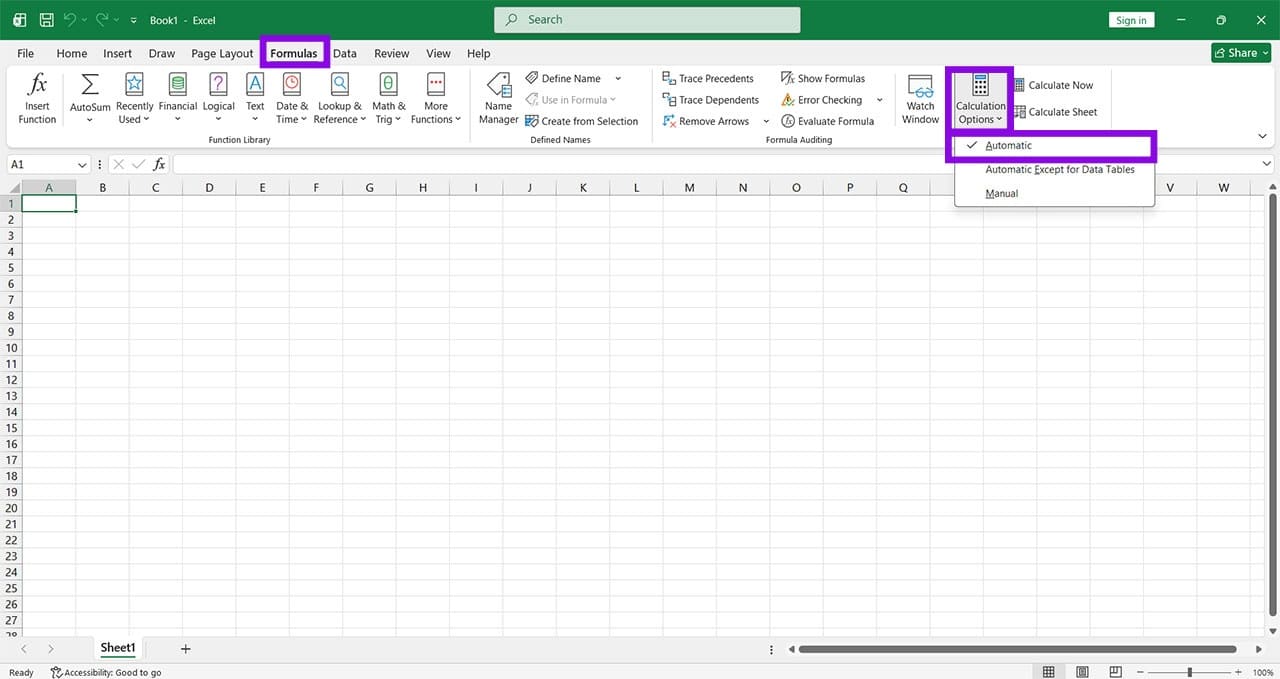
Step 2. From the dropdown menu, ensure that “Automatic” is selected.
Clean Up Data and Cells
Sometimes the data you’re using the UNIQUE function on is a mess of badly formatted values and cells, especially if someone else has given you the workbook. To fix this, you can clean up the data via the “=TRIM()” and “=CLEAN()” formulae. Use the TRIM() or CLEAN() functions in helper columns, then copy the cleaned values back into your original data if necessary.
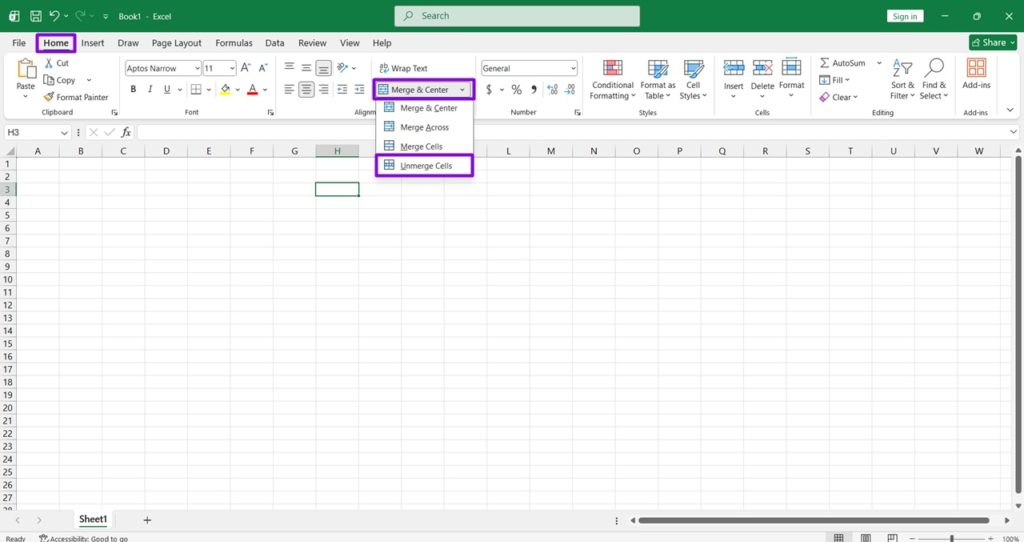
Merged cells can also be a problem. Select your range and click “Merge & center” in the “Alignment” subsection of the “Home” tab. Select “Unmerge Cells” to ensure no cells are merged.
7 Tips for Keeping Control of Remote Desktop Users Permissions
Read Next