4 Different Ways to View Your Browser History

Sometimes you need to find a site you accessed earlier. Other days, you might just want a trip down memory lane. Whatever may lead you to your internet history, it’s useful to know that there are always different ways to view browser history. In this article, we’ll be looking at the main web browsers and four ways to access your browser history in them.
Different Ways to View Browser History
Different browsers have different ways to view history, but the core approaches behind them remain the same. And that’s how we’ve grouped them below:
Going Direct
Easily the most straightforward way, though not necessarily the quickest, is to access your browser history via the browser menu. Each of the major browsers has a slightly different approach. Here’s what to do:
For Chrome:
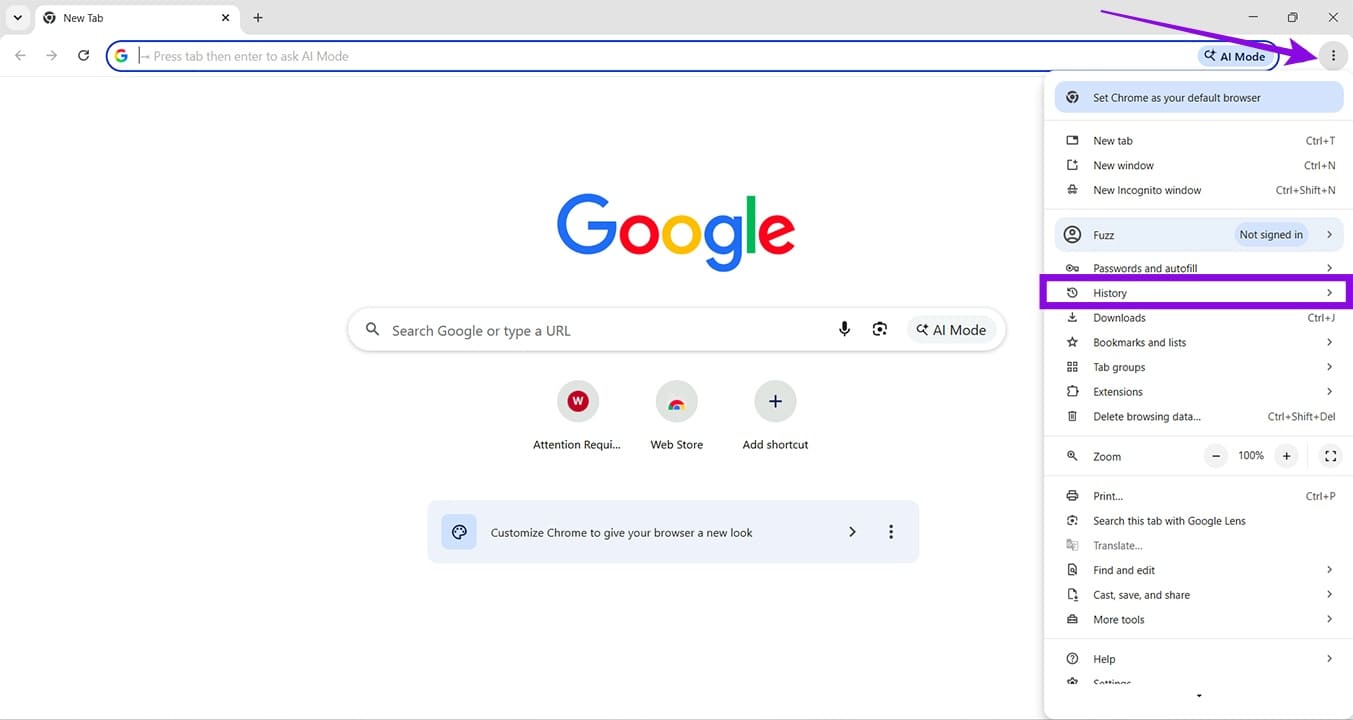
Step 1. Click the ellipses menu (three dots) in the top-right of the browser.
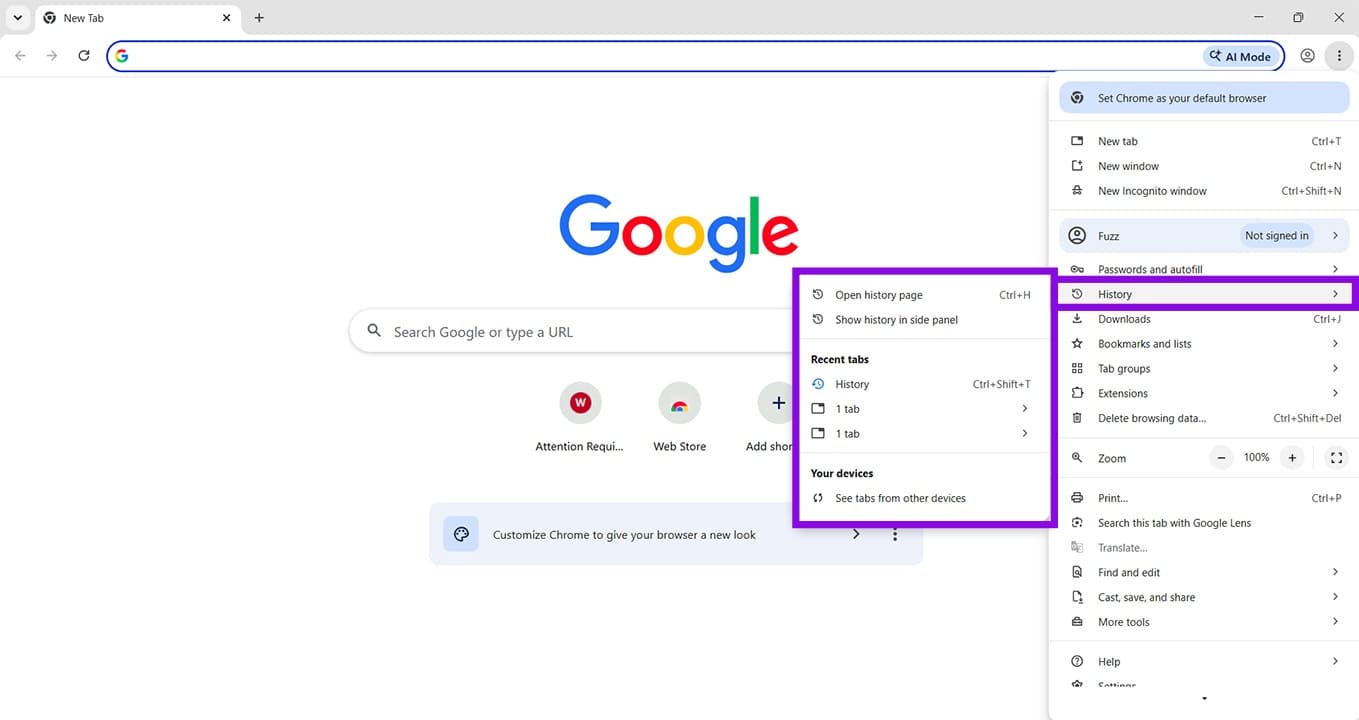
Step 2. In the dropdown menu that appears, hover your mouse over “History.”
Step 3. You’ll see a list of the last few sites you’ve visited. If you want a more in-depth look, click “Open history page” or “Show history in side panel.”
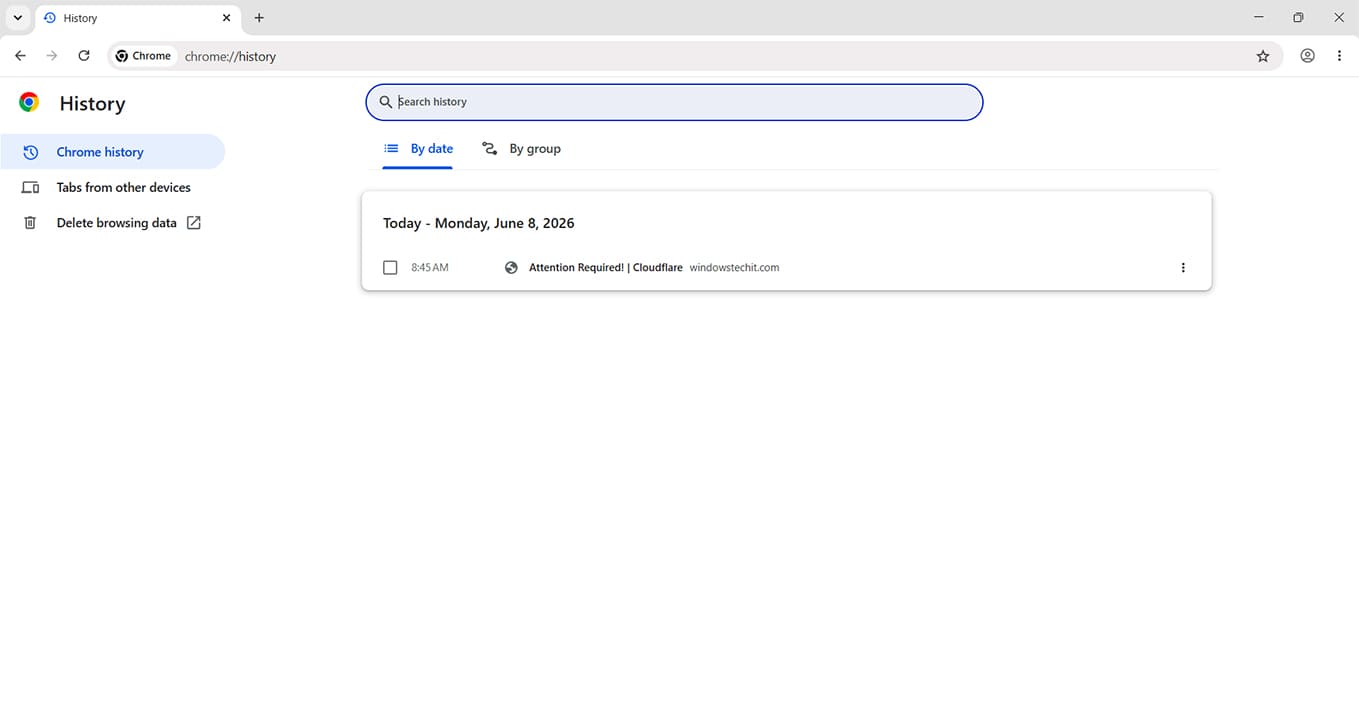
Step 4. In the History page, you can check local history, including searches that took place on other devices if you’re synced into a profile.
For Firefox, here’s what to do:
Step 1. Click the hamburger menu (three horizontal stripes) to open the dropdown menu.
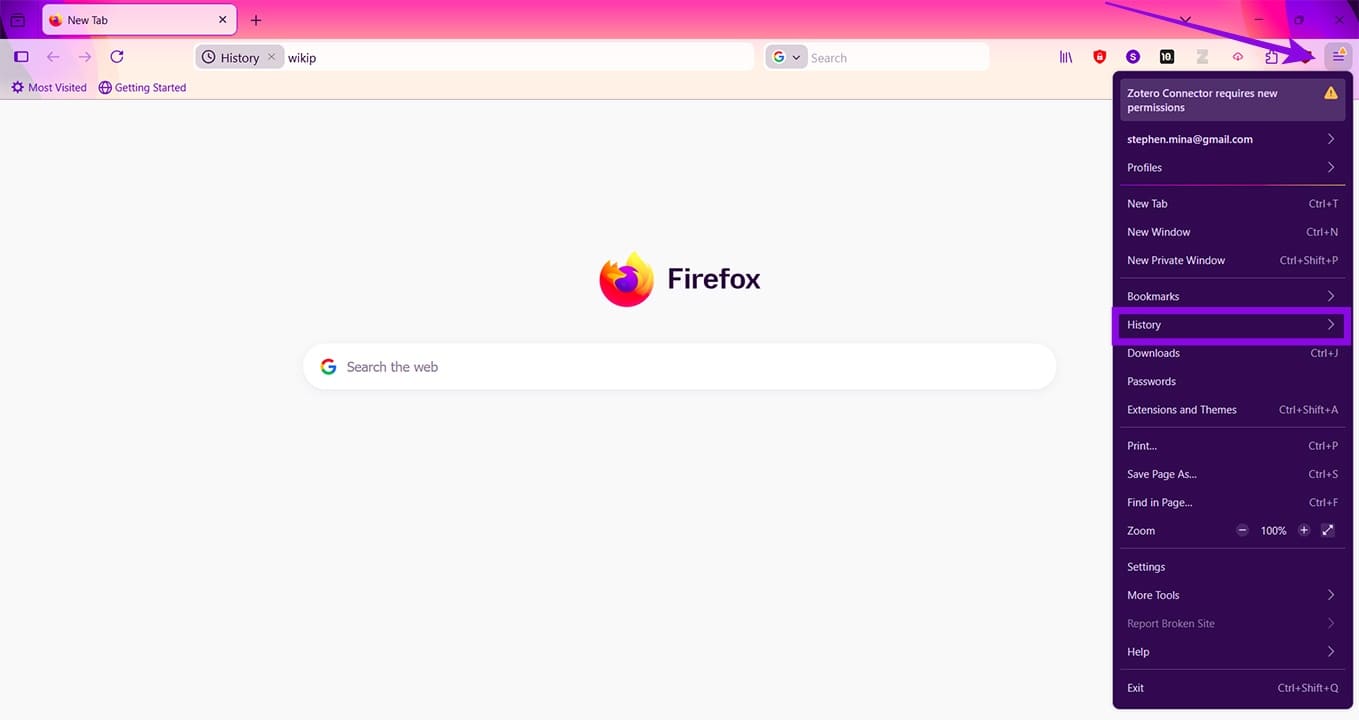
Step 2. Click the “History” option, and you’ll be taken to a dropdown list of your most recent visits.
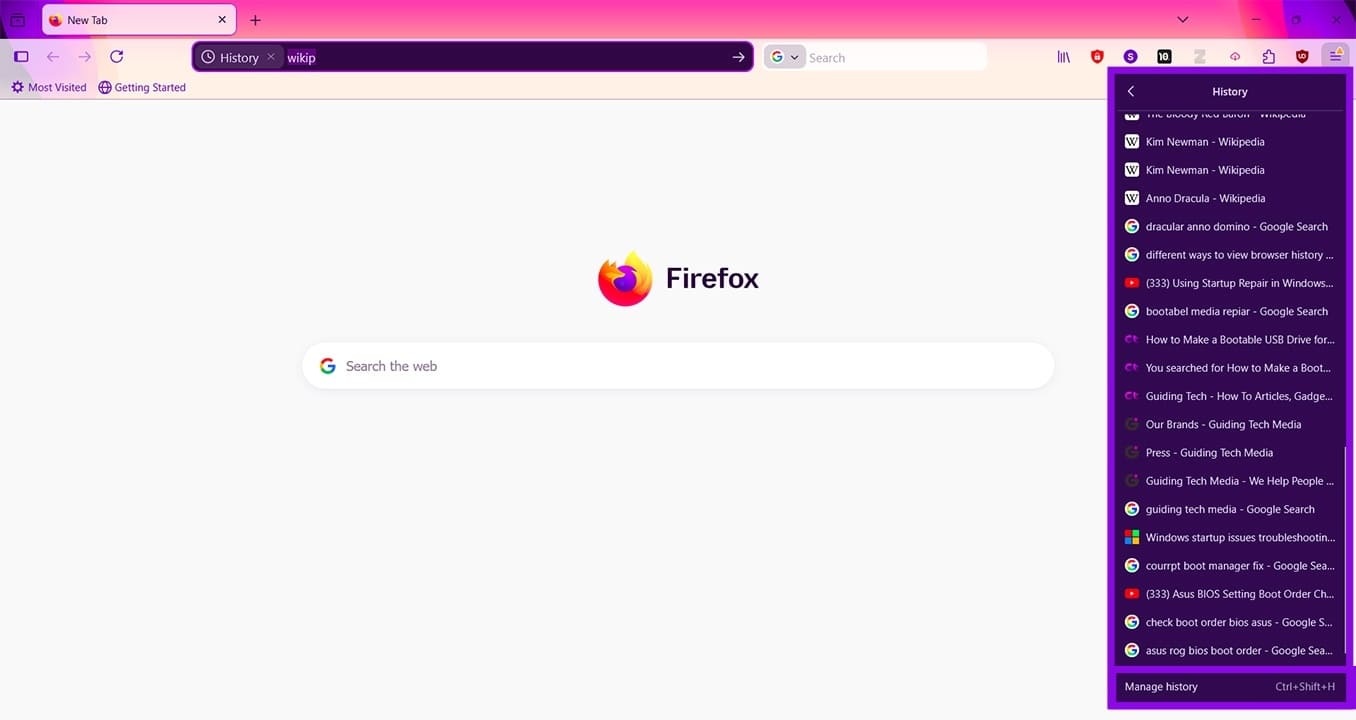
Step 3. Click “Manage History” at the bottom of this list for a separate window.
Step 4. In the “History” window, you’ll see your history grouped by time tabs for easier reference.
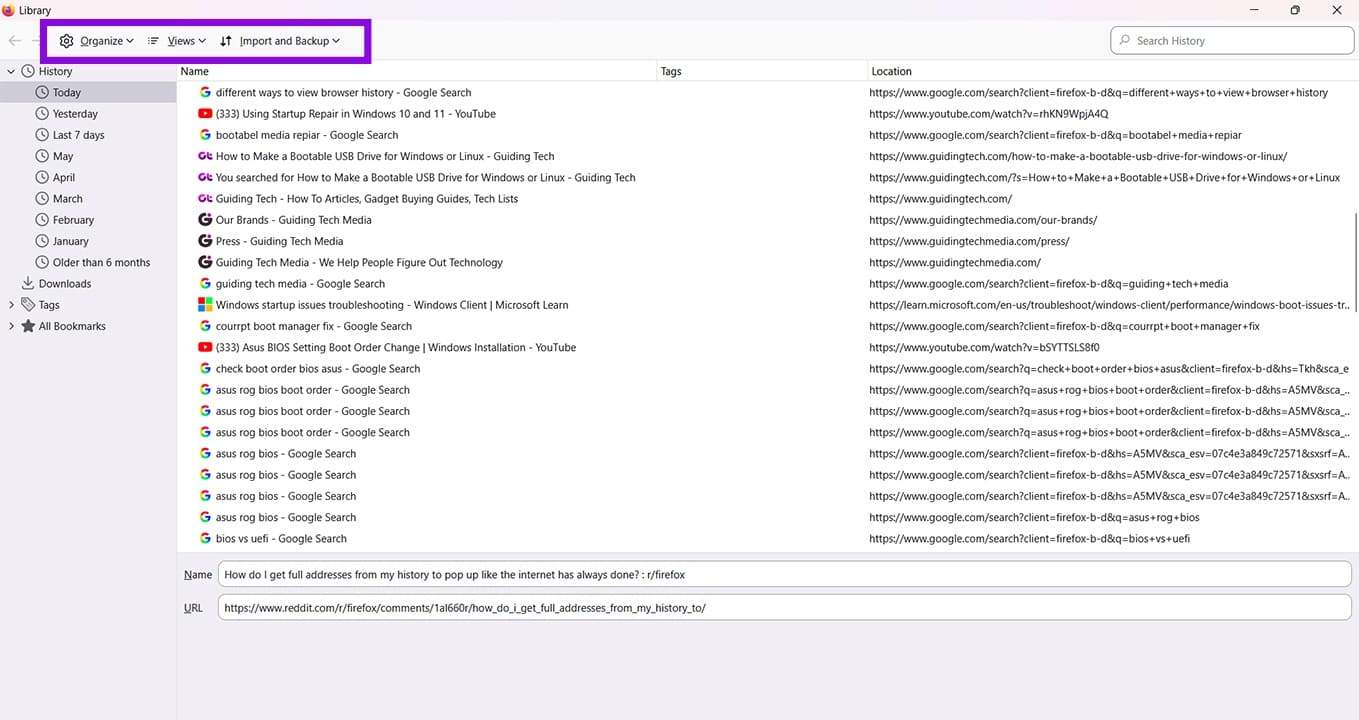
Step 5. You can change the way you view things, import or backup your history, and even search according to time period.
For Microsoft Edge, here’s what to do:
Step 1. Click the ellipses menu (three dots) for the dropdown list.
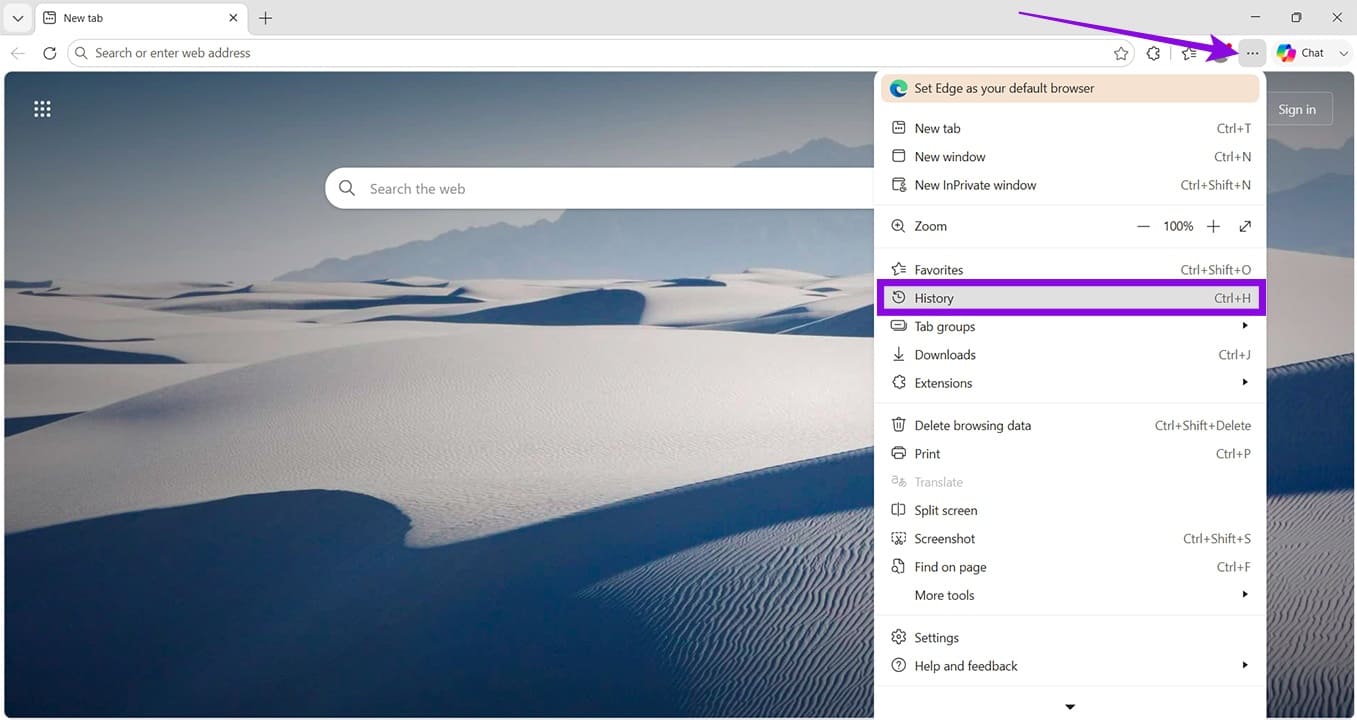
Step 2. Click “History.”
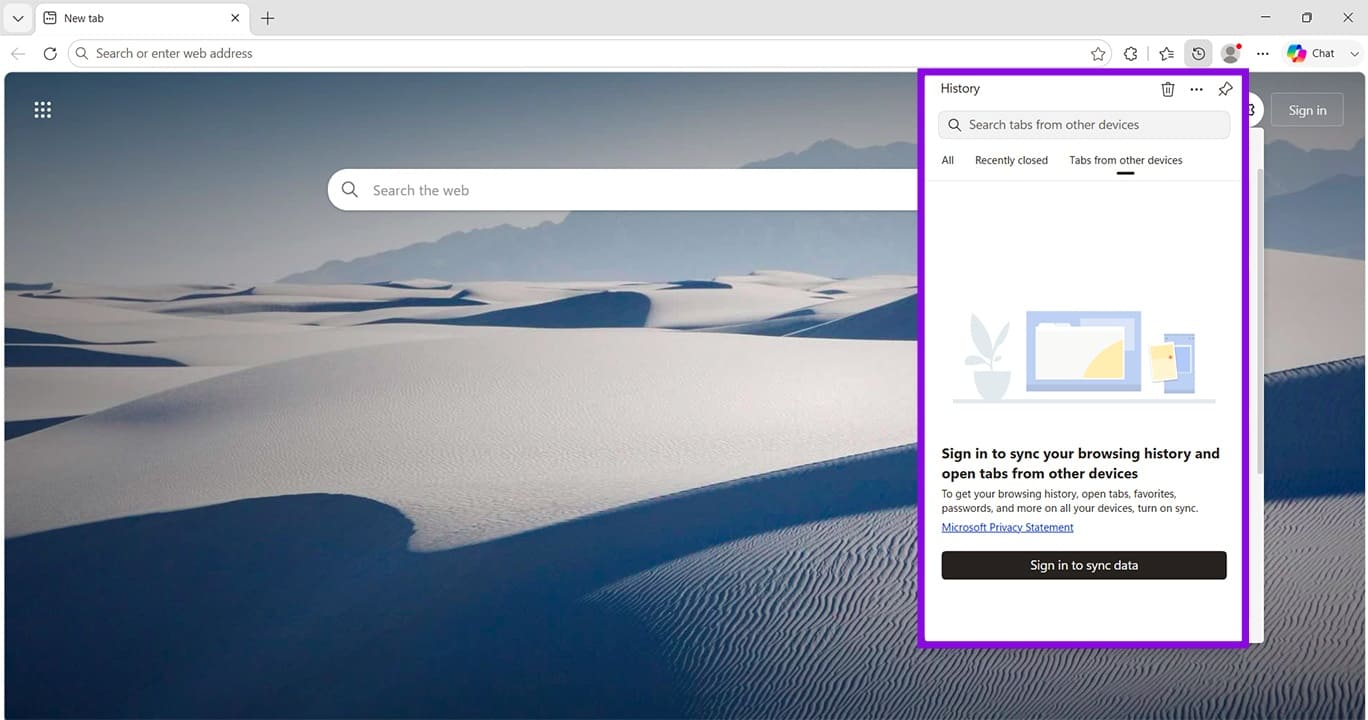
Step 3. A History window dropdown list will appear. In this list, you can see all tabs, recently closed ones, and tabs from other devices (provided you’re logged in and synced to a multi-device account). Click each option to change to it. At the top, there’s a search bar for easier access in all three.
Using Keyboard Shortcuts
If you want to be a bit more deft with your browser, keyboard shortcuts are a great (and quick) way to call up your internet history. For Chrome, Firefox, and Edge, just clicking (Ctrl + H) should open up the history side panel or pop-up. For Firefox, selecting (Ctrl + Shift + H) will bring up your history as a separate window.
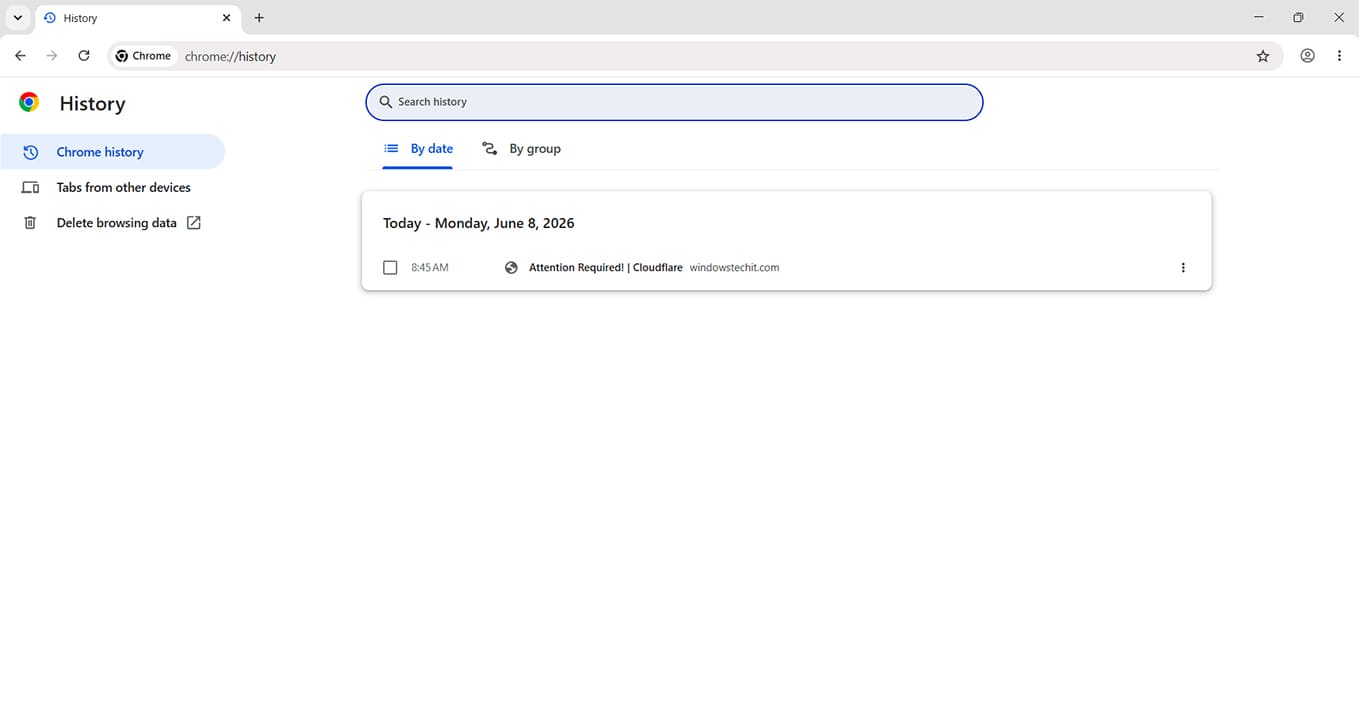
Via the Address Bar
You’re probably used to having previous sites pop up when you’re typing a URL in the address bar. That said, if you know the right command, you can also use the address bar to search for items in your browser history. Once again, each major browser has the same approach. In your address bar, type “@history” and then the site or keyword you want to use.

Google History
If you’re logged into your Google account, then you can also use any browser to view your search engine history. Here’s what to do:
Step 1. Visit Google and click your user account profile in the top-right.
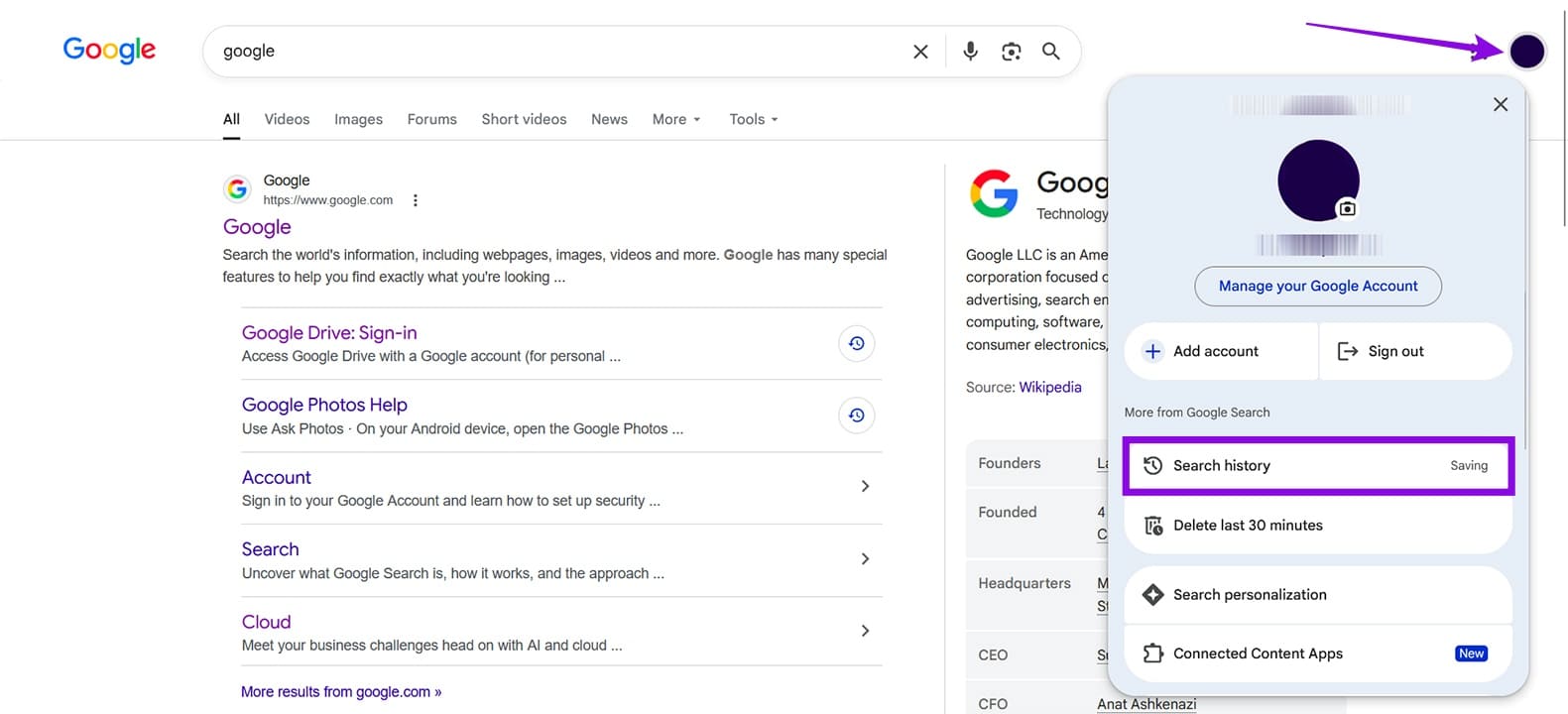
Step 2. Click on “Search history.”
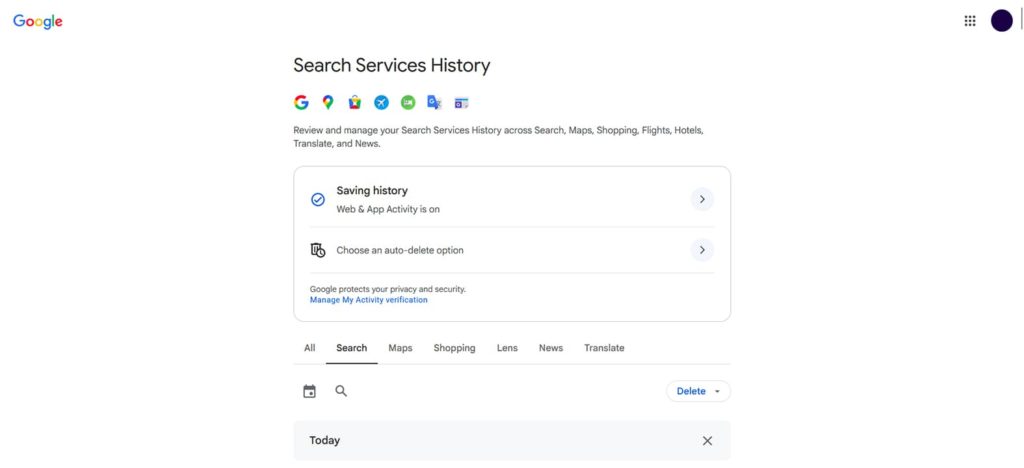
Step 3. You’ll be taken to a new window where you can view your Google history across all connected browsers and signed-in apps.
How to Enable the New Translations Page on Firefox
Read Next