How to Troubleshoot Registry Access Error

The Registry is an immensely useful but a little intimidating place to troubleshoot various errors that might be affecting Windows or installed software. It’s informative, but what happens when you can’t access it? In this article, we’re going to be looking at the registry access error, what causes it, and how to troubleshoot it.
Why Can’t I Access the Registry?
There may be a few reasons you can’t access the Registry, but perhaps the biggest is the lack of Admin privileges. Whether this comes from the type of account you have, your organization’s policy, or the fact that you didn’t run Registry as Admin, you won’t be able to access the utility.
Other reasons include:
- System corruption
- The type of file extension (if you’re seeking to import)
- An improper software installation
- Incomplete or sudden shutdowns of your system
Fixing the Registry Access Error
If you’re having difficulty accessing the Registry or writing to it, then we’ve got some troubleshooters below to help:
Run as Administrator
You need to run the Registry as an Admin to make any changes. Depending on your setup and your privileges, your organization might prohibit you from doing so. If you don’t have an Admin account, then you’ll have to ask the relevant authority to help you out.
If you’re using a normal desktop, you can run the Registry as an Admin quite simply:
Step 1. Open the Run Dialog (Win + R) and type “regedit” into the box.
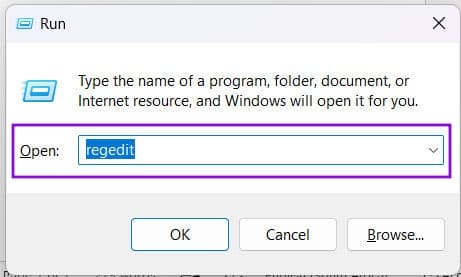
Step 2. Hit (Ctrl + Shift + Enter) to run as Admin.
Step 3. You might have to confirm the User Account Control (UAC) pop-up in the bargain. Click “Yes.”
Step 4. Alternatively, you can also type “Registry” into the search bar and click “Run as administrator” from the menu.
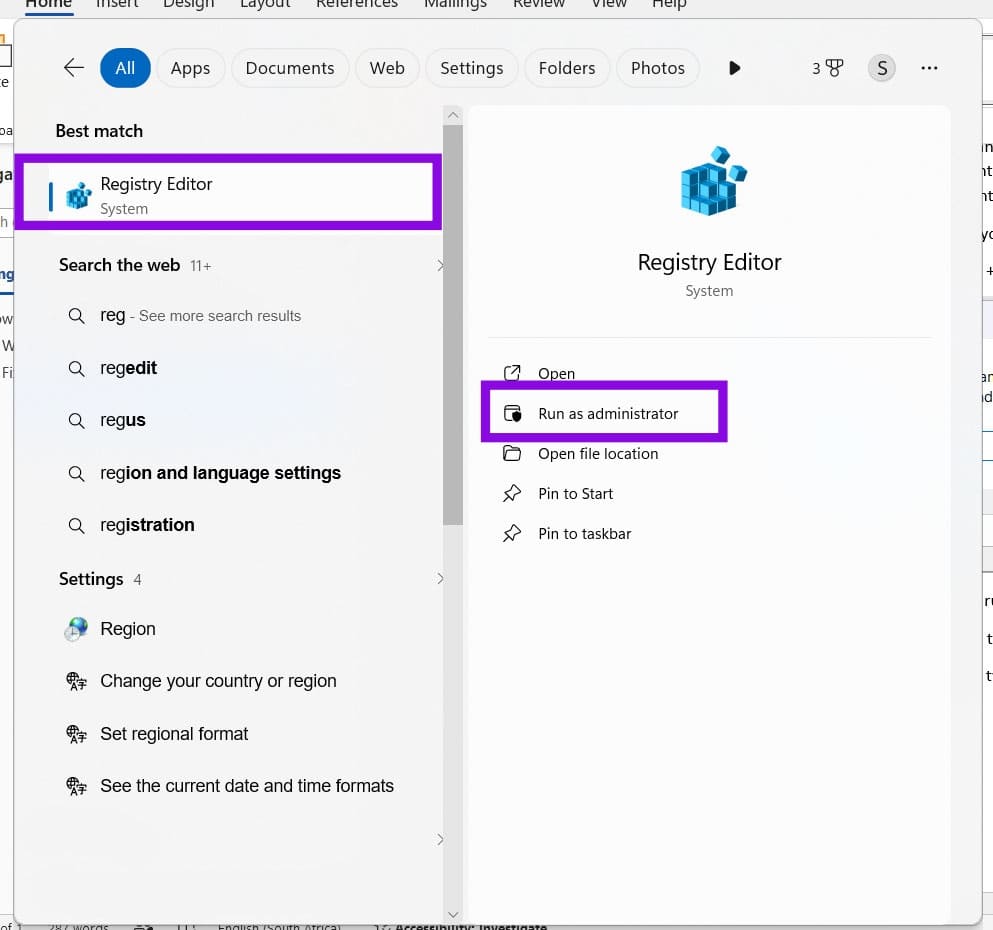
To test that you have Registry access, you can try importing a “.reg” file. To do this:
Step 1. In the Registry, click “File” and select “Import” from the dropdown menu.
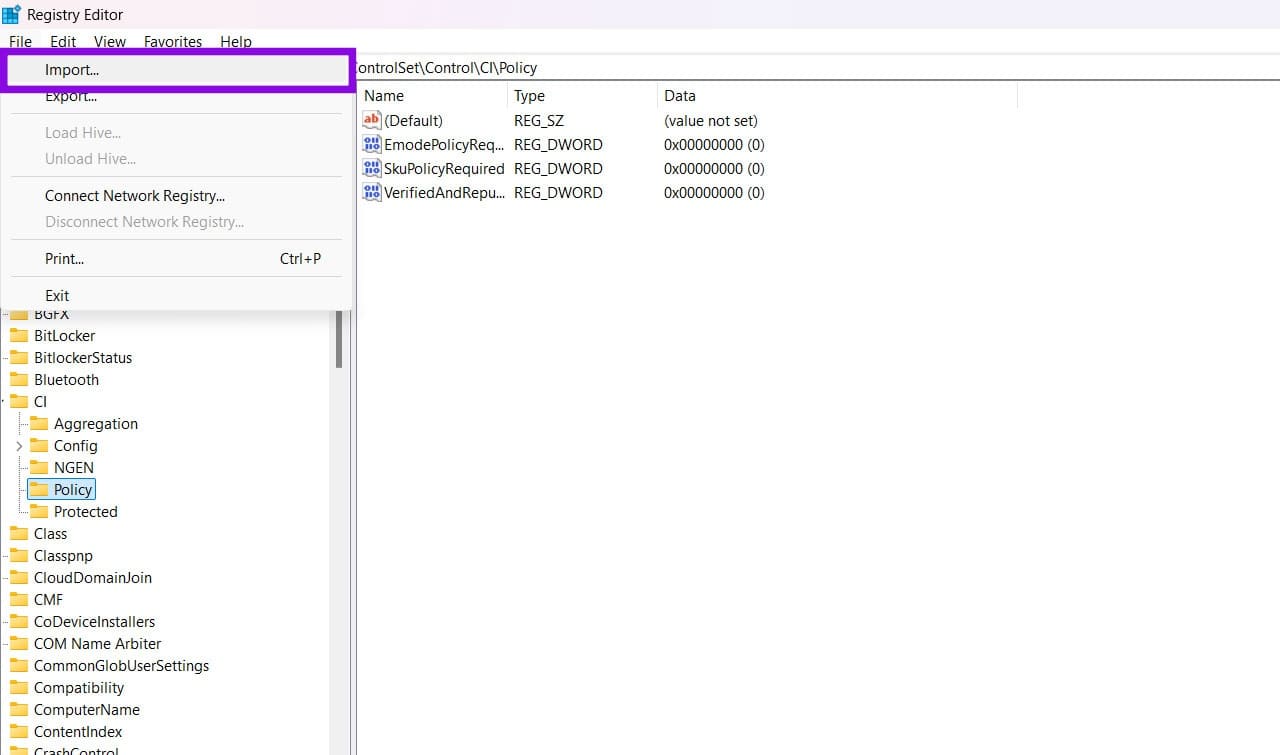
Step 2. Find your “.reg” file in File Explorer and open it. If it imports successfully, you have the proper Admin privileges.
Check Key Permissions
It could be that you have Registry access, but not for certain keys. If this happens, it can be helpful to check permissions and grant ownership. Here’s what you need to do:
Step 1. In the Registry, click the key you wish to edit (usually the parent key) and right-click it.
Step 2. Select “Permissions” from the dropdown list.
Step 3. In the new window that pops up, click “Advanced.”
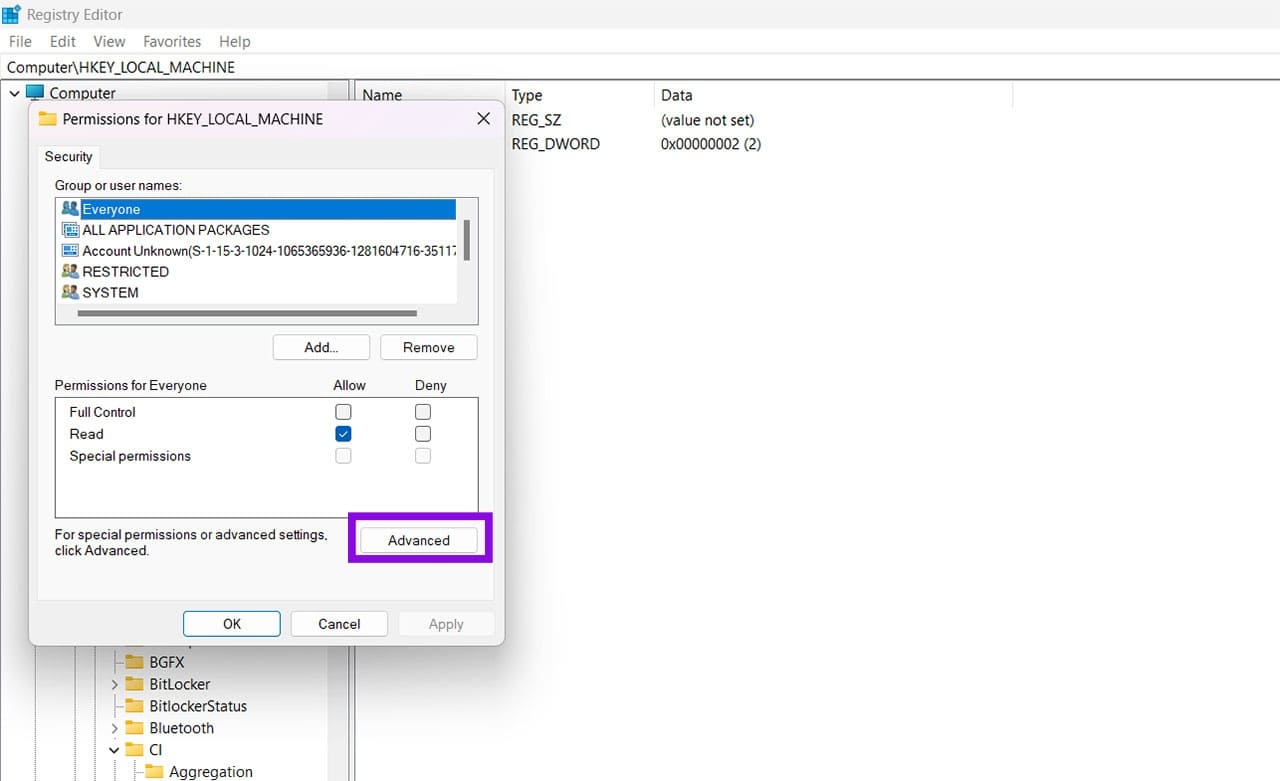
Step 4. Click the blue “Change” near the top of the new window.
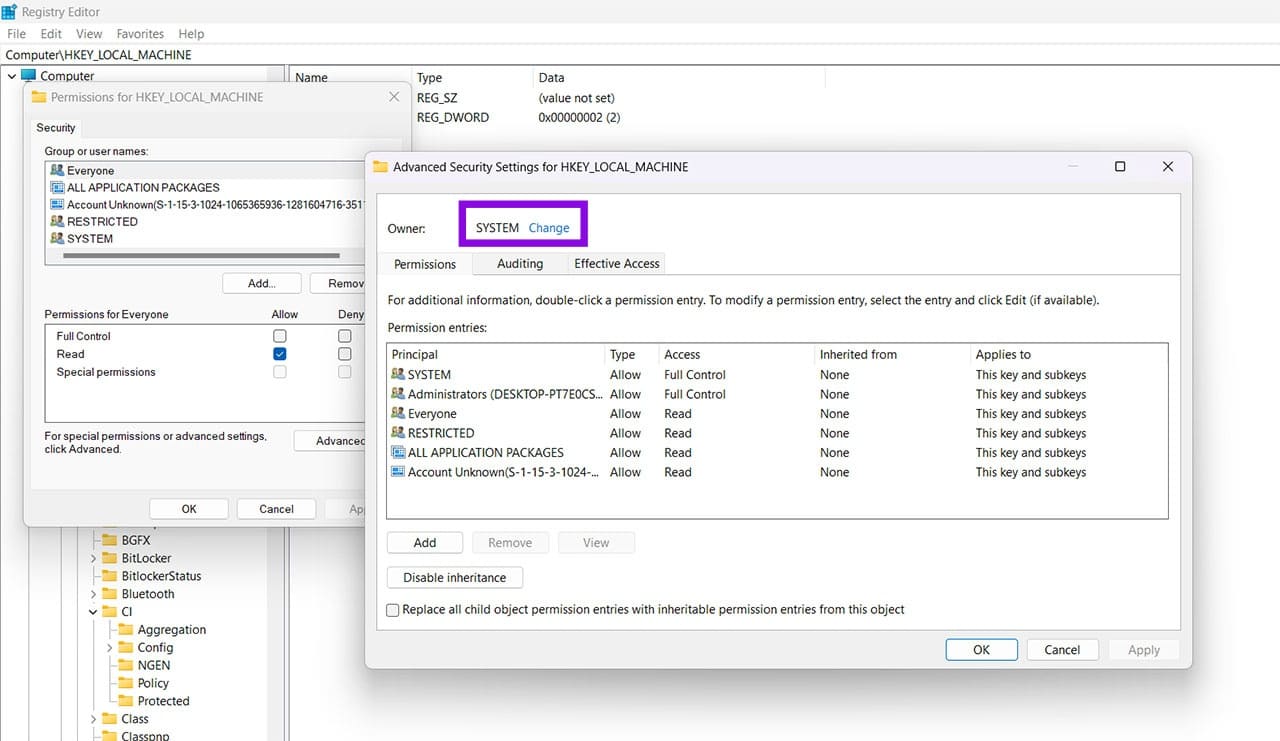
Step 5. Type “Administrators” or your username and click “Check Names” to confirm.
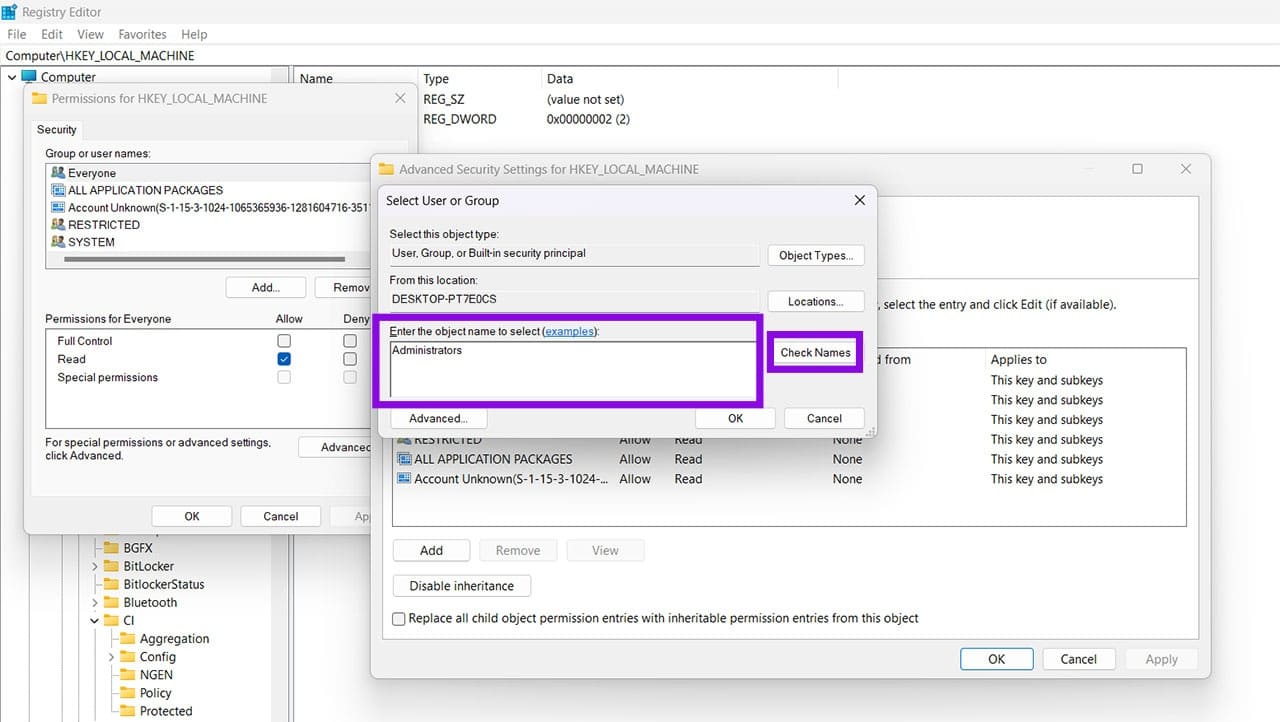
Step 6. Click “OK.”
Step 7. Back in the previous menu, you’ll see a checkbox labeled “Replace owner on subcontainers and objects.”
Step 8. Once done, try editing or reimporting to test if you can make any changes.
Boot in Safe Mode
If third-party tools or extensions are running keys in your Registry, you may not be able to edit or import while they are. A good way around this is to boot into Safe Mode, where all non-essential services are prevented from running.
Run SFC and DISM
If you think system corruption might be behind your Registry woes, then you can’t go wrong with an SFC and DISM check:
Step 1. Open the Run Dialog (Wn + R) and type “cmd” before hitting (Ctrl + Shift + Enter) to run as Admin.
Step 2. In Command Prompt, type “sfc /scannow” and hit “Enter.” Allow the process to run.
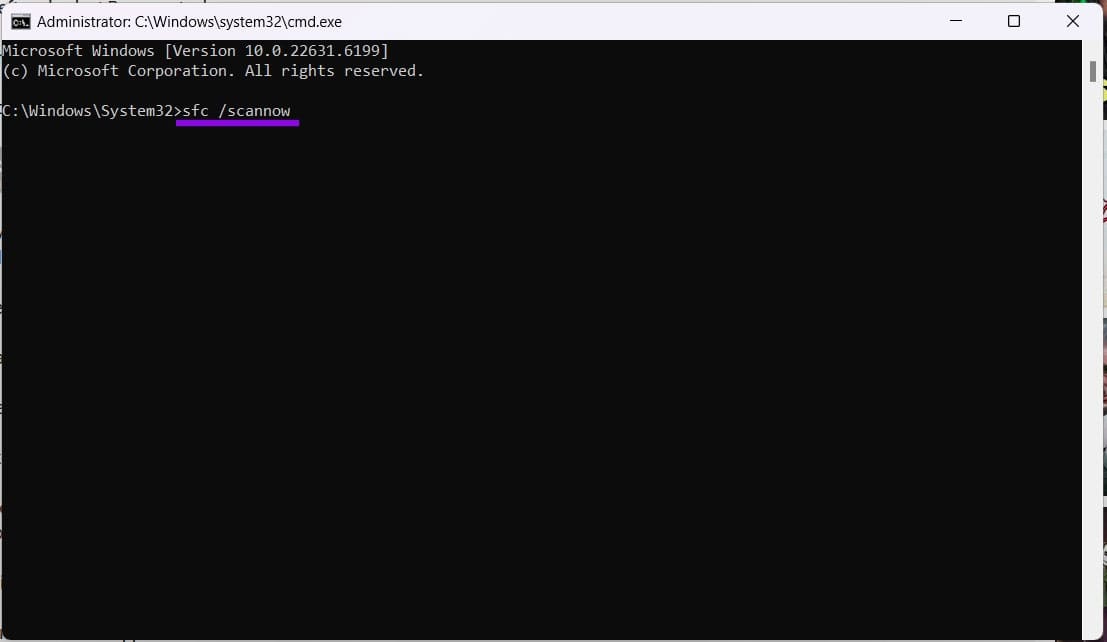
Step 3. Next, type “DISM.exe /Online /Cleanup-image /RestoreHealth” and hit “Enter.” Let things run.
Step 4. Restart your PC once both are finished.
What to Do When There's No Unique Function in Excel
Read Next