How to Create High-Quality AI Images for Commercial Use with Adobe Firefly
Have you tried an AI image generator and ended up disappointed with the result?
While creating an image from a text prompt is amazing, turning your ideas into polished, high-quality visuals still requires the right tools.
Adobe Firefly is extremely versatile and makes the process very intuitive. With natural language prompting, reference images, creative controls, and AI-powered editing features, you stay in control without doing the intensive work yourself.
Furthermore, if you’re using Firefly to generate images for your business or a client, it offers greater peace of mind because it generates commercially safe images.
In this guide, you’ll learn how to create high-quality images with Adobe Firefly, refine them with its built-in features, and ensure they’re ready for use in commercial projects.
If this sounds like something you’re interested in, keep on reading.
How to Generate High-Quality Images with Adobe Firefly?
Adobe Firefly is browser-based, so you can use it on any computer. You can also use it on your phone using the Firefly App. I’ll be showing you the process on my computer – it’s the same for phones, though.
First, go to the Adobe Firefly home page. Immediately, you’ll see a ‘Create anything’ section that’s set to ‘Image’ by default. So, you can start generating images right away.
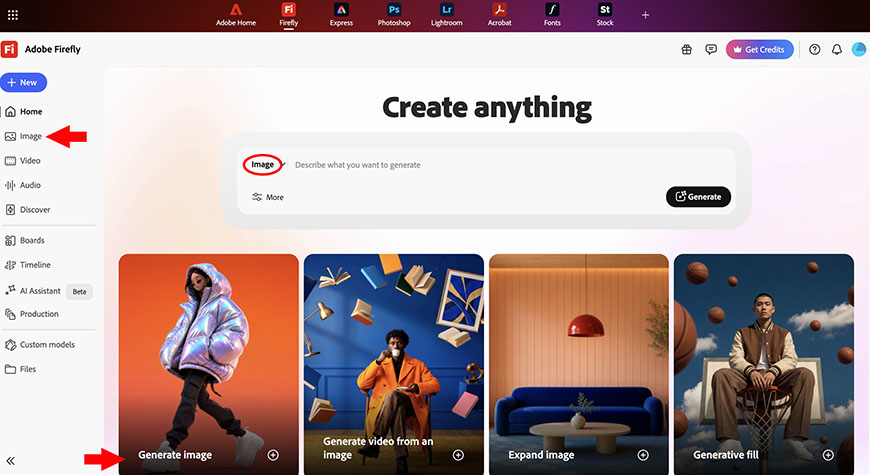
Alternatively, you can click on the ‘Generate Image’ quick action, or click on Image > Generate Image using the lateral menu.
Whichever path you choose, here are the steps to generate high-quality images.
Step 1. Start with a strong prompt
Firefly is a text-to-image generator. So, to make an image, you need to write a prompt. This doesn’t mean you have to learn any special language, because Firefly is designed to understand natural language.
Imagine you are describing the image you have in mind to a friend. Well, that’s exactly how you can write your prompt. Of course, the fact that it’s natural doesn’t mean it has to be too basic.

While you can generate an image by typing a single word, you’ll get more precise results if you give more details. The more relevant context you provide, the closer the image will be to the one you have in mind.
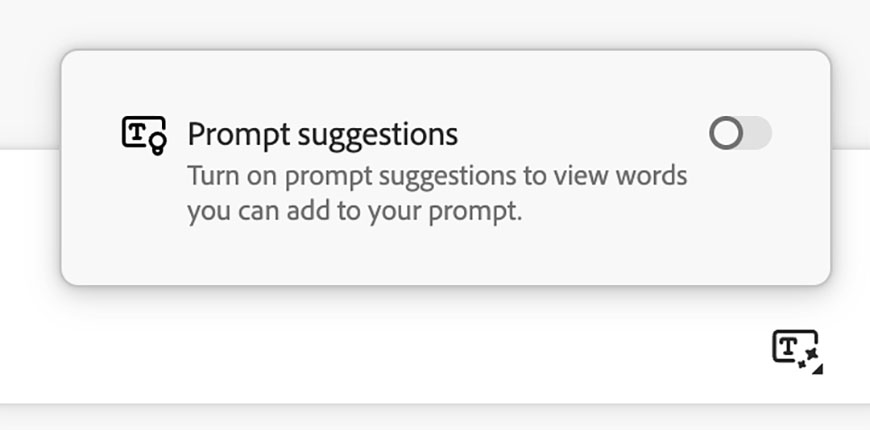
If you’re not sure about what to write, Firefly has a Prompt feature that suggests words you can add to your prompt. You can turn this on and off whenever you want.
You can also browse the Gallery for inspiration. Whenever you see an image you like, click on it, and Firefly will open it on the generator showing the prompt used for it. This is a great way to learn how to improve your prompt writing.
Step 2. Choose the AI model
Once you have your prompt, it’s important to choose the AI model you want to use. This is the first option in the General Settings section.
This important because each model has different capabilities and strengths. However, they also have different terms and conditions, and they cost a different amount of credits.
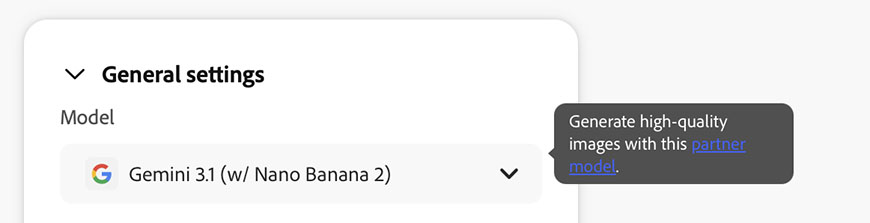
You can generate high-quality images with all models, but the highest resolution is currently offered by Gemini 3.1 (Nano Banana).
Using this model, you can generate up to 4K images. But beware that this is a partner model, therefore, your images aren’t necessarily commercially safe. I’ll discuss more about that in the next section. For now, suffice to say that if this is a priority for you, you should stick to Firefly models.
Step 3. Customize the general settings
Once you choose the model, your options to customize the settings will change. In some of them, you can add style, lighting, composition and mood, choosing from a gallery or uploading examples.
Other models have fewer options and may only allow you to choose the aspect ratio. When options like style or lighting aren’t available in the general settings, you can simply describe them in the prompt.
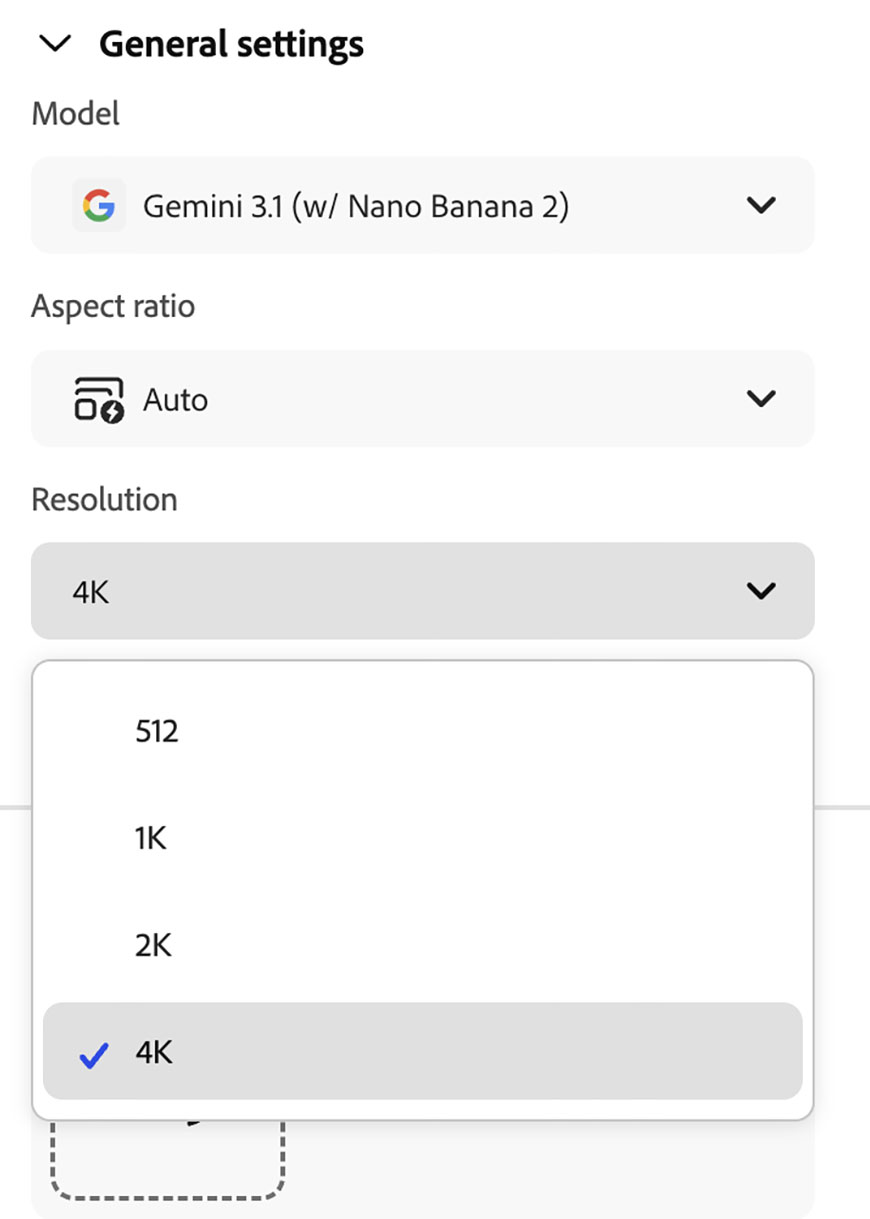
To generate high-quality images, you should always select the highest resolution available. For Gemini 3.1, the maximum resolution is 4K, while for Firefly you can choose up to 2K.
Step 4. Add a reference image (optional)
To complement the text prompt, you can upload one or more reference images. This gives Firefly additional visual context to generate your image.
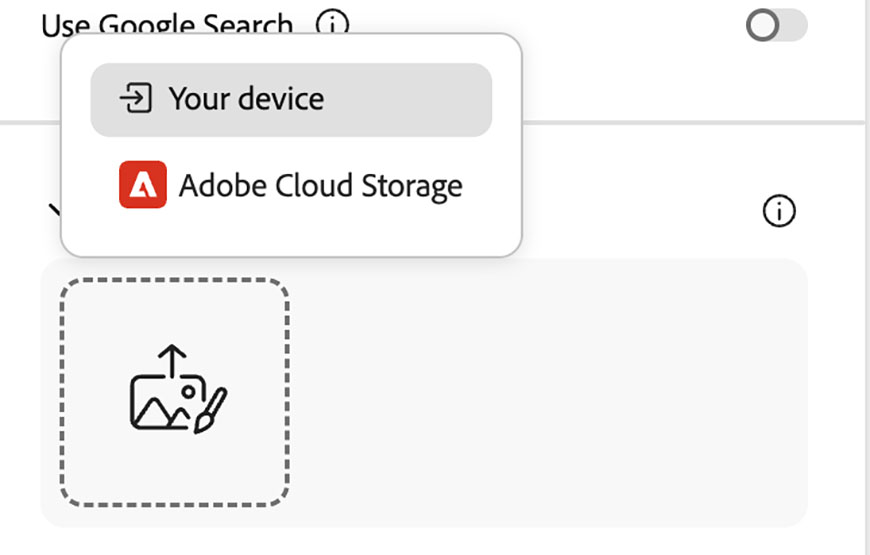
This is especially useful when you want to maintain a consistent look across multiple images or recreate a particular look.
Again, your options will change depending on the model. Gemini 3.1 supports up to six reference images uncategorized. Others, like Firefly 4 Ultra, allow you to upload one for the composition and one for the style.
Step 5. Review the variations to find the best result (when applicable)
Some AI models generate different versions for you to choose from – they are all different interpretations of your prompt.
Sometimes the differences between them are more subtle, and sometimes more obvious. So, take the time to review them all; the details can make a big difference.
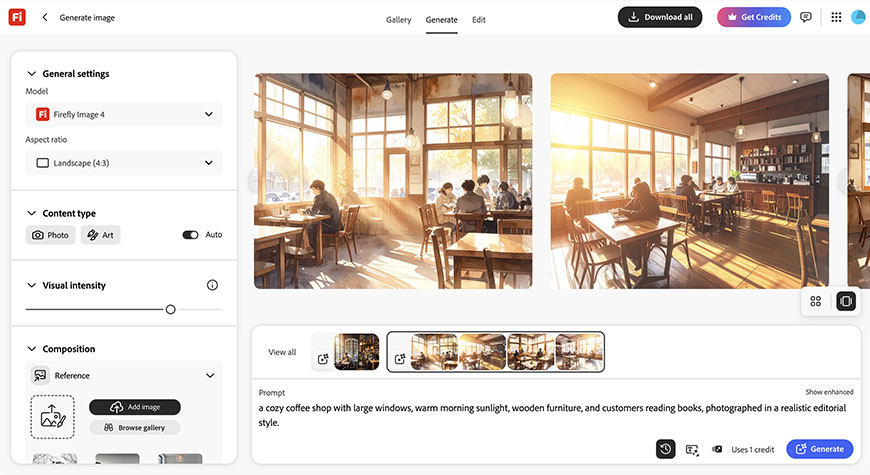
Perhaps the shadows are different, object placement, or colors – you can tag your favorite one with a star or directly download it.
It’s important to mention that AI-generated images sometimes contain inconsistencies. So, pay attention to anatomy, any text present, or reflections.
Step 6. Edit your images (optional)
If you love the image but there are small things you would like to change, Adobe Firefly allows you to edit your images.
This will ensure that you get the perfect image faster than regenerating over and over, hoping it changes what you want without losing what you liked.
So, hover over your favorite variation and click on the pencil icon in the top-left corner – this will open the Edit options.
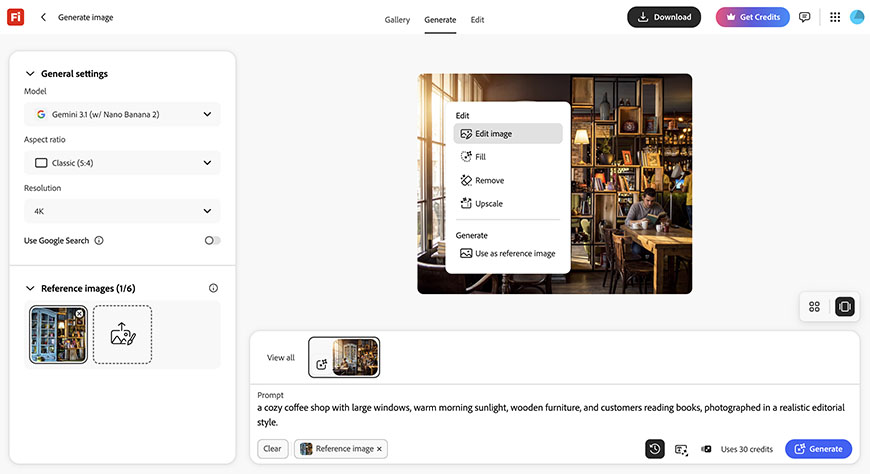
If you click on Edit Image, your image will open in the edit interface. Here, you can use a prompt to describe what you want to change.
You can also find the expand, remove, and upscale tools together with multiple other options to fine-tune your image.
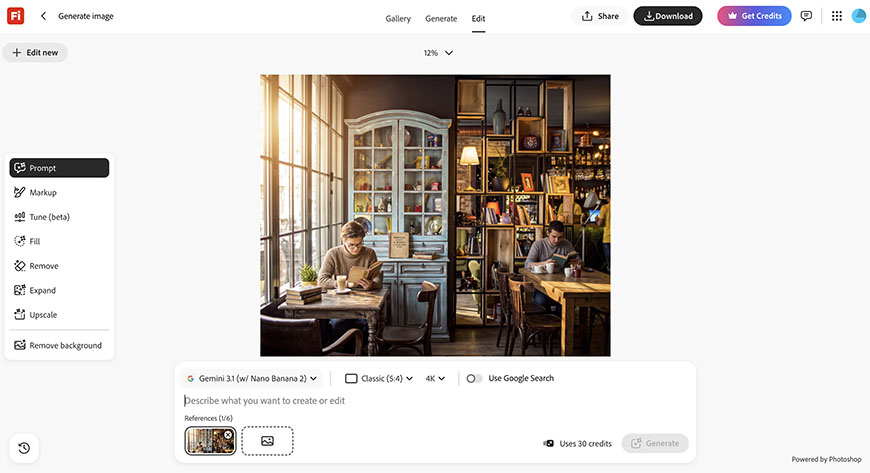
Thanks to Firefly’s seamless integration within the Adobe ecosystem, you can also open the image in Photoshop web to have more editing options, including layer editing.
Alternatively, you can generate new images but use this one as a reference or simply generate similar variations.
How to Generate Commercially Safe AI Images with Adobe Firefly
To generate commercially safe AI images, follow the same steps as before with one important difference. When you’re choosing the AI model you want to use, select an Adobe Firefly model.
This is very important because Adobe guarantees a commercially safe image; third-party models may have different licensing and usage terms.
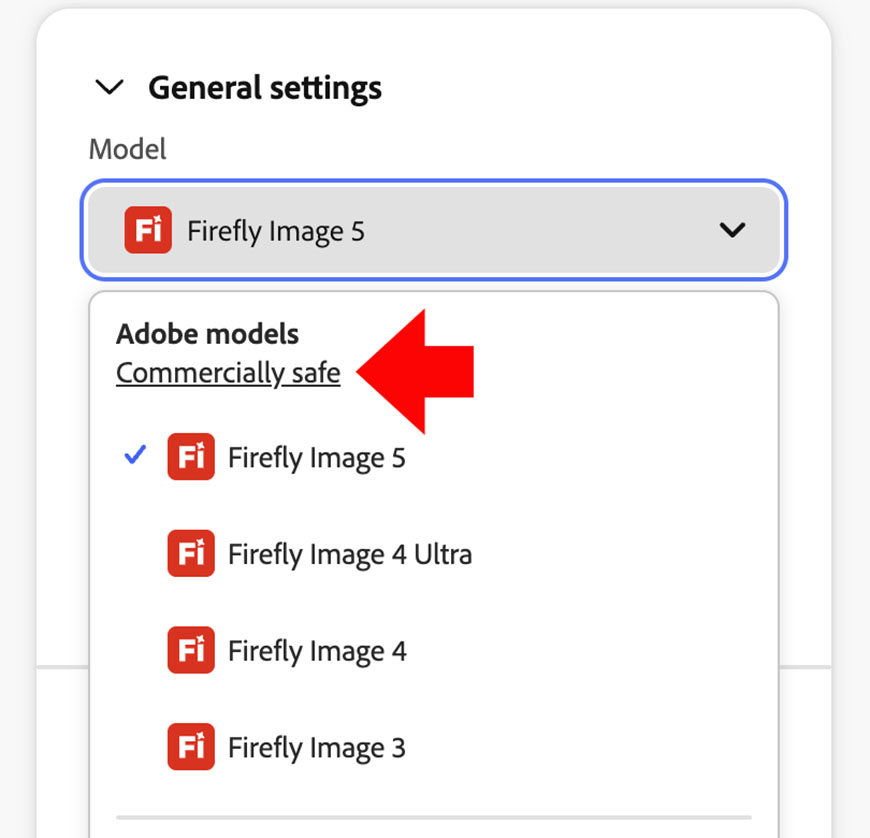
In fact, notice that when you open the AI model menu, it’s separated into two sections. The first section has all the Firefly models available, with a commercially safe sign on top that you can click on to learn more about Adobe’s approach to generative AI directly from their official page.
The second part of the menu has AI models created by others. These are all Adobe’s partners, each with their own terms and conditions. This is why using them doesn’t guarantee a commercially safe result.
How to generate high-quality, commercially safe AI images?
You’ll notice that Adobe Firefly models offer less resolution than some partner models. This may change in the future, but to this day, you can generate up to 2k images using Firefly.
This is more than enough resolution for most digital applications and many print projects. However, if you require a larger file, you can use Firefly’s Image Upscale feature.
To do so, hover over your generated image and click on Edit options. Then, select Upscale. Here, you’ll be able to choose whether to upscale by 2x or 4x.
What makes Adobe Firefly AI-generated images commercially safe?
Adobe’s own AI models were designed for commercial use. Rather than being trained with images scraped from the internet, Firefly is trained with licensed Adobe Stock content, openly licensed material, and public domain content.
Adobe also states that none of the user content uploaded to any of the Creative Cloud apps or reference images uploaded to Firefly is used to train their models.
Furthermore, Adobe supports Content Credentials, which provide transparency about how AI-generated content is created. Together, these practices help make Firefly a trusted source for creators and businesses.
To learn more about Adobe’s approach to generative AI, you can go to their official website.
Why does it matter?
Using a commercially safe AI generator isn’t just about checking a legal box; it has practical benefits.
First, your content stays private. You can upload children’s portraits, unreleased product photos, and other sensitive content to work with knowing that it won’t be used elsewhere.
Second, it helps reduce legal risks. Since Adobe Firefly is trained with licensed, openly licensed, and public domain content, you can use the generated images with greater confidence and reduce the risk of copyright-related issues.
Finally, it supports a more ethical use of AI. By relying on properly licensed data and promoting transparency with the use of Content Credentials, Adobe encourages responsible AI development while respecting the rights of creators whose work helped train its models.
How to Fix Wi-Fi Disconnecting When PC Is Locked
Read Next