Can’t Forward Emails in Outlook? 4 Fixes to Try
Being able to forward messages is a critical function of any email platform, including Microsoft Outlook. Unfortunately, some users may experience situations in which they can’t forward emails in Outlook. There can be various causes for this, but there are also several proven solutions that should help you resolve the issue quickly and conveniently.
Why Can’t I Forward Emails in Outlook?
There are a couple of common reasons why you may be unable to forward emails in Outlook. If you’re not able to forward a specific message, for example, it might be that the sender used Outlook’s “Do Not Forward” feature or encryption to prevent recipients from forwarding, copying, printing, or otherwise redistributing the message.
You might also find that you’re unable to automatically forward emails from one of your accounts to another, which might be due to an issue with your account settings or admin controls if you’re using a private school or work network.
Either way, there are several fixes for these issues.
4 Fixes if You Can’t Forward Emails in Outlook
If you’re unable to forward messages in Outlook, the following solutions may be able to assist you:
Enable Forwarding
This solution applies if you’re unable to set up automatic forwarding to another account.
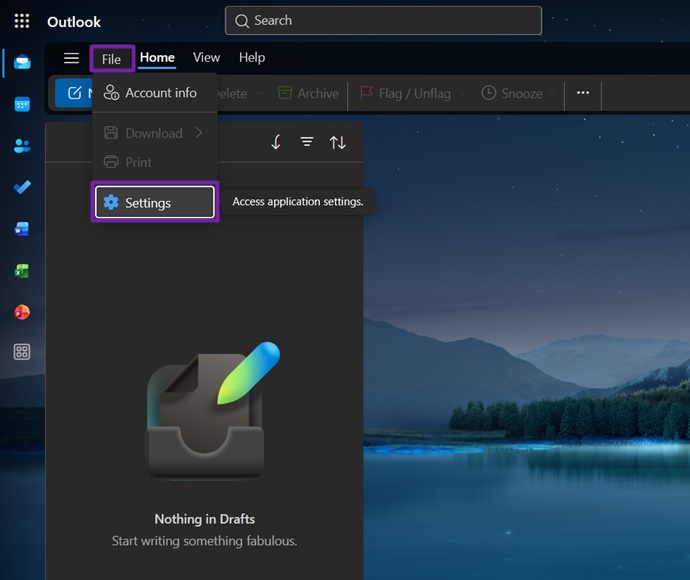
Step 1. Open Outlook and click on the “File” button. Then select “Settings.”
Step 2. Click on “Email,” then “Forwarding and IMAP.”
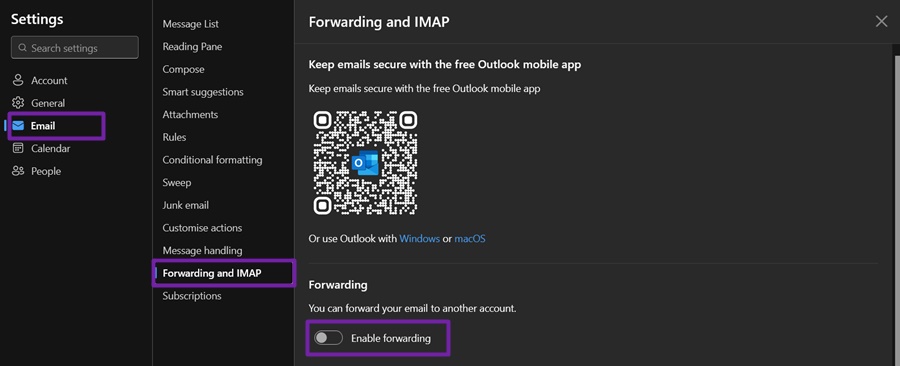
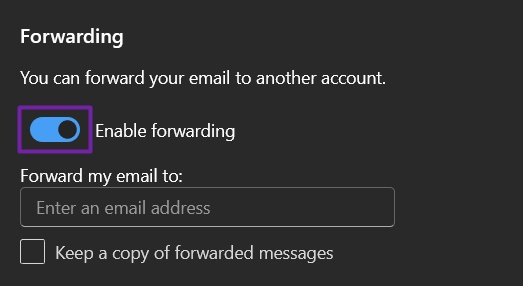
Step 3. Toggle the “Enable forwarding” switch to the “On” position and enter the email address you wish to forward to in the box provided. Click “Save” to confirm your changes.
Use the Reply Button
This method may work if you find that the “Forward” button doesn’t appear or won’t work when trying to forward a specific email from your inbox.
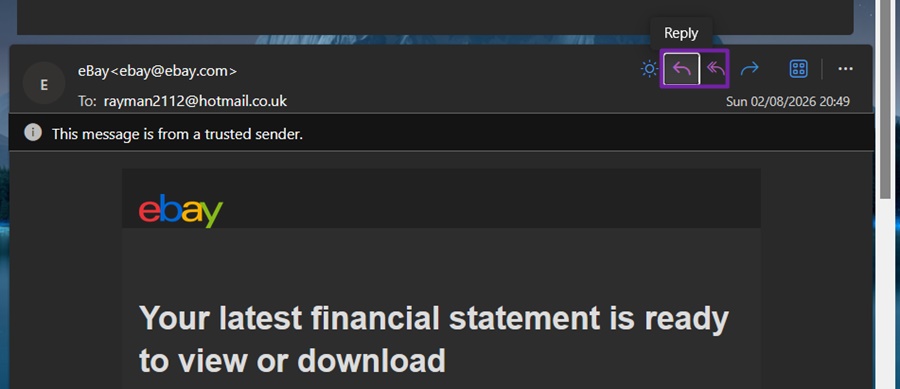
Step 1. Open the message and click “Reply” or “Reply All.”
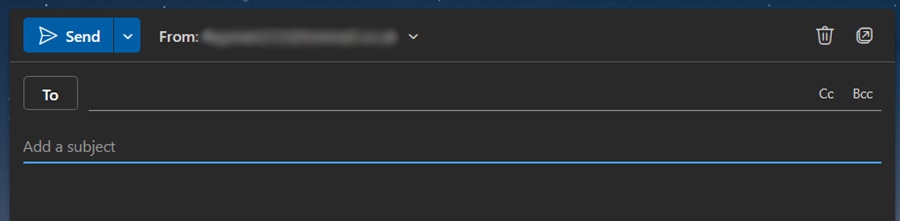
Step 2. Click in the “To” box at the top of the email. Delete the original sender’s email address and enter the address you wish to forward the message to. Click “Send” to send the message.
Restart or Switch to a Different Version of Outlook
Sometimes, Outlook may encounter bugs when using one version of the app (like the web app or the “Classic” version), but might work fine if you reload or switch to a different version. If you’re using the web app, for example, try refreshing the page to see if the forward feature starts working again, or open one of the desktop versions of Outlook instead, or even the mobile app.
Contact Your Admin
If you’re trying to use Outlook on a work or school network, or any other private network, the administrator may have restricted your ability to forward. It’s quite common, for example, for businesses to disable automatic email forwarding to keep company data confidential. You can speak with your organization’s IT team or email administrator to learn more or make a request for forwarding to be enabled on your account.
Why Does a Random White Box Pop Up on Desktop? (And How to Fix It)
Read Next