What Is the Windows Advertising ID and How to Disable It

Windows includes advertising and recommendation features that Microsoft uses to promote apps, services, and other content. Some of these features rely on advertising-related settings and data collected through Windows and Microsoft services. In Windows, this can result in recommendations for apps, services, and other content in places such as the Start menu, Settings, widgets, and Microsoft Edge.
The Advertising ID is one of several mechanisms Windows can use to support personalized advertising; it is not simply a record of your activity stored under your name. Here’s what you need to know to disable the Advertising ID Windows 11 has.
What Is the Advertising ID?
In short, the advertising ID is a unique number or sequence of characters that Windows uses to refer to your account when using anything on a specific machine. That means that each combination of profiles and devices receives a unique alphanumeric sequence that allows Microsoft to track your activity for each device.
Then, that advertising ID can be referred to when Microsoft needs to export log and activity data for advertisers, developers, or even for troubleshooting their own systems.
Does Disabling Advertising ID Prevent Ads?
Unfortunately, no. Disabling the Advertising ID does not reduce the number of ads you see; it may simply make them less relevant to your interests. Other advertising and personalization mechanisms, including those used by websites and third-party apps, can continue to operate independently of this setting.
This can be further mitigated by removing app recommendations from the Start screen or in widgets, but you might still be offered apps in the Microsoft Store.
How to Disable Advertising ID (Windows 11)
Luckily, there’s a single setting that toggles off the advertising ID for good, and there doesn’t seem to be an instance where a Windows Update toggled it back automatically.
Step 1. Go to “Settings.”
Step 2. Open the “Privacy & security” tab on the left.
Step 3. Select “Recommendations & offers.”
Step 4. Toggle the option “Advertising ID” to “Off.”
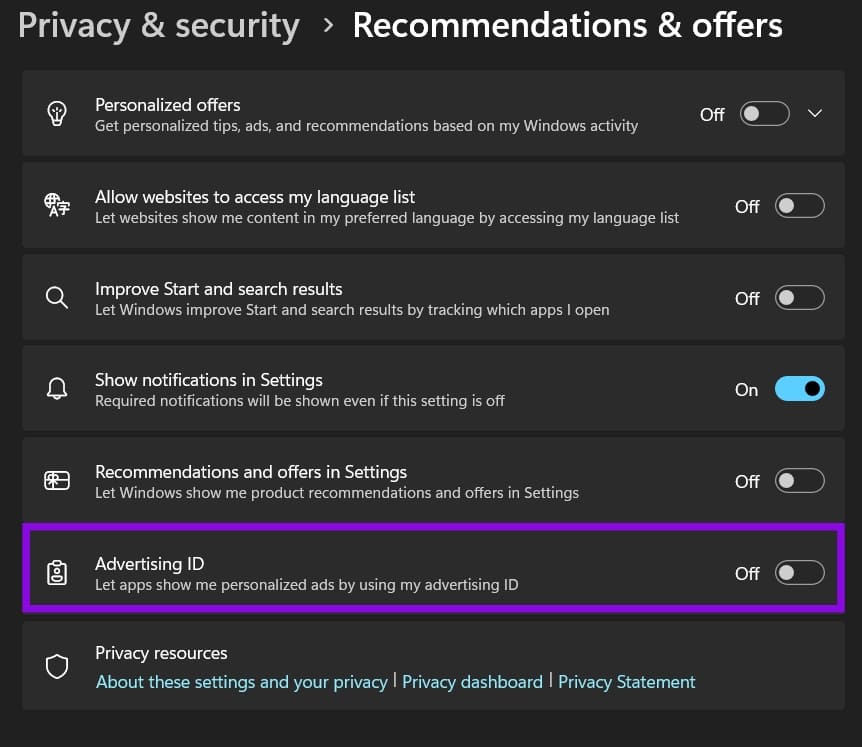
While you’re there, you can also adjust other recommendation and personalization settings to reduce suggestions for apps, services, and Windows features. You can also adjust Start menu and search personalization settings separately if you want to change how Windows presents app and search suggestions.
Make Windows Disable Advertising ID for All Users (via Registry)
If you want to enforce the Advertising ID setting at the device level rather than change it through an individual user’s Settings page, you can use the Windows policy registry location. Editing the registry incorrectly can cause system problems, so back up the registry or create a restore point before proceeding.
Step 1. Search for Registry Editor and open it with administrator privileges.
Step 2. Navigate to the following key:
HKEY_LOCAL_MACHINE\SOFTWARE\Policies\Microsoft\Windows\AdvertisingInfo
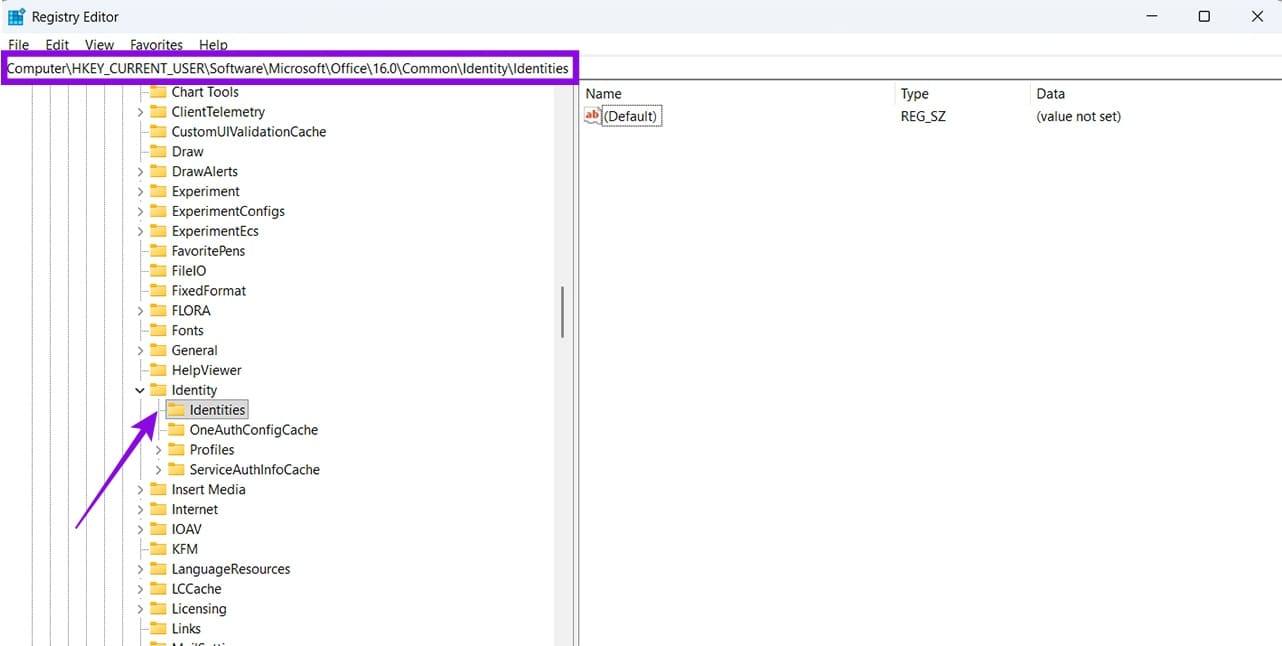
Step 3. If the AdvertisingInfo key doesn’t exist, create it under:
HKEY_LOCAL_MACHINE\SOFTWARE\Policies\Microsoft\Windows.
Step 4. Select the AdvertisingInfo key. In the right pane, right-click and select New > DWORD (32-bit) Value.
Step 5. Name the value DisabledByGroupPolicy.
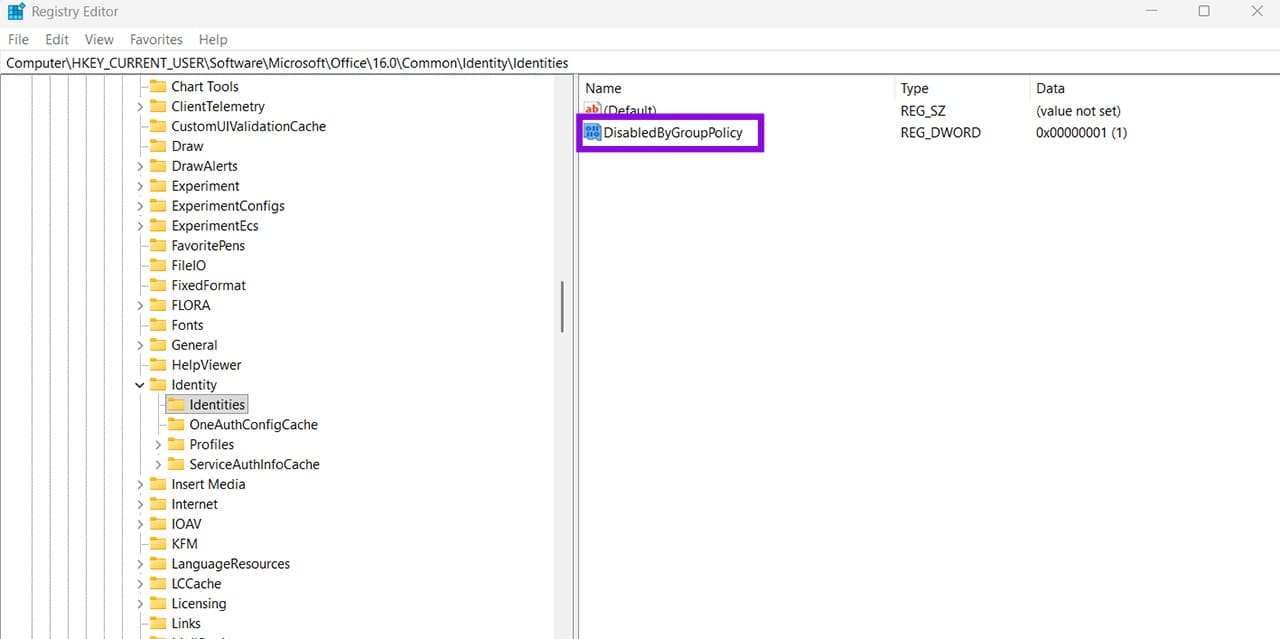
Step 6. Double-click the value and set its data to 1.
Step 7. Close Registry Editor and restart Windows if necessary.
This should disable the “Advertising ID” switch altogether throughout all profiles on the PC.
To undo the registry change, delete the DisabledByGroupPolicy value you created, or set the policy back to its unconfigured state through the appropriate policy-management tool.
Why Frictionless IT Onboarding Is the New Retention Standard for Remote Teams
Read Next