How to Fix Frozen Widgets on the Windows Taskbar

If your Windows Taskbar widgets are frozen, the most likely issue is a temporary internet outage or lack of Wi-Fi connection, since they mostly depend on it. But if the widgets are sluggish or don’t respond even when the internet is working, it’s more likely a service problem. Here’s how to fix frozen widgets on the Windows taskbar.
Fix 1 – Windows Taskbar Frozen Widgets Due to the Widgets Service Stopping
Windows uses the Widgets app and related components to display widgets and retrieve online content. If one of these components stops responding, widgets might not update and the Widgets board itself might not even open.
Step 1. Hit “Win + R” to go into the Run utility. Then, type in “services.msc” and hit “Enter.”
Step 2. If you find a relevant Widgets entry, right-click on it and select “Restart.” If there is no such entry, continue with the Task Manager method below.
This should reload all widgets. If you don’t see the entry in Services, you might find it in Task Manager.
Step 3. Open “Task Manager.”
Step 4. Go to the “Processes” tab, then scroll through the list until you find “Windows Widgets” or a related Widgets process, if present.
Step 5. Right-click on it and select “End task.”
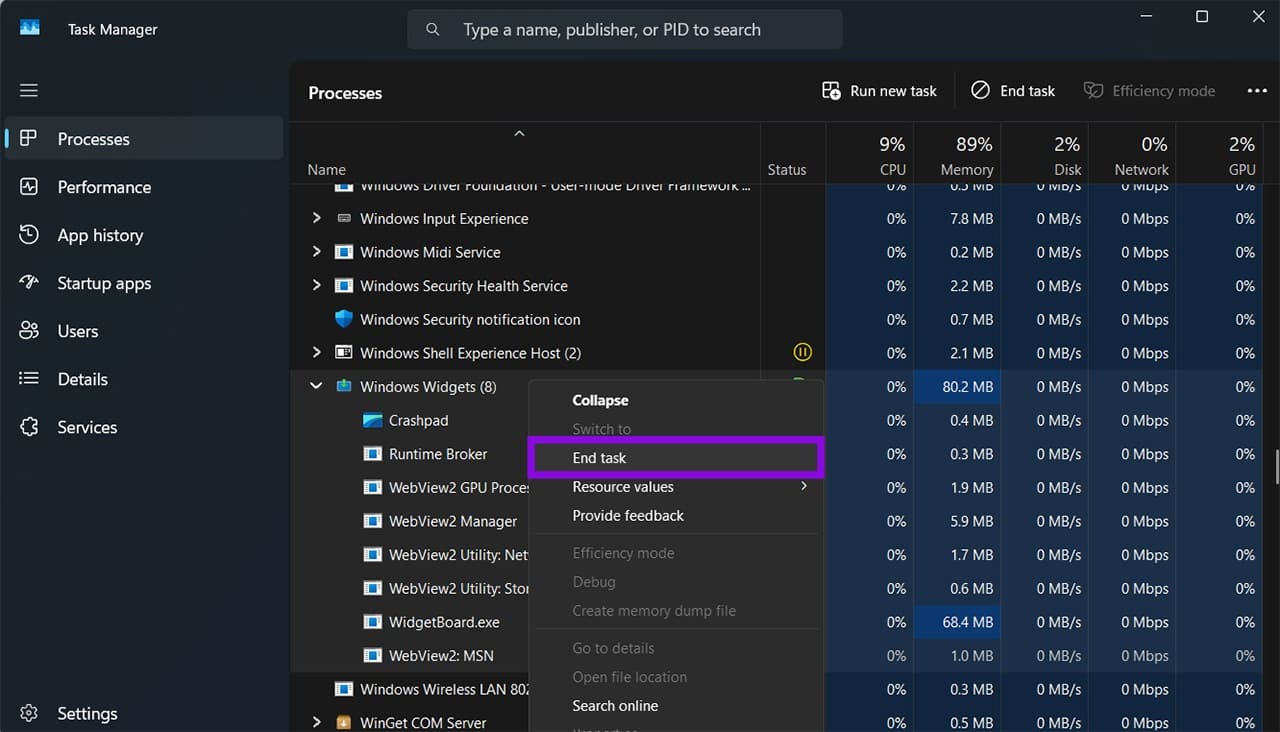
Step 6. Close Task Manager and hit “Win + W” to reopen Widgets and force them to reload.
Fix 2 – How to Fix Frozen Widgets on the Windows Taskbar by Clearing Widgets Cache
In most cases, Widgets try to preload some of their data, like location and past messages, by using their own cache. If you delete this folder, it will force Widgets to reload, which can prevent them from lagging.
Step 1. Go to the Run utility and enter the following address in the text box, then hit “Enter.”
%localappdata%\Packages\MicrosoftWindows.Client.WebExperience_cw5n1h2txyewy\LocalCache
Step 2. Delete everything located in the folder.
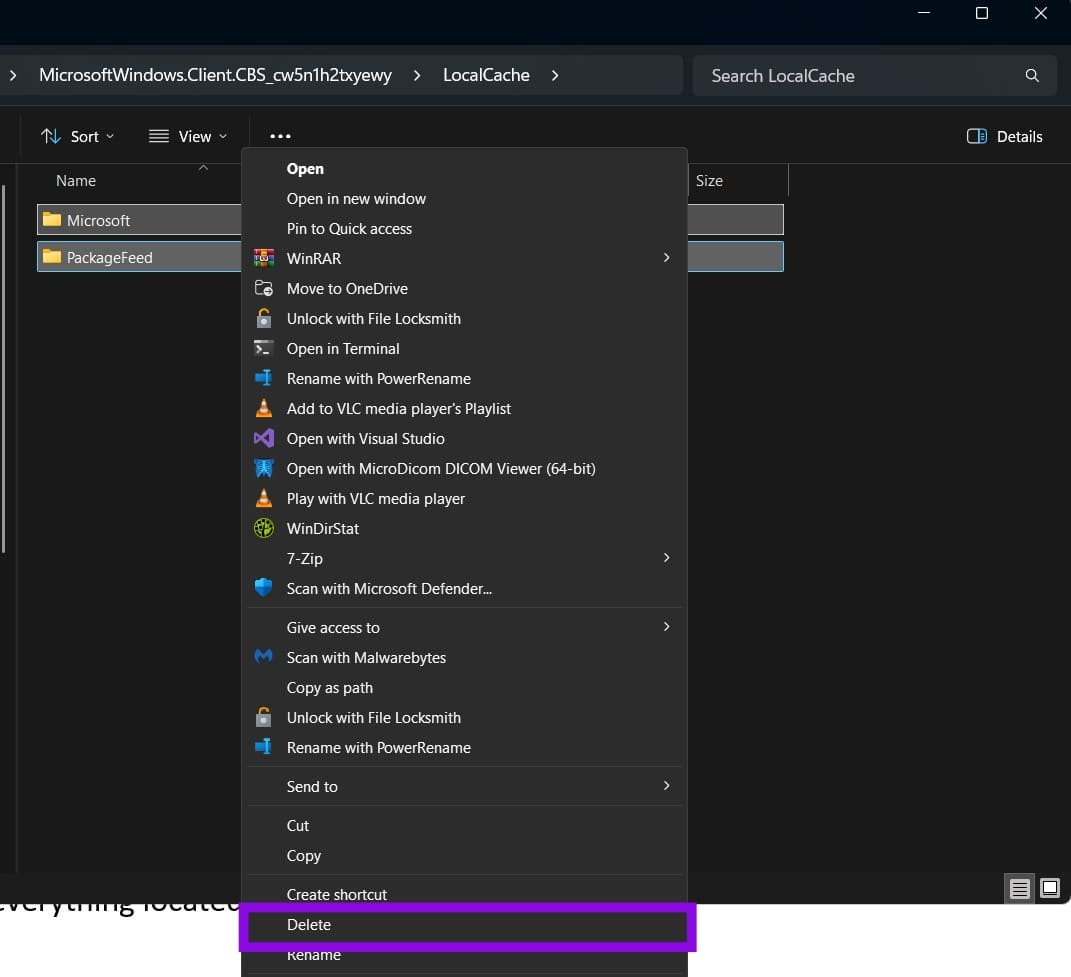
Step 3. Go to the Run utility again, enter “wsreset.exe,” and run it. This resets the Microsoft Store utility, which should cause widgets to update to their correct versions.
Step 4. Restart your PC and open widgets.
Fix 3 – Re-Register Widgets Using PowerShell
This option removes and attempts to re-register the Windows Web Experience Pack, which supports Widgets and other web-powered Windows features.
Step 1. Right-click on the Windows (Start) icon and select “Terminal (Admin).” Accept the User Account Control prompt.
Step 2. Run the following command:
Get-AppxPackage *WebExperience* | Remove-AppxPackage
Step 3. Wait for it to complete, then run the following command:
Get-AppxPackage -AllUsers *WebExperience* | ForEach {Add-AppxPackage -DisableDevelopmentMode -Register “$($_.InstallLocation)\AppXManifest.xml”}
Step 4. Close PowerShell and restart your PC, then try using widgets again.
Fix 4 – Disable Antivirus
In some cases, third-party antivirus software or firewall settings might interfere with Widgets’ access to the internet.
This will depend on the exact software you have installed, and such issues may be resolved through updates. Check your antivirus software’s settings for any blocked connections or reported issues affecting Widgets. Avoid leaving real-time protection disabled; if you suspect your antivirus is responsible, update it and follow the vendor’s troubleshooting instructions to install it.
Additionally, make sure to check the support page of your antivirus for any reported issues that might be impacting Windows services.