Feeling Nostalgic? Here’s How to Find Old Windows Icons on Your PC

While Windows has gone through plenty of iterations over the years, backward compatibility with older systems means that some settings, icons, and data never actually left the system. If you’re hankering for the icons present in Windows 95 (or even older versions), here’s how to find the old Windows icons Windows 11 may be hiding.
Old Windows Icons Location
Technically speaking, the location of all icons that Windows uses for files and folders has remained largely the same. The main difference is that newer versions of Windows simply don’t refer to the file that contains the icons. However, legacy programs will still be able to find it if they need to (and not break in the process).
For many old Windows icons, location searches should begin with C:\Windows\System32. Inside that folder, you’ll find files such as DLL libraries that contain icon resources. You can’t browse their icons directly in File Explorer, but Windows can display them when you select one of these files in the Change Icon dialog.
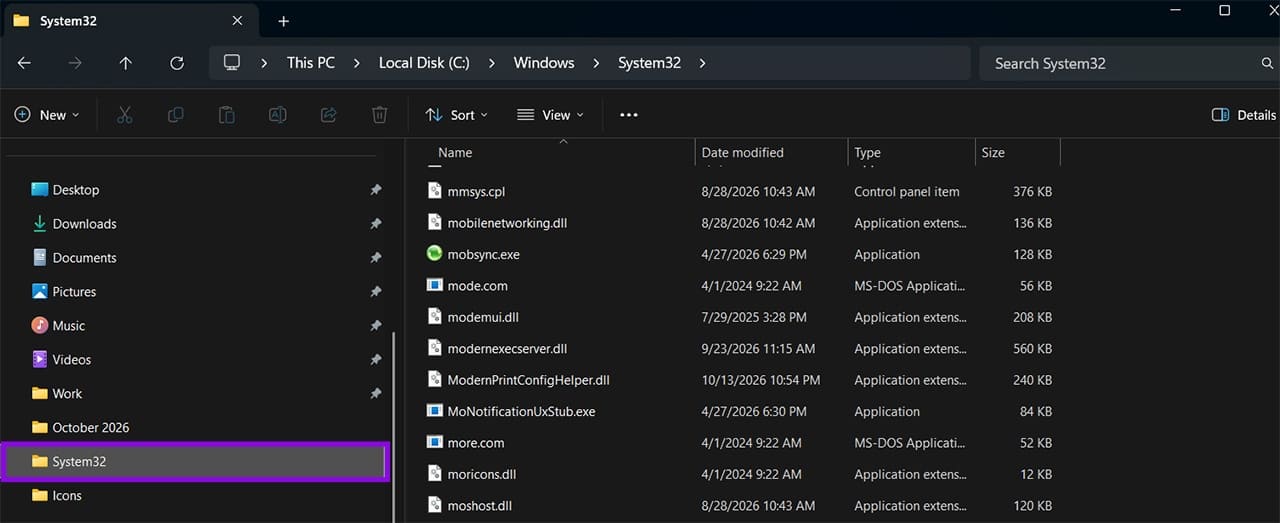
The locations of icons for old Windows 3.x and Windows 9.x versions are in two files:
- pifmgr.dll
- moricons.dll
Beyond these, there are several other libraries all in the System32 folder, including:
- shell32.dll – Contains modern icons but also some floppy-disk-era ones
- imageres.dll – Has icons that are used by File Explorer
- ieframe.dll – Old icons for the now gone Internet Explorer, kept for legacy reasons
- mmres.dll – Icons for speakers, microphones, and other sound-related utilities
- powercpl.dll – Packs for battery and power plan icons
- pnidui.dll – Wi-Fi and network status icons
- networkexplorer.dll – Has network location and device icons
- netshell.dll – broader networking and connection icons
- wpdshext.dll – Icons for portable devices such as phones, cameras, or USB drives.
- accessibilitycpl.dll – Used in accessibility features like Magnifier and Narrator
- wmploc.dll – Windows Media Player icons
How to Use Old Windows Icons in Windows 11
Since these files still exist in Windows, you can force the operating system to use them for a particular file or folder. And considering they are unlikely to be removed any time soon for legacy compatibility, placing them shouldn’t break anything.
Step 1. Right-click the folder or shortcut whose icon you want to change, then select “Properties.’
Step 2. Go to the “Customize” tab and select “Change Icon.”
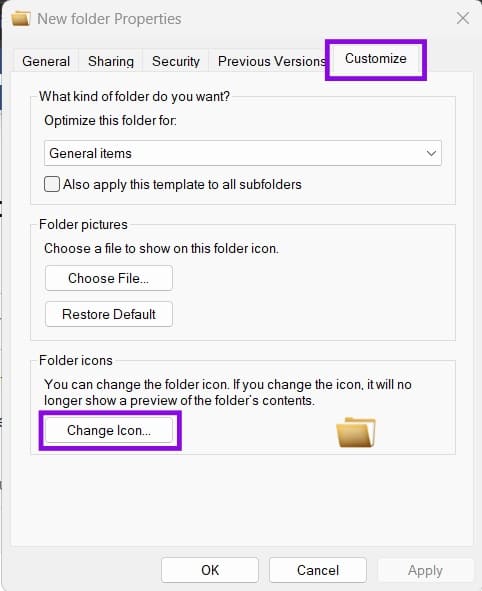
Step 3. Click on the “Browse” button, then enter the address of the file in the search bar and click on “Ok.” The address for one of the files is:
C:\Windows\System32\moricons.dll
If you want a different icon pack, change the last part accordingly, such as C:\Windows\System32\pifmgr.dll
If this doesn’t work (for example, if your Windows somehow isn’t located in the C partition), change the first part to %SystemRoot%, so it becomes %SystemRoot%\System32\pifmgr.dll and such.
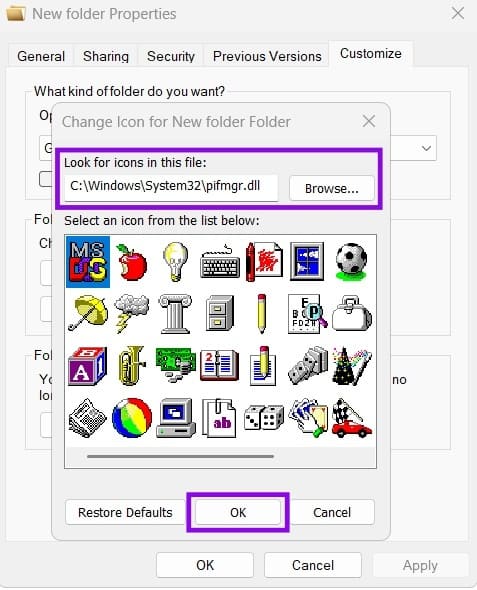
Step 4. Select the icon you want to use and click “OK,” then click “Apply” to confirm the change. If you want to restore the item’s previous icon, use the relevant default or restore option for that item. You can also browse to %SystemRoot%\System32\shell32.dll to choose from the icons available in that library.
How to Extract Old Icons Windows 11 Has?
You usually can’t browse the resources inside DLL files directly in File Explorer, but you can use dedicated tools to inspect them. In newer versions of Windows, some system resources that were previously stored in DLL files are held in corresponding .dll.mun files in C:\Windows\SystemResources. These files have names that correspond to the DLL libraries they are associated with.
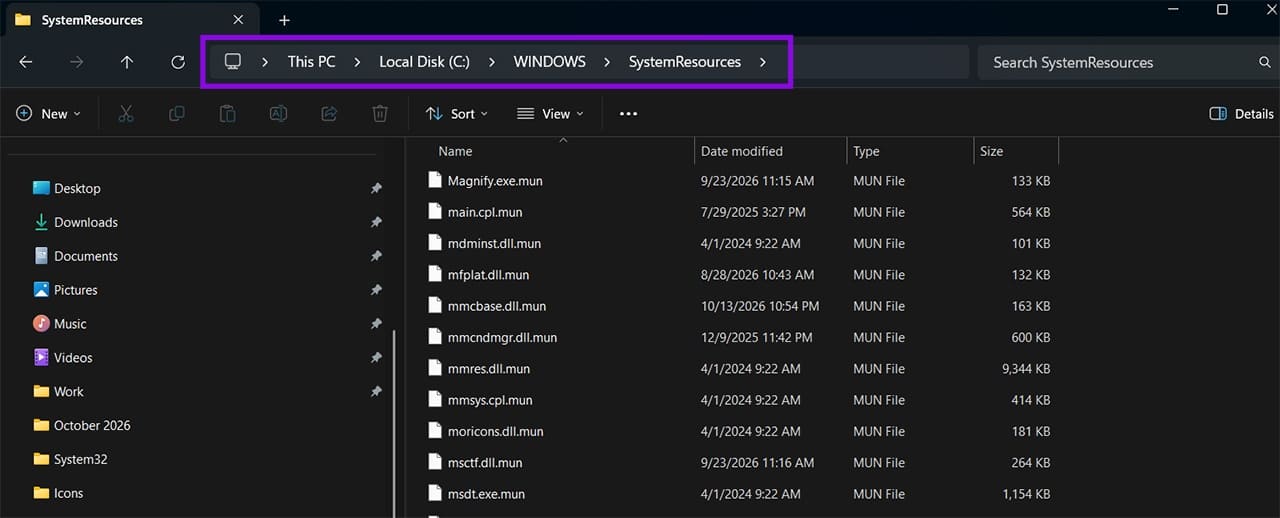
You can use 7-Zip to extract the icons from there to use independently, which prevents them from disappearing if Microsoft does decide to abandon the libraries in the future.
Step 1. Go to 7-Zip’s website and download the installer.
Step 2. Run the downloaded installer and follow the setup instructions.
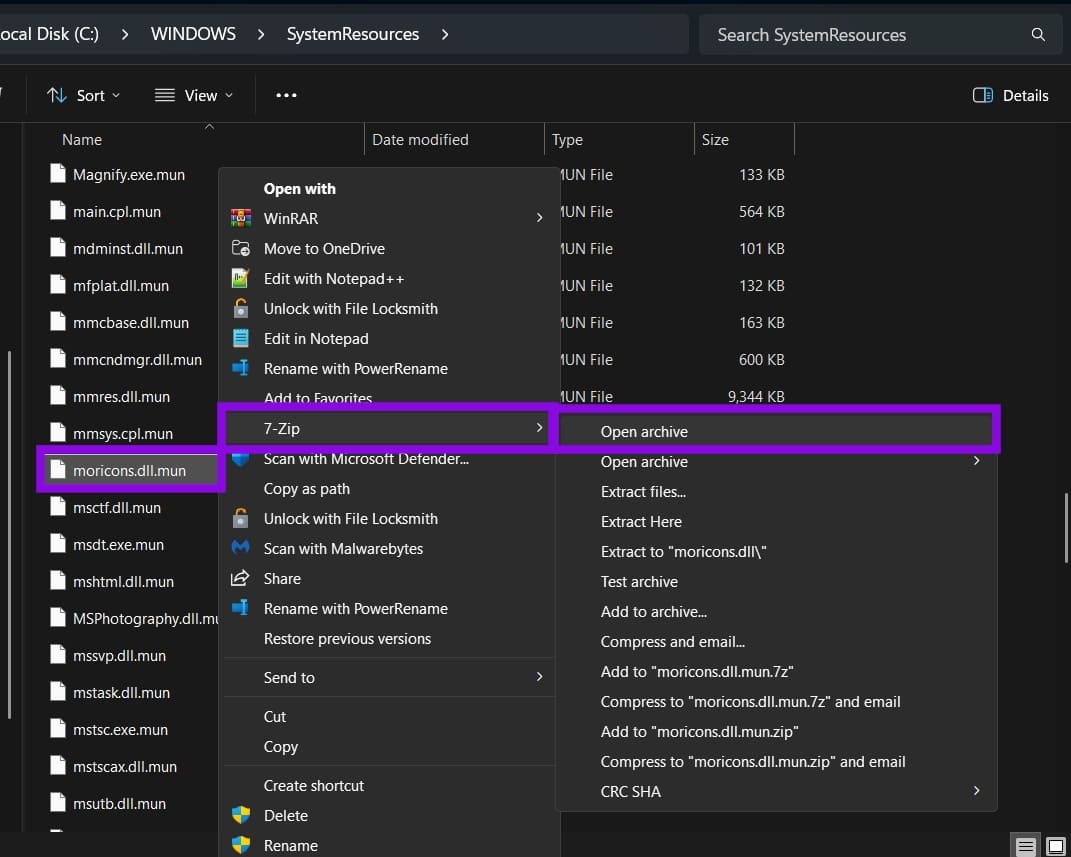
Step 3. Go to the address of the files (C:\Windows\SystemResources), then right-click on one of the icon libraries (names will correspond with the “location” list above). Select “Show more options.”
Step 4. Expand “7-Zip” and select “Open archive.”
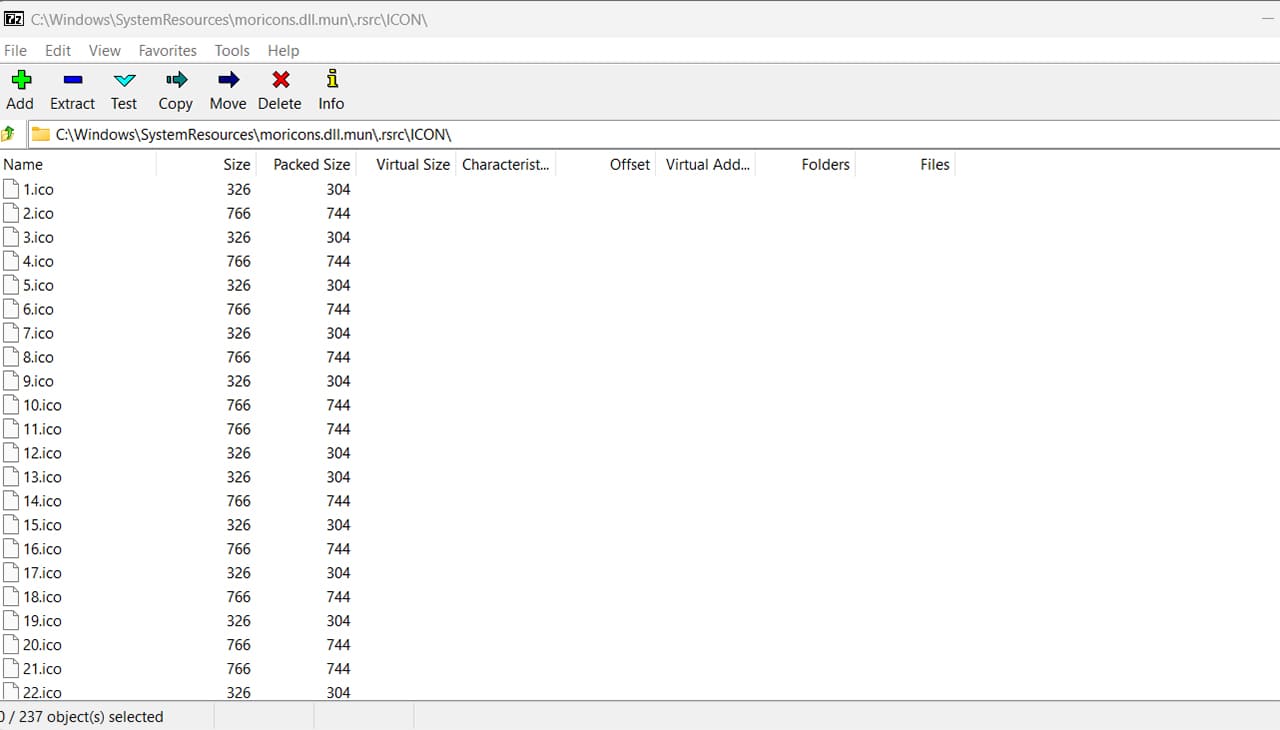
Step 5. Go to the “rsrc” folder, then to the “ICONS” folder. It will contain all icons (unhelpfully listed with numbers).
Step 6. Select the icon resources you want to extract, click “Extract,” and choose a folder where you can easily find the saved files.
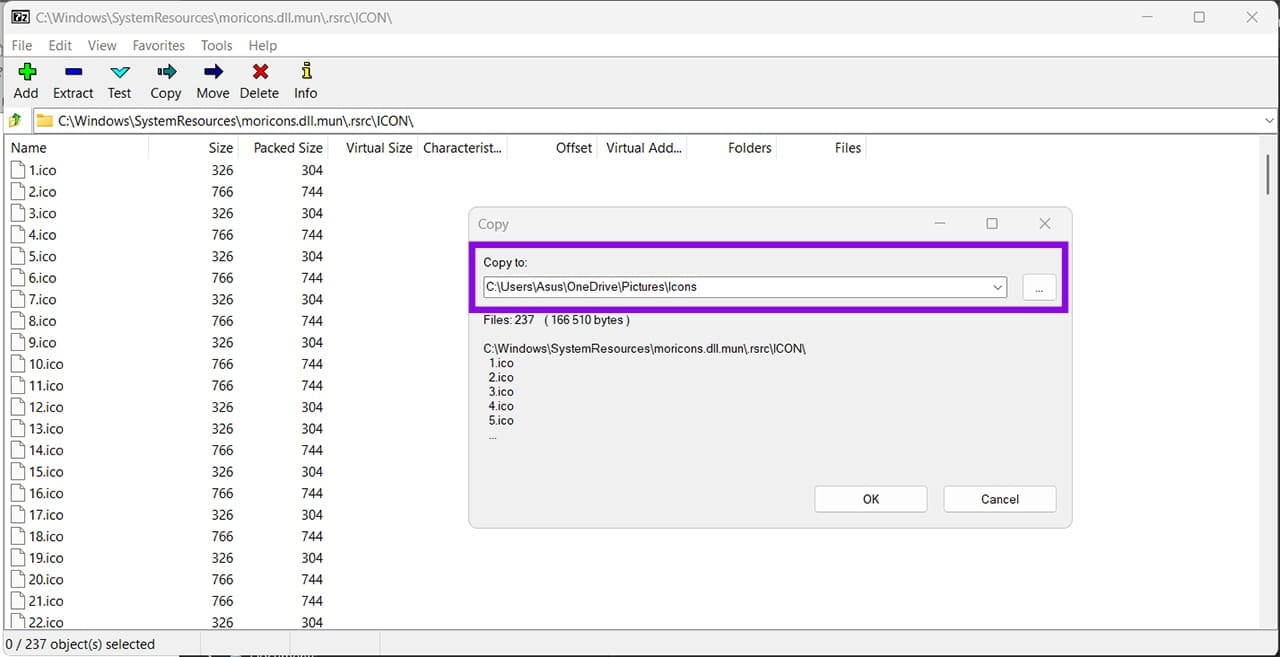
Step 7. The icons will show up as .ICO files, and you can then reference them as custom icons.