



How to Test a Monitor’s Refresh Rate and Response Time
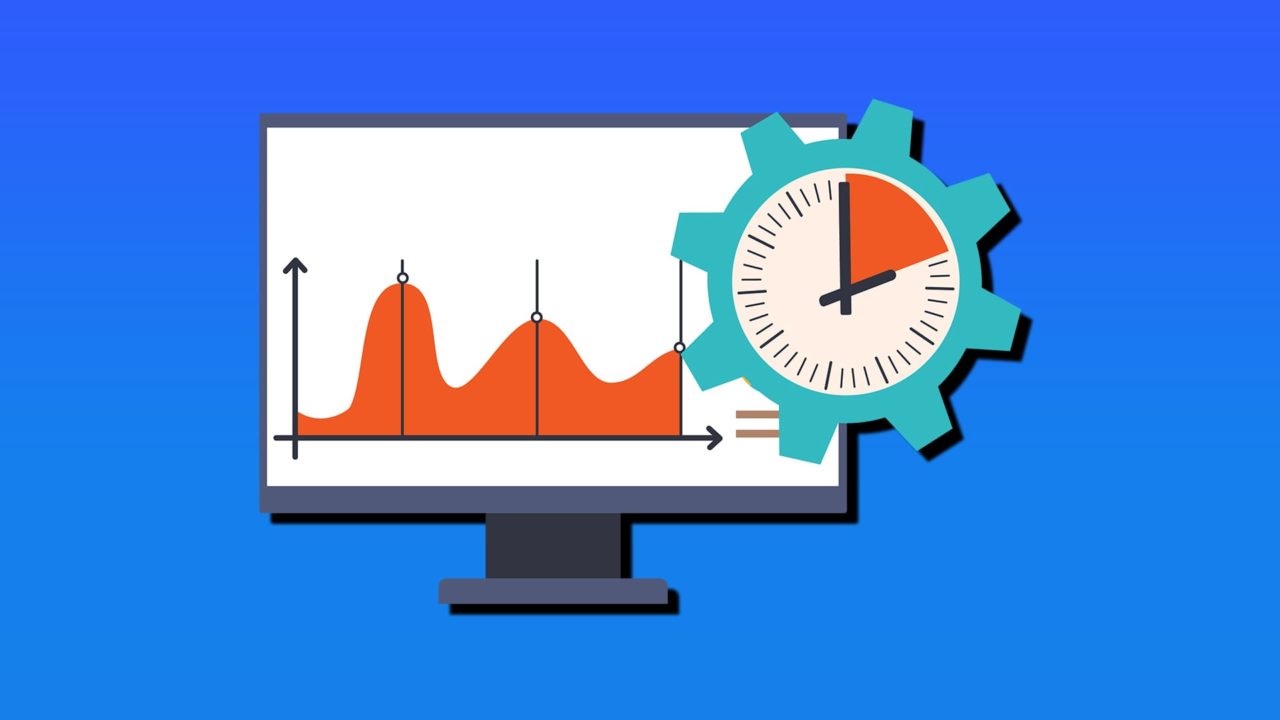
Most monitors will prominently display their refresh rate and response time in the manufacturer’s specifications and advertisements. But how accurate are those measurements?
Windows 11 doesn’t come with a built-in tester for your monitor, which means you’ll inevitably have to use a third-party tool for this. Here’s how to test monitor refresh rate and response time statistics to see if your monitor is working as well as it should.
What Do All the Monitor Specifications Mean?
If you’re asking “What is my monitor’s refresh rate?” when buying a new gaming accessory, that’s only a part of the criteria that determines whether a monitor is “good” (which is subjective).
In total, there are four main “aspects” of monitor performance:
- Refresh rate, measured in Hz: This is how often the display can refresh the image on screen. 120 Hz means that the monitor can refresh the screen 120 times per second. This is related to the frame rate, measured in FPS, which is how many frames the graphics card produces per second.
- Response time: How long it takes for each pixel to change colors. A longer response time means some pixels might not change, resulting in “shadows” or “ghosts” of objects they showed before.
- Input lag: How long it takes for the signal to reach the monitor from the GPU. This affects the delay between your actions (via mouse or keyboard) and what happens on screen.
- Frame time: How long each frame stays on screen (or the average duration between frame changes). This determines how smooth the image is.
How to Test Monitor Refresh Rate and Response Time Using a UFORate Tool
Most online tools provide an approximation of what a monitor is capable of. Actual refresh rate and response time tests can be conducted with specialized hardware tools that measure performance more precisely. However, online tools can help you identify potential problems with your monitor or its settings.
Online tools use a “UFO” test, where they show a rapidly moving UFO or a similar small object zooming across the screen. The clarity of the UFO is indicative of the monitor’s performance.
For these tests, we’ll use “Display Test” on the following page.
What Is My Monitor’s Refresh Rate?
The simplest test on the list is the refresh rate test, which shows how many frames your monitor outputs.
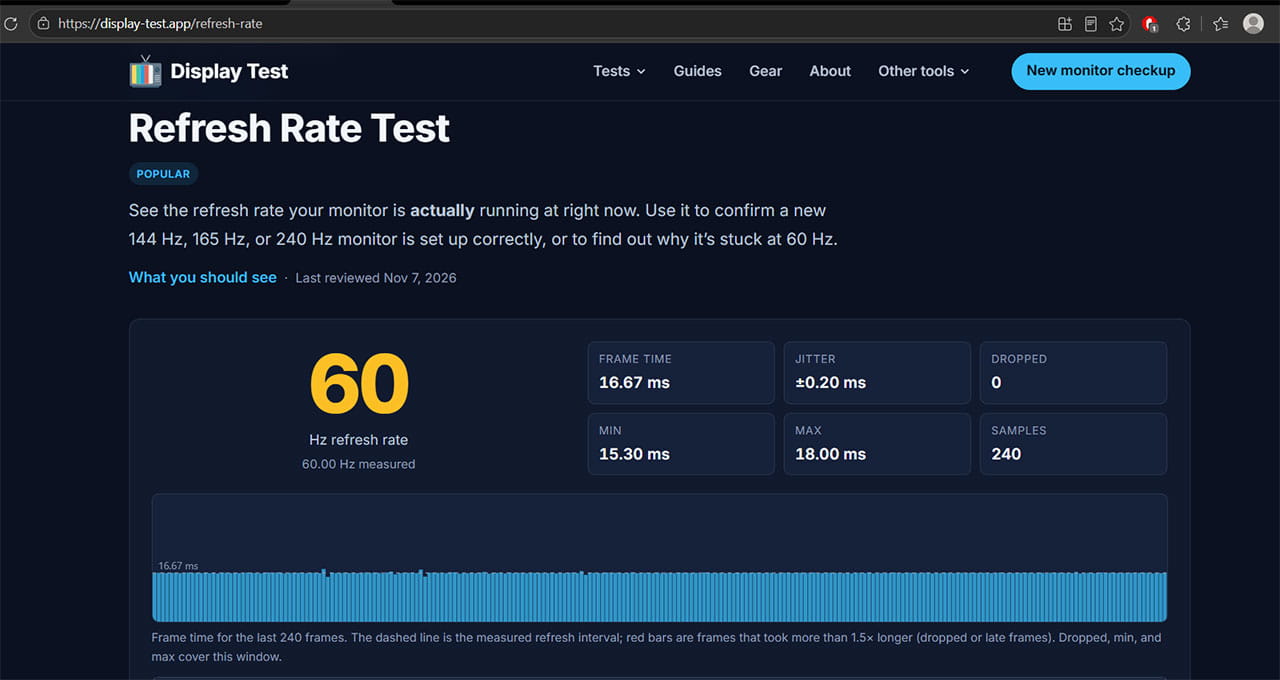
While the nominal values are 60, 120, 144, and 240, most monitors deviate by a frame every few seconds. If you see a red bar show up on screen, it means the frame was dropped, usually because there are multiple monitors running or because you just launched the tool.
The “jitter” is the deviation caused by the discrepancy between the monitor’s refresh rate and the graphics card’s frame rate, which might be explained by the system and monitor clocks not running on the same frequency. A longer cable can also increase jitter, but try to keep it under 0.5 ms.
Additionally, if the number deviates from what is listed on the monitor specifications, you need to open the monitor’s settings to see if something is imposing a different frame rate (such as system settings or V-Sync or Free-Sync tools).
Testing Response Time: Ghosting Test
With a UFO rate or ghosting test, you can check if your monitor’s pixels are laggier than they should be. This is done through the separate “response time” option for most testers.
On the screen, you’ll be shown one or more UFOs or similar objects moving from left to right. At higher refresh rates, the objects move more smoothly, but you might still experience ghosting if the pixels can’t change colors quickly enough.
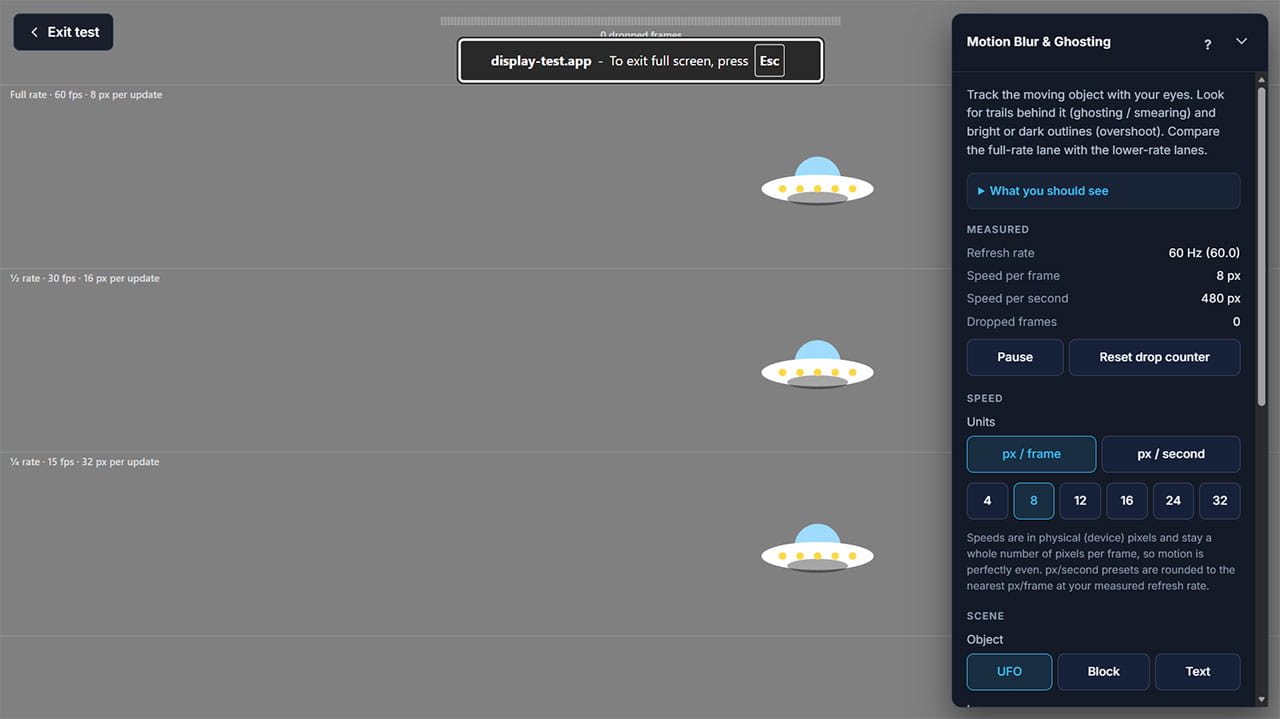
You can modify the test on the panel, which changes the speed of the UFOs in terms of pixels per second. You should also change the color of the UFOs because manufacturers often list response time as “gray-to-gray,” meaning how long it takes them to switch between two shades of gray, and might not be indicative of real performance.
To “pass” the test, the UFOs should be distinct from their surroundings but not have a visible outline (the outline can be caused by monitor overdrive, which may be hidden in settings). A smear of paint outside of the UFO means that there’s a part of the display that isn’t reacting as fast as it should.
Frame Drop Test
To check if your monitor is regularly dropping frames, you can also conduct a frame drop test. The one on Display Test will show rectangles equal to your nominal frame rate, with each rectangle lighting up for its frame (but the previous ones are only starting to dim).
In effect, what this means is that if you take a long exposure shot or a slow-motion video of the test, you should see a gap in lit squares where the monitor dropped the frame.
Here’s an example where the monitor dropped frame 53.
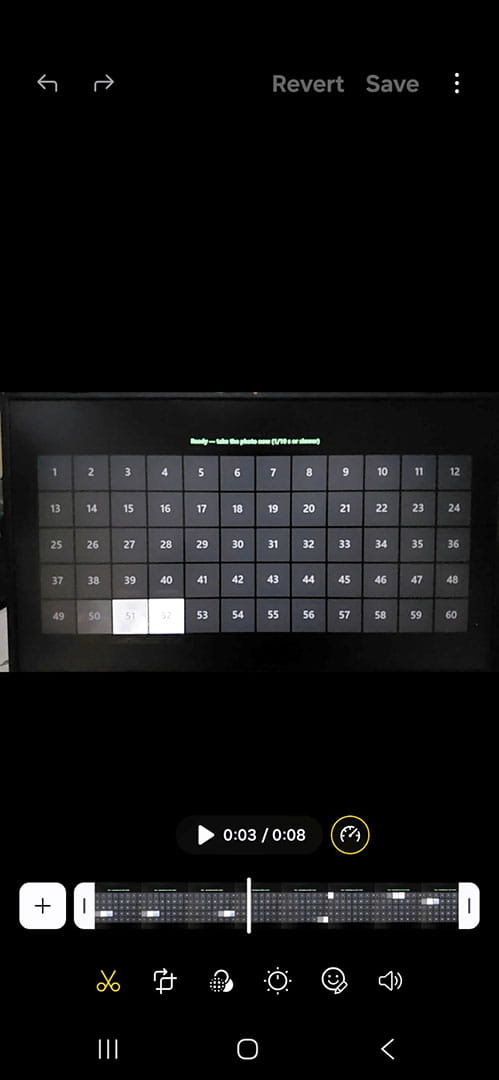
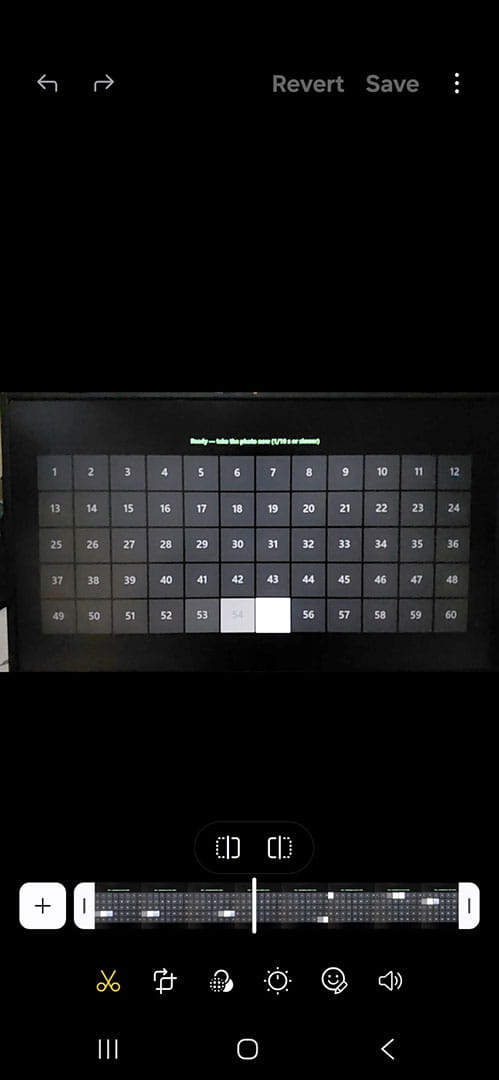
This can occasionally happen since the tests are performed in a browser, which adds a layer of performance degradation. If the frame consistently gets dropped, your monitor might be artificially dropping frames to stay within a nominal range (like a 75 Hz monitor dropping every fifth frame to keep 60 Hz).