Troubleshooting a Slow Context Menu in Windows 11
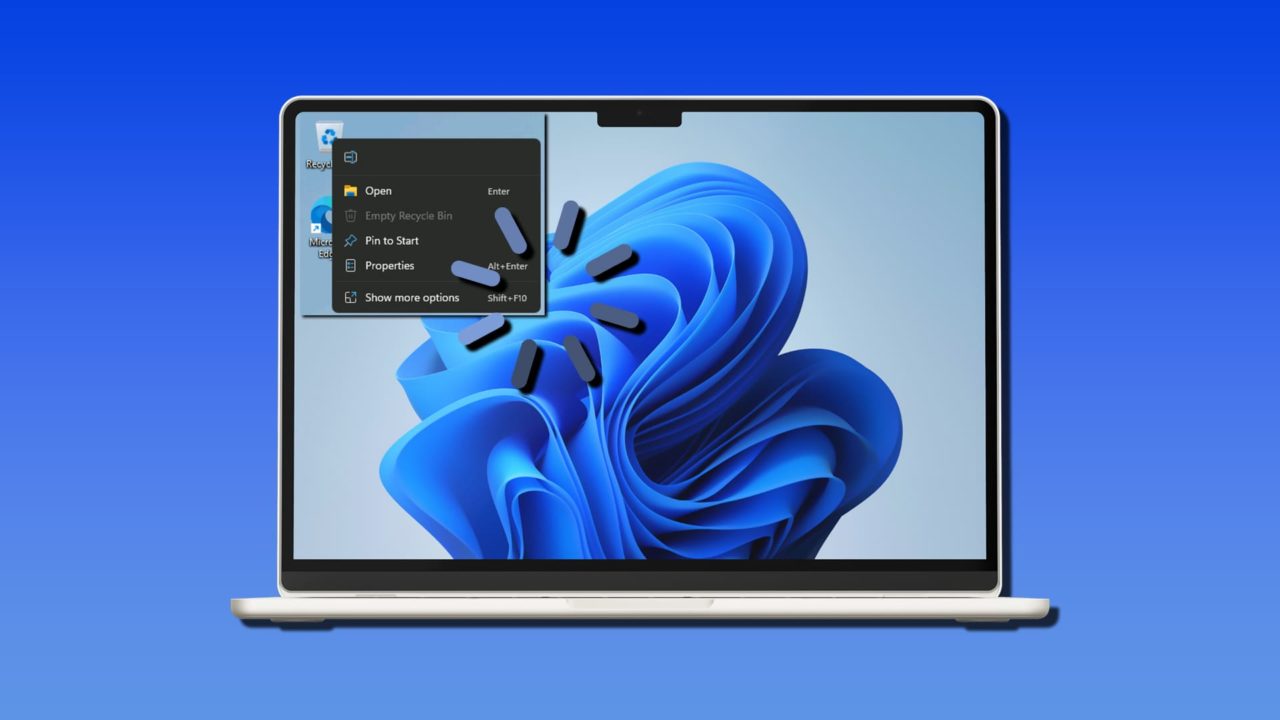
The context menu is an invaluable way of accessing shortcuts and commonly used functions, wherever you are in Windows. If this menu is starting to get a little slow or freezing completely, then we’ve got a few troubleshooting solutions to try. In this article to address a context menu slow, Windows 11 gives you a few things to try.
What Causes “Context Menu Slow” (Windows 11)?
If you have to wait longer than you think you should to access Copy, Paste, or head to your Display settings, you no doubt want to know why. Here are some major reasons for a slow or malfunctioning context menu:
- Third-party shell extensions that are included in the context menu
- Broken menu handlers in the registry or general registry clutter
- File and system corruption
- Issues with display drivers
Fixing a Windows 11 Context Menu Slow to Open
We’ve got a few troubleshooters below addressing the issues above, and hopefully one will be the right solution for you.
Restart Explorer
If your PC has been running for a while, Explorer might start behaving a little erratically. A quick and easy fix is to restart the Explorer process. Here’s how:
Step 1. Press Ctrl + Shift + Esc to bring up Task Manager.
Step 2. Click the “Processes” tab and scroll to find “Windows Explorer.”
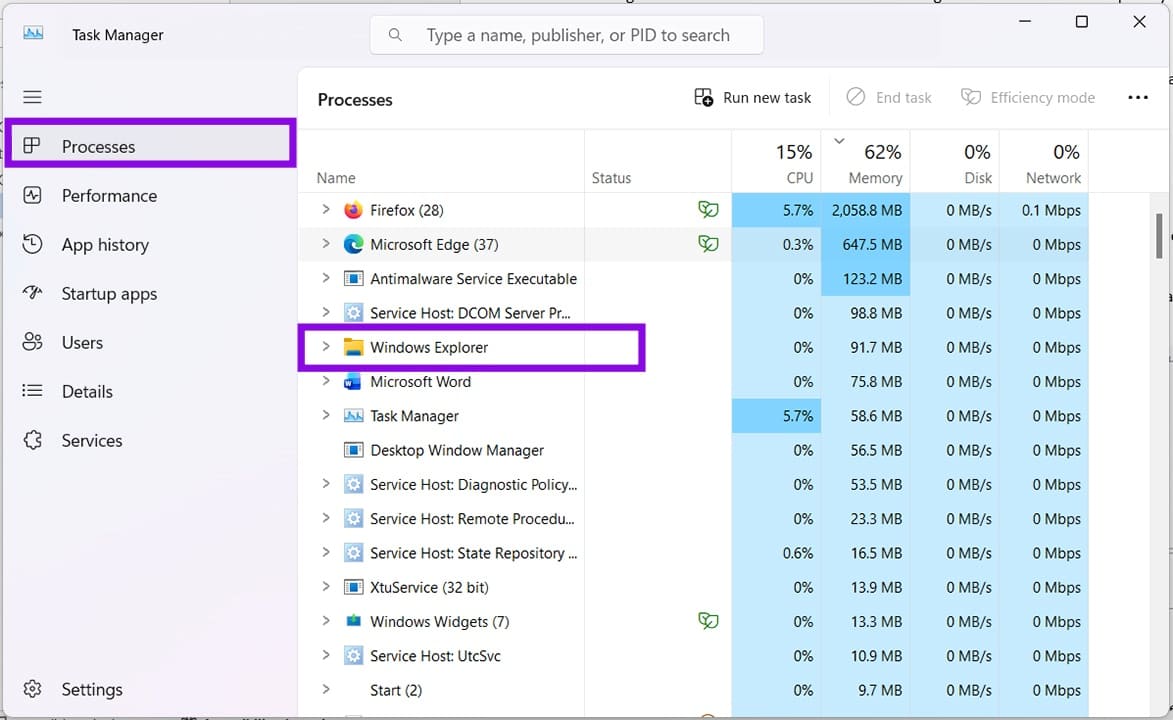
Step 3. Click the process and select “Restart task.”
If you’d like to be more thorough about things, you can also restart your PC to see if that helps things.
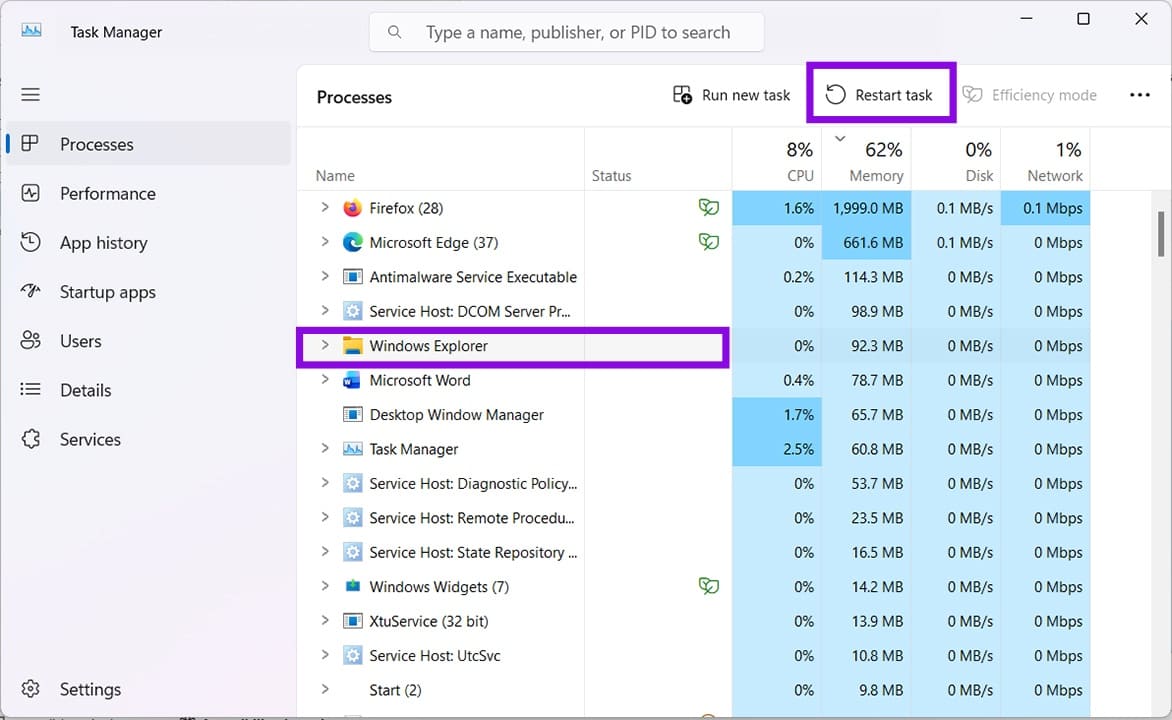
Step 4. After Explorer restarts, try the context menu again.
Update Your Graphics Driver
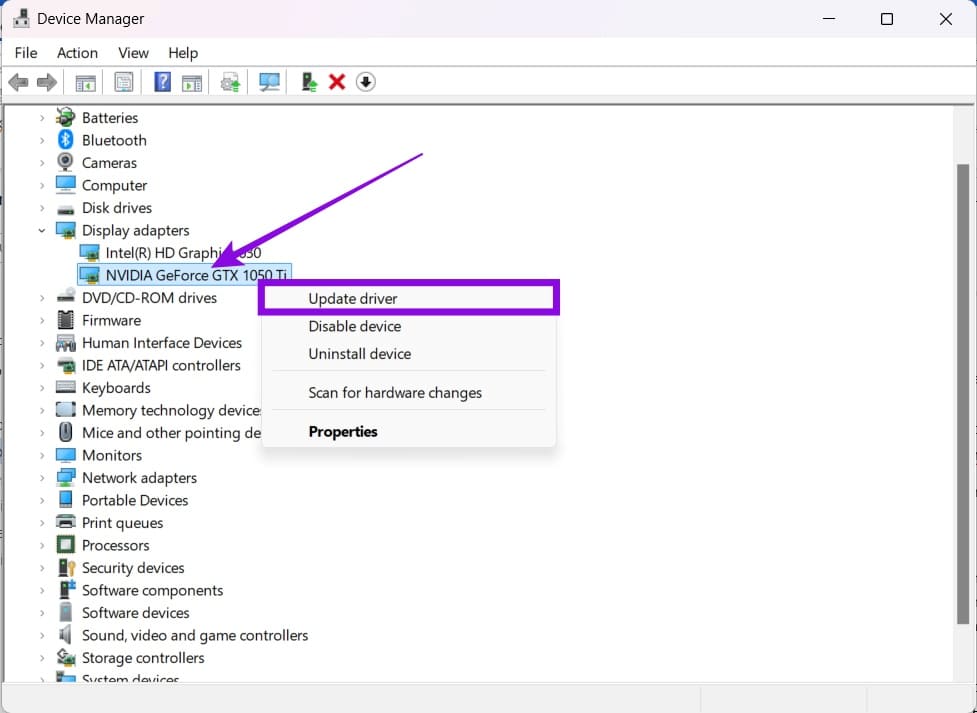
Seeing as the context menu is tied to graphical performance, it’s important to ensure your graphics drivers are performing at their best, and that means proper updating. Simply right-click your graphics card in Device Manager and choose “Update driver.” Click “Search automatically for drivers” and let your PC find the latest version.
Check Your Shell Extensions
If you think third-party shell extensions are slowing down your context menu, you can investigate with the free-to-download software ShellExView. Here’s what to do:
Step 1. Visit ShellExView in any browser and scroll right down to below the “Feedback” section. Choose a download option and let it complete.
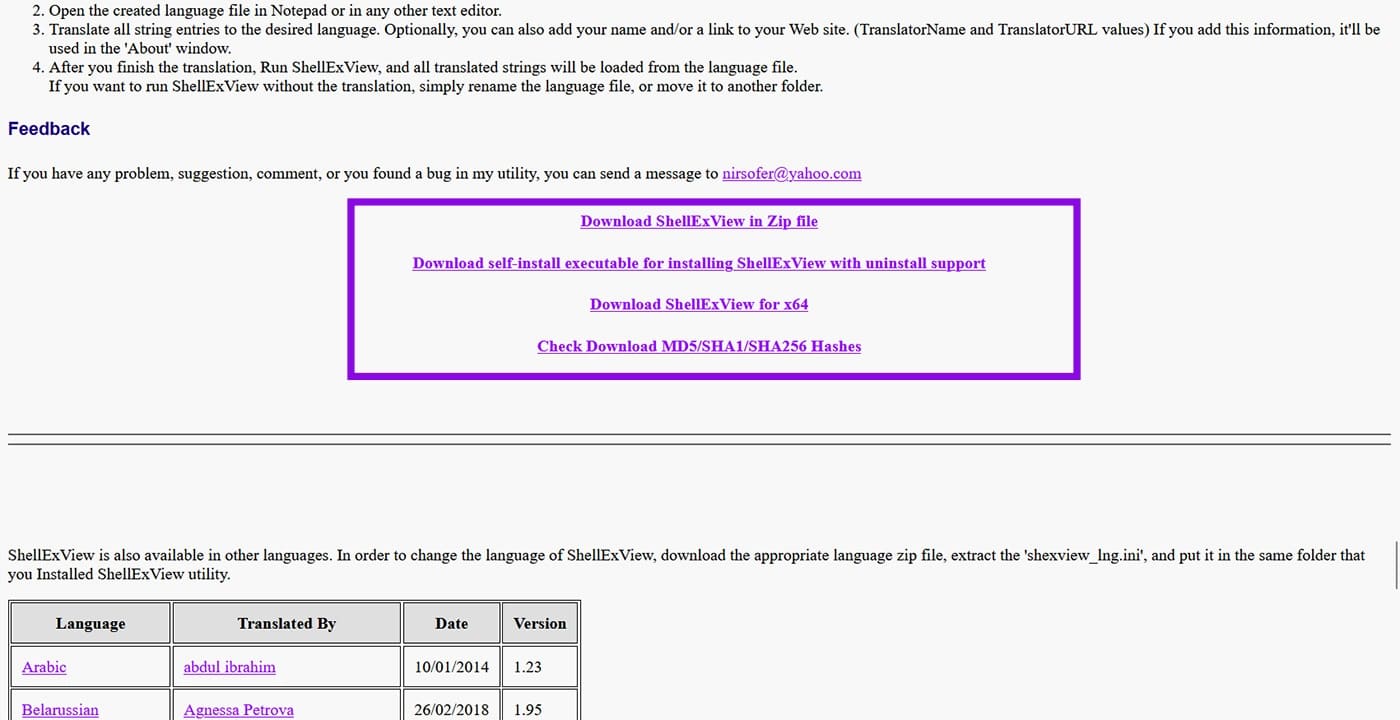
Step 2. With the folder downloaded, extract the files and run the “.exe” file. Your security might flag it, but allow the software to run.
Step 3. To show all third-party extensions running, click the “Options” menu and choose “Hide All Microsoft Extensions.”
Clean Boot
If you suspect a third-party app might be the culprit, you can try running Windows with essential services only to see if the context menu is still slow. Here’s what to do:
Step 1. Open the Run dialog (Win + R) and type “msconfig” before pressing “Enter.”
Step 2. In the window that pops up, check “Selective startup,” ensuring only “Load system services” is checked.
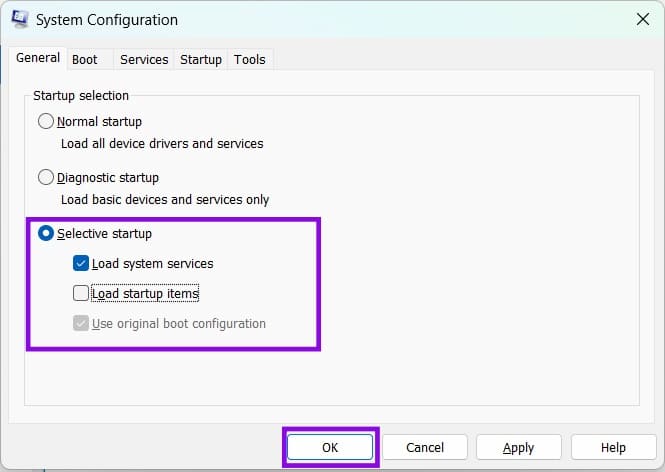
Step 3. Click “OK” and restart your machine. Check if the context menu is still acting up. If not, try activating third-party programs one by one to isolate the issue.
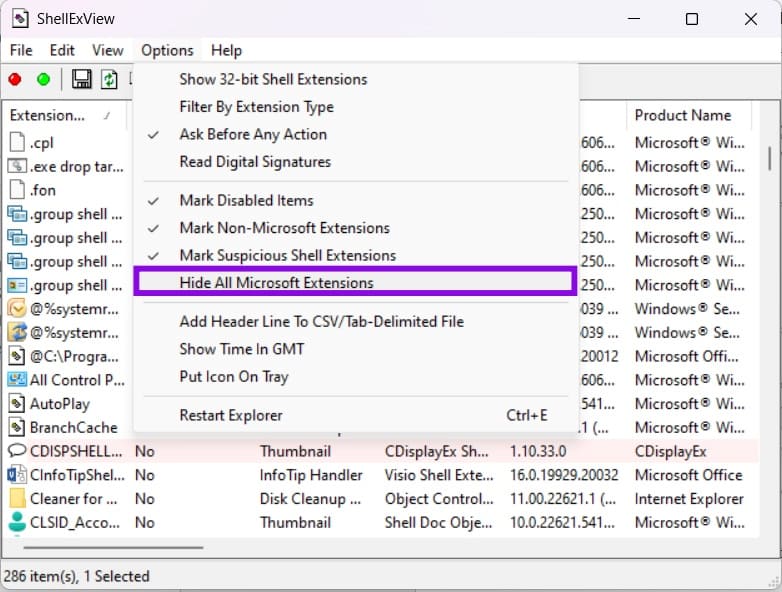
Step 4. Start disabling the remaining extensions from the Context Menu. Right-click any extension with a context menu type and click “Disable Selected Items.”
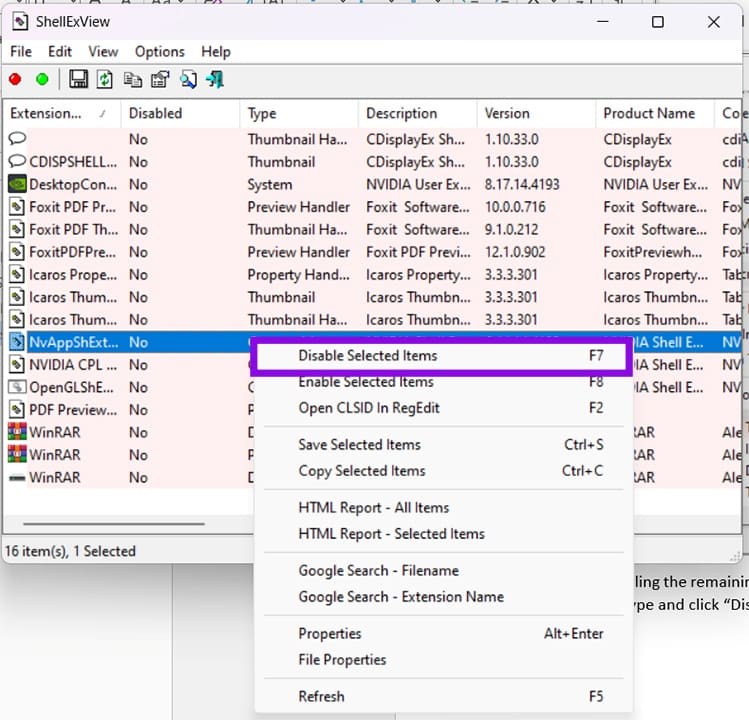
Step 5. Confirm your choice and restart your PC (or Explorer) for changes to take effect.
How to Export or Backup a Color Profile (Windows 11)
Read Next