How to Export or Backup a Color Profile (Windows 11)

If you’re in graphic design, photo editing, or just have a really sharp eye for color, a PC color profile can make all the difference. If you’re changing PCs or want to keep your settings without the hassle of recalibrating, Windows allows you to export your color profile. In this article, we’ll be showing you how to do just that and export a color profile (Windows 11).
Know Your Color Profiles
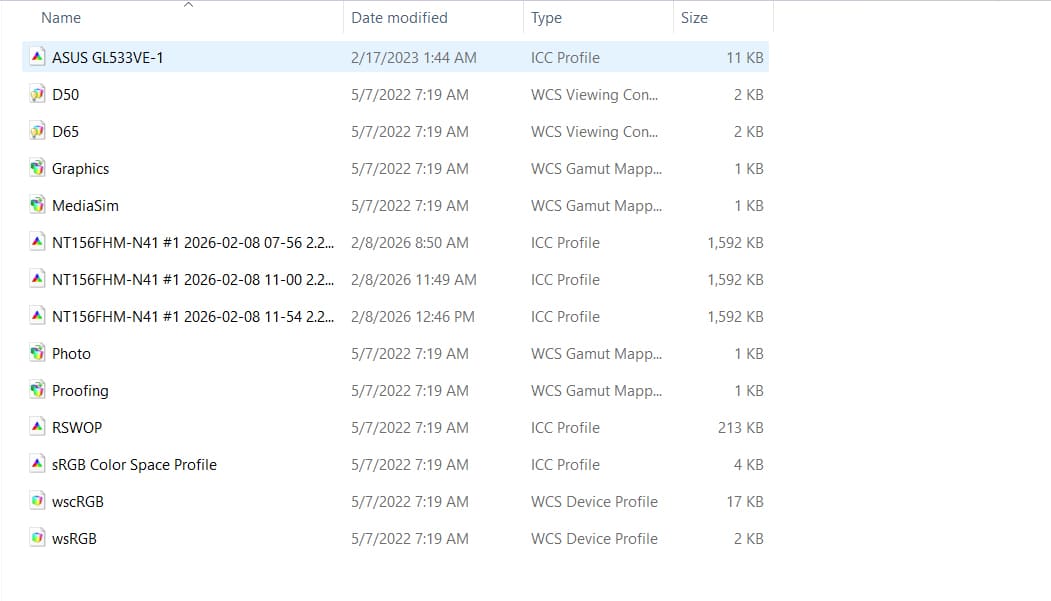
Color profile files can be identified by either the “.icc” or “.icm” extension. All color settings that you’ve calibrated will be saved collectively as a profile under one of these two file types.
These files are accessed by Windows to translate the mathematical descriptions and translate them to colors, ensuring accuracy across screens. Some third-party software (like DisplayCAL) also allows you to load and swap color profiles easily through the Taskbar. These files can be found in Windows Explorer by following the path “C:\Windows\System32\spool\drivers\color”
How to Export Color Profile (Windows 11)
As of March 2026, the new display settings path for Windows 11 is Settings > System > Display > Color Profile. While this new menu makes it easy to add or switch profiles, there still isn’t a dedicated “Export” button. To back up your calibrated settings when switching to a new PC, collect the files from the system directory. Here is how to find and back up your profiles using File Explorer:
Step 1. You’ll need to head to the Windows 11 color profile location. Open an Explorer window (Win + E).
Step 2. Click on your main OS disk (usually “C:”) and choose “Windows.”
Step 3. Scroll down to “System 32” and double-click it.
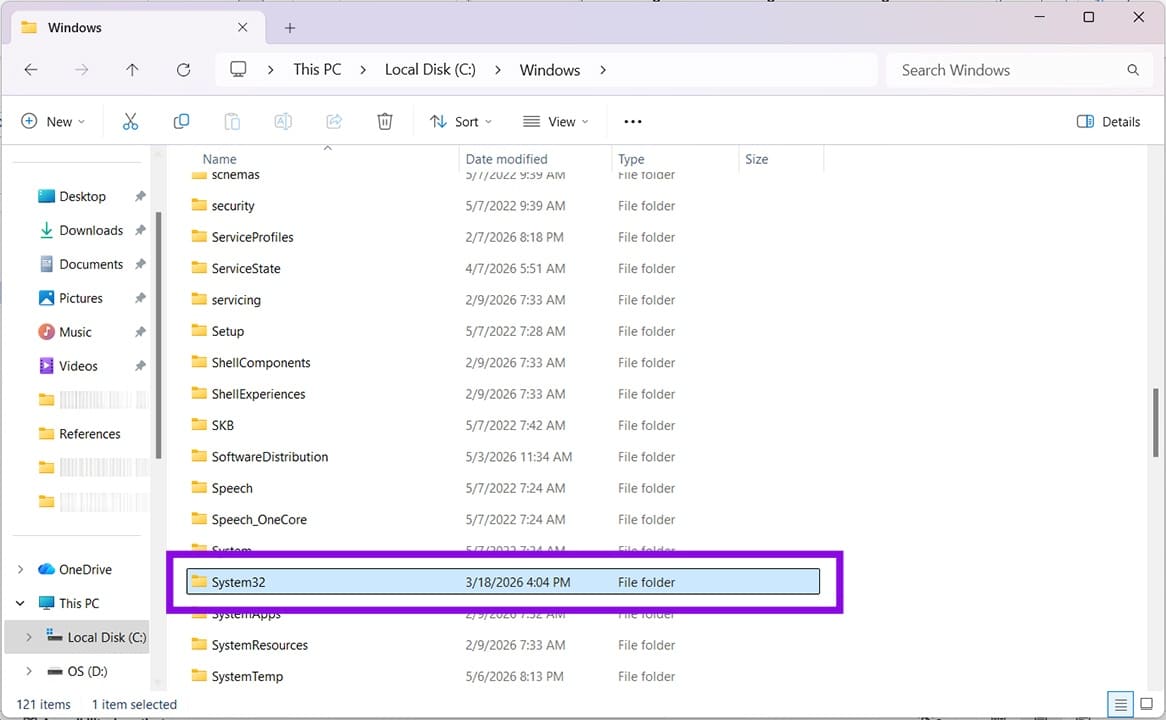
Step 4. Scroll down to “Spool” and double-click.
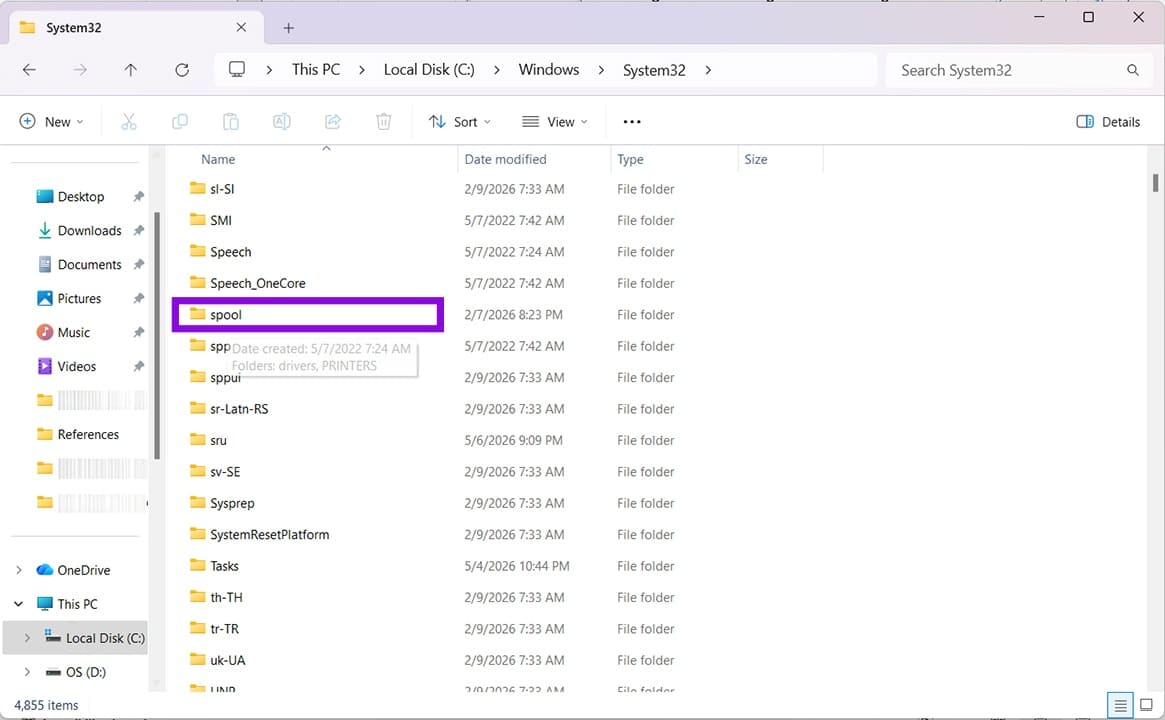
Step 5. Double-click “drivers” and then “color” in the next window.
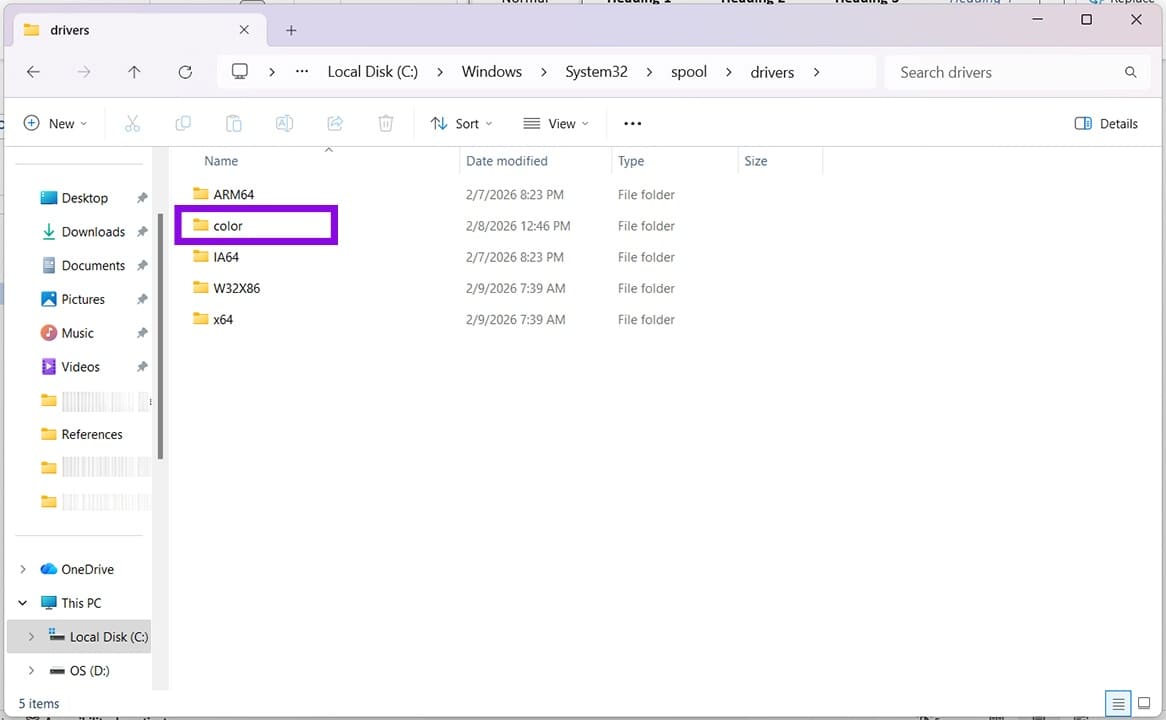
Step 6. Click the color profile or profiles you want to export or back up, and click Ctrl + C to copy. Then right-click and select “Install Profile.”
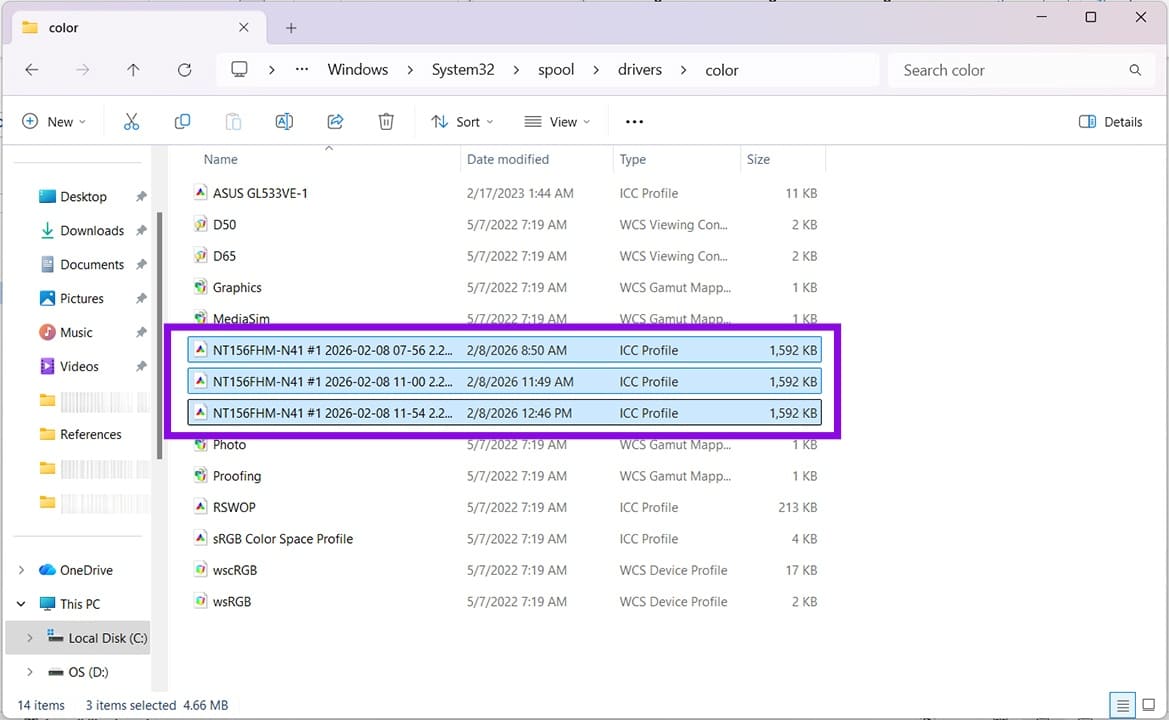
Step 7. You can then paste these into another folder or an external transfer device. Paste them into the same folder on another computer to use them.
Removing a Color Profile
If you’re looking to get rid of an old color profile, then you can manually delete it from the “color” folder in Explorer, or do so through Color Management. Here’s how:
Step 1. Type “Control Panel” into the Search Bar and select the option.
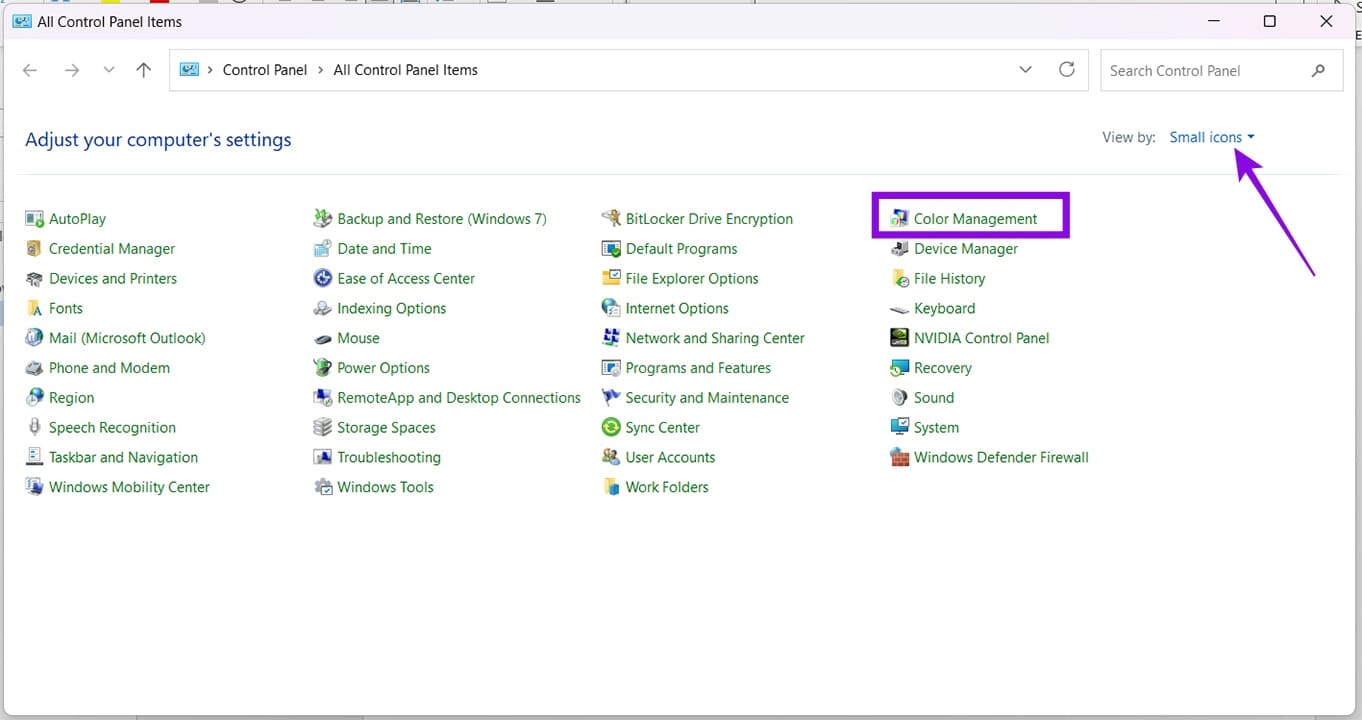
Step 2. In Control Panel, select “Color Management.” If you can’t see this option, be sure your view is set to “Small icons” in the top-right of the window.
Step 3. In the window that pops up, click on the “All Profiles” tab.
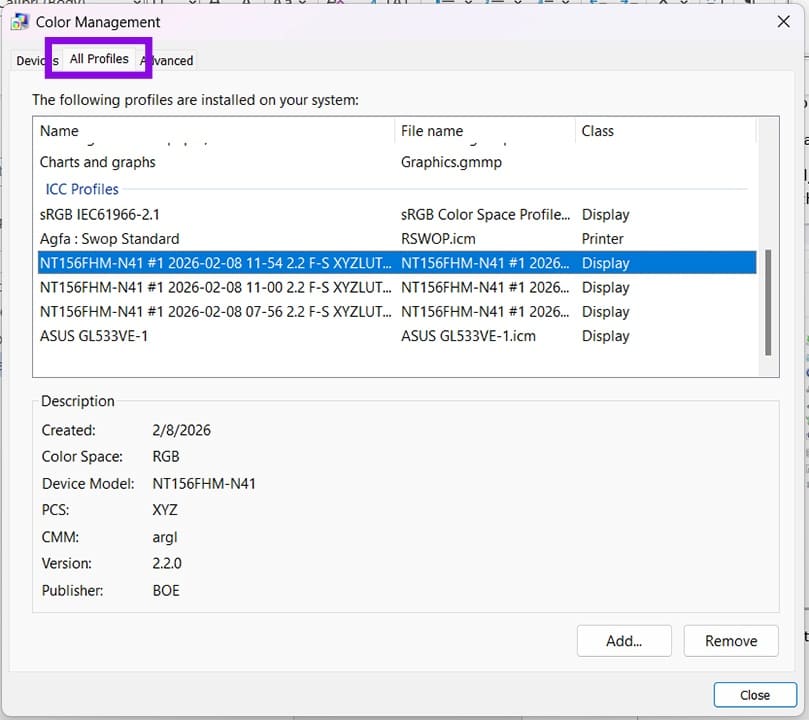
Step 4. Select the profile you want to get rid of and click the “Remove” button. Confirm in the pop-up (you’ll need Admin privileges to do so) and continue.
Step 5. Your profile should be removed from the list and the Explorer folder where it’s kept.
Step 6. If you want to add a profile, click the “Add” button and search for the profile to import via Explorer. It’ll be added to your profile folder and appear in the Color Management window.
Ready for a Glow Up? How to Change Thumbnail Borders in Windows 11
Read Next