How to Remove Photobombers in Seconds Using Photoshop Online

Have you ever wasted precious vacation time waiting for people to clear out behind you so you could have the perfect photo? Or snapped ten different versions, hoping that at least one of them comes out without a random stranger walking through the frame at the worst possible moment?
If so, this is the article for you.
Photobombers are almost impossible to avoid, especially in busy tourist spots, concerts, beaches, etc. Most of the places where you’d like to take a picture.
The good news is that, thanks to generative AI, you no longer have to take the perfect photo. Instead, you can turn it into the perfect picture later, without needing advanced photo-editing skills.
Nowadays, it’s easier than ever to remove unwanted people from your photos in seconds with just a few clicks. Photoshop online makes the process accessible for everyone while maintaining the quality standards Adobe has always been known for.
In this tutorial, I’ll show you how to remove photobombers in Photoshop online, achieving a natural, smooth result. All without installing any software or trusting your personal photos to random websites you know nothing about.
Keep reading to learn how to rescue your best shots and make your vacation memories stranger-free.
What is Photoshop Online?
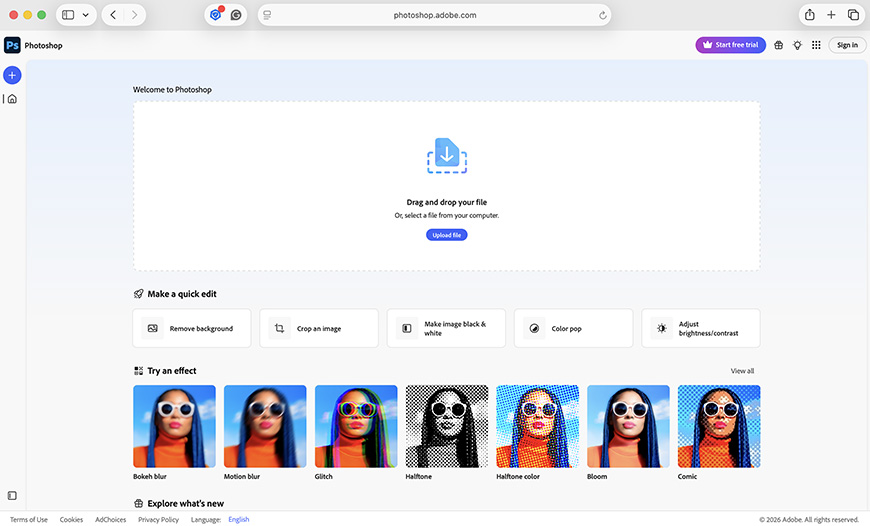
For a long time, Photoshop had a reputation for being only for professionals with advanced editing skills. While it remains the industry-standard software and allows you to do pixel-precision editing like no other, it also has a beginner-friendly side.
Over the last few years, Adobe has changed the way people can approach Photoshop. First in the mobile app and now in Photoshop online (officially called Photoshop on the web), the company has included editing tools accessible to everyday users.
Photoshop online is a lighter, browser-based version of Photoshop that lets you edit your photos on any computer without downloading or installing anything.
Instead of overwhelming you with advanced editing tools, Photoshop on the web focuses on the features most people need regularly, from fixing the colors to removing a photo bomber.
You’ll also have access to some of the more advanced tools that have made Photoshop famous, such as layer editing. However, what makes it so easy to use and most fitting for the task we’re tackling here are the generative AI tools.
You’re probably thinking that there are a million generative AI tools online, so why use Photoshop online?
Well, first of all, even though it’s the lighter version, it still carries the power of Adobe’s long-standing experience and years of developing industry-leading tools that consistently deliver high-quality results.
Secondly, because it uses Firefly AI models, you can be certain that your photos won’t end up elsewhere or be used to train the AI. This ensures data safety, which is extremely important for personal photos, especially if your vacation photos feature your kids.
So, if you’re looking to remove photo bombers from your photos, Photoshop online is one of the safest, easiest, and fastest ways to do it.
How to Remove Photobombers in Seconds Using Photoshop Online?
Whether it’s a stranger at the beach, other guests at a wedding, or a friend pranking you, here’s how to delete people from your most precious photos.
Step 1. Log in to Photoshop or create an Adobe account
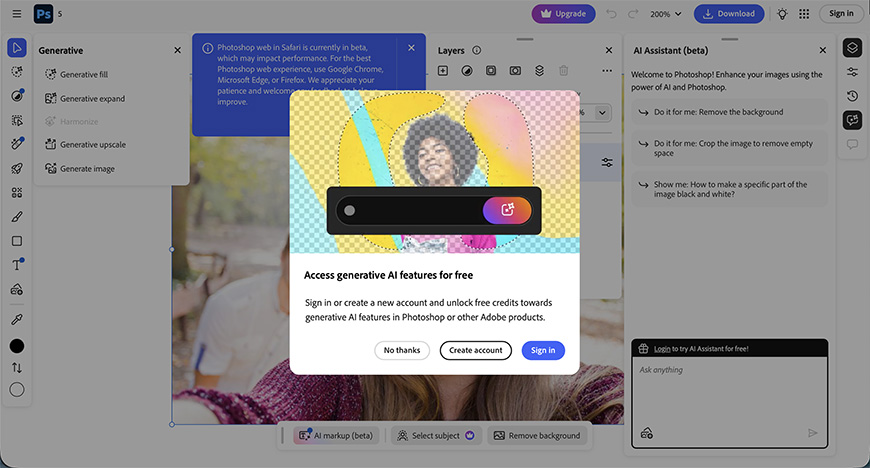
Go to the Adobe website, click Photoshop at the top to access Photoshop online, and sign in. While there are many things you can do in Photoshop Web to edit your photos without an account, using generative AI tools is not one of them.
So, if you already have an Adobe account, simply sign in. Otherwise, start by creating the account. Don’t worry, creating an Adobe account is free, and you’ll get 10 generative credits. Each time you use this method to erase photobombers, you’ll use 1 credit.
So, don’t worry, you can remove photo bombers for free in up to 10 photos.
Step 2. Upload your photo
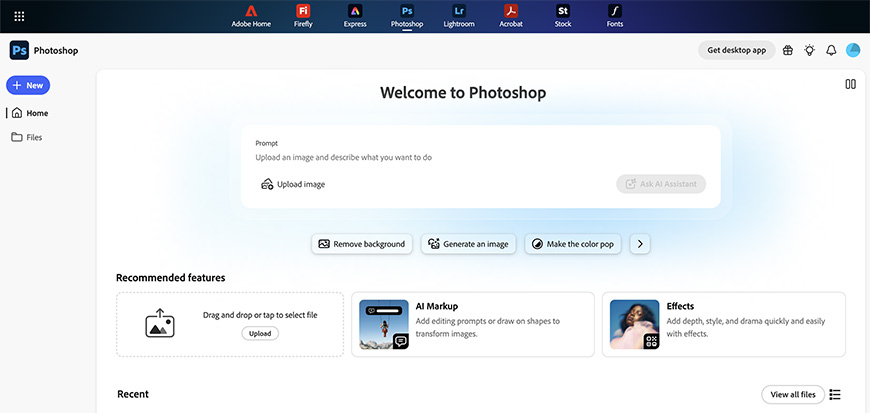
Once logged in, upload your photo to Photoshop. You don’t have to worry about safety; the images are stored in your Adobe Cloud storage and aren’t shared with third parties.
This means you’ll have access to your photos on any device, which is quite handy.
To upload a photo, simply click the plus sign on the left side. You can import images from your computer, your phone, Lightroom and Google Drive.
Another perk of using Photoshop on the web is that it supports raw files, unlike many other online photo editors. Of course, you can also remove photo bombers from JPEGs.
Step 3. Generative Fill tool
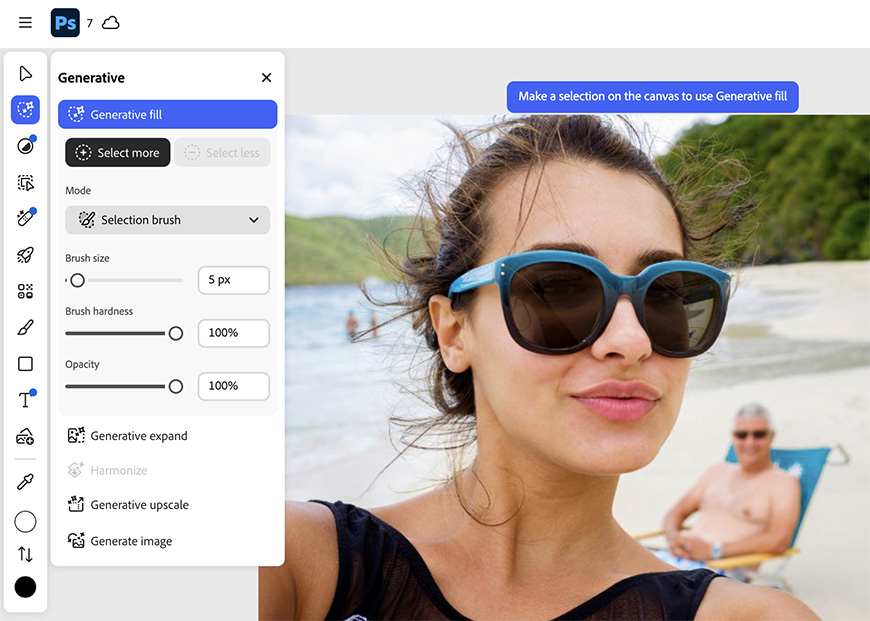
When your image opens in Photoshop, you’ll see the toolbar on the left side, the Layers panel on the right, and a floating bar at the bottom.
You’ll want to go to the toolbar, open the generative tools, and select Generative Fill.
Step 4. Make a selection
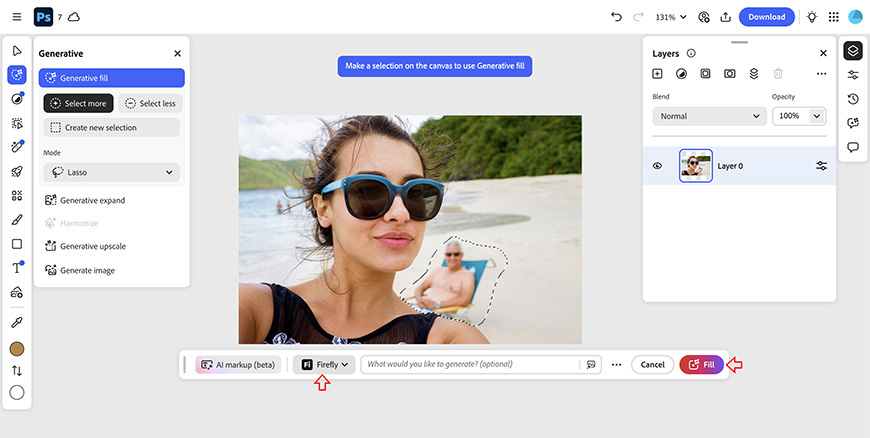
In the Generative Fill panel, you’ll find a menu with different selection tools. You can choose between Brush, Lasso, Rectangular Marquee, and Elliptical Marquee.
Choose the one you like best, and select the photobomber. If you’re using the Brush, you can change its size and hardness.
You don’t have to be super precise as if you were doing a cut-out. However, it’s best not to include much of the area that should remain untouched.
To that end, you can switch to Select Less and fine-tune the selection if you made a mistake.
Step 5. Let Photoshop work its magic
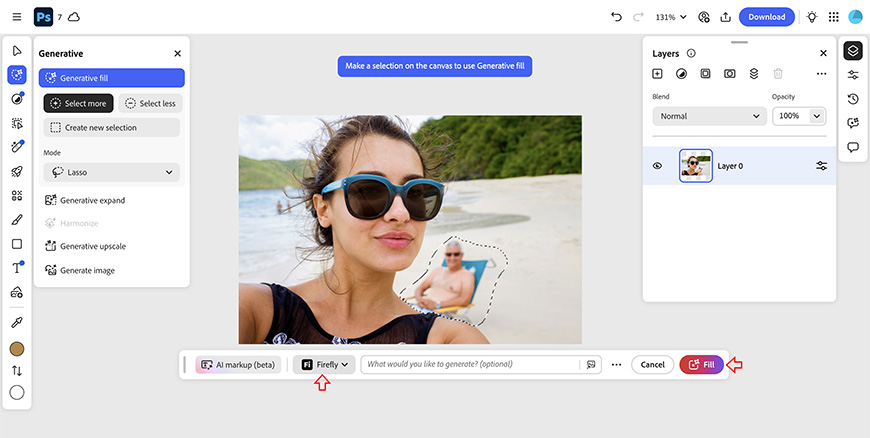
Once you have your selection, just click the Fill button on the floating bar beneath the image. If you want something specific to replace the photo bomber, you can type a prompt describing it.
However, if you only want to remove the person and have a clean background, leave the prompt space empty.
To erase a photobomber without a prompt, you’ll only have the Firefly models available; partner models require a prompt to become available.
However, Firefly works perfectly well for this task, and it’s a standard feature. This means that it will deduct one generative credit, while partner models may cost more.
In any case, you just need to hover over the Fill button to see whether this feature is available on your plan and how many credits it costs.
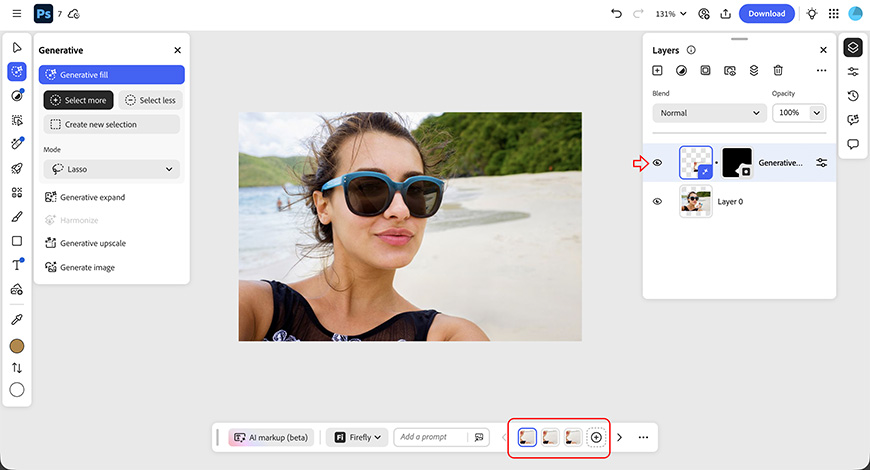
Now, all you have to do is click Fill and wait a few seconds. You’ll receive three variations to choose from, and they appear on a separate layer from your original, so the process is non-destructive.
Step 6. Download or share your photo
Once you’re satisfied with your clean background, you can share or download the resulting image. These options are on the top right of the screen.
Most commonly, you’ll want to download your photo. To do so, just click the Download button and choose whether to download it to your computer or your phone.
If you’re not ready to download the photo because it needs more editing, you can share it with someone to continue working on it, or send it to other Creative Cloud apps to keep working on it there.
How to Remove Photobombers Using Photoshop Online: Tips and Tricks
- Use high-resolution photos.
- Remove one person at a time.
- Include the shadow and/or reflection.
- Zoom in for precision.
- Use a smaller brush size around the edges.
- Retry if the first result doesn’t look natural.
- Use other editing tools to fine-tune the result.
Other Ways to Remove Photobombers Within the Adobe Ecosystem
Using Photoshop online to remove photo bombers is easy and available on any computer, but it’s certainly not the only way. Here’s a quick overview of what else you can do.
Photoshop desktop. If you have Photoshop installed on your computer, you have plenty more tools to remove photo bombers. The one I find most useful is the Remove People and Distractions feature. Another plus is that you won’t consume any of your generative credits this way.
Photoshop mobile app. You can also access the Generative Fill tool on your phone. Simply launch the app and find Remove Objects on the Generative AI section of the home screen. Then paint over the photobomber with your finger and click Remove.
Firefly. If you prefer to use Firefly, you can also remove photobombers, whether you’re accessing it on your phone or in a browser on your computer. Remember that the generative AI tools you find in Photoshop are powered by Firefly.
Lightroom. Lightroom also has a Remove tool, which you can use with or without generative AI. It also has a Detect Objects feature to speed up the process.
Adobe Express. If you’re working with images on an Adobe Express project, you’ll also find a Remove Objects tool to edit your images and remove photobombers in seconds.
How to Remove Photobombers in Photoshop Online: FAQs
Can I remove multiple people at once?
Yes, you can select multiple people and remove them with a single click. However, the results are often better if you focus on one at a time.
Is Photoshop online free?
Yes, Photoshop online is free and doesn’t require a login for basic photo editing. To unlock more tools, you can use a free Adobe account and a paid one to access them all.
However, you’ll get complimentary credits to try the generative AI tools for free, and there’s a free trial period if you get a Photoshop membership.
Can I remove objects from my photos online?
Yes, you can use one of the many Creative Cloud apps available online to remove objects from photos online. In this article, you’ll find the step-by-step guide to removing objects using Photoshop on the web, but you can also do it with Firefly or Adobe Express.
Is Photoshop online beginner-friendly?
Yes, online Photoshop doesn’t have a daunting learning curve. The interface is clear and easy to navigate, there are plenty of learning messages that guide you through, and it’s packed with beginner-friendly editing solutions.
What is the easiest way to remove people from photos?
The easiest way to remove people from photos is by using generative AI. Tools like Generative Fill in Photoshop online make the process fast and easy.
Does removing photo bombers reduce image quality?
No, a good generative AI tool like the one in Photoshop will generate pixels that cover the photobomber and blend seamlessly with the background. The size and resolution remain the same.
Does Photoshop online work on mobile browsers?
No, to use Photoshop online, you should open your browser on a computer. If you want to work on your phone, you need to download the app.
How to Prevent Edge From Opening on Every Restart
Read Next