How to Fix an Out-of-Date Personal Vault in OneDrive
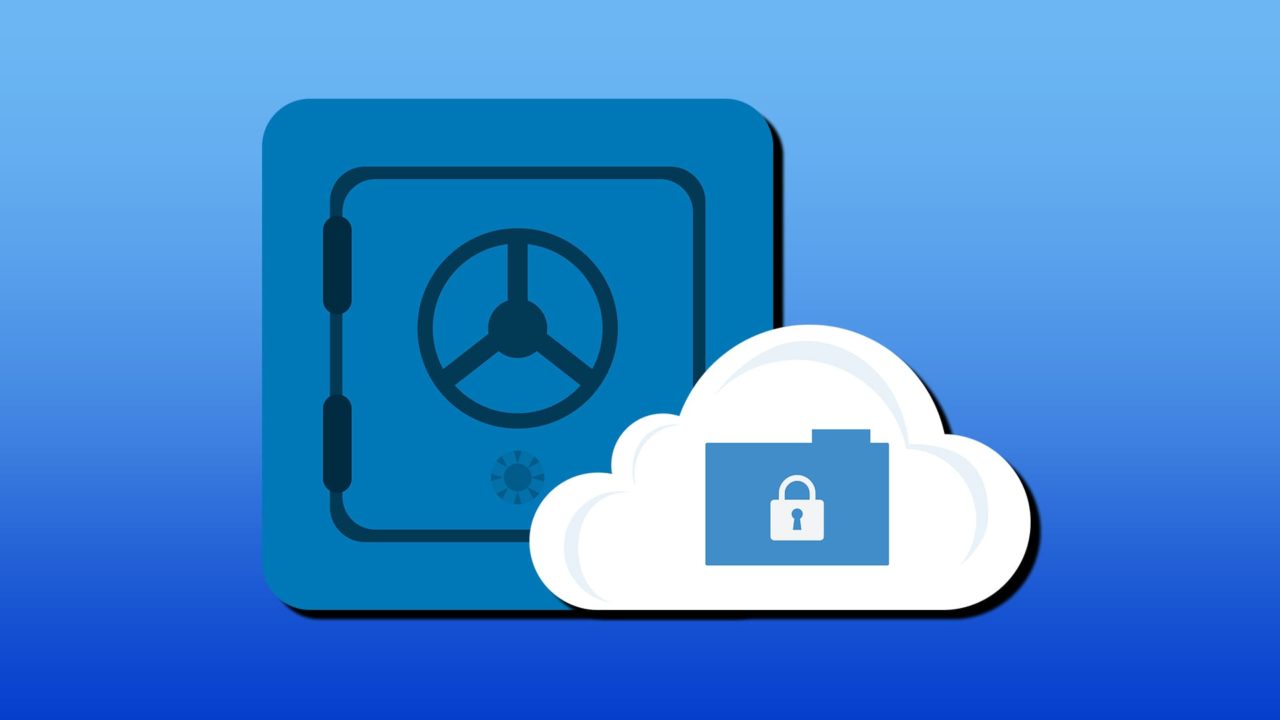
Your OneDrive Personal Vault is the place where all the important files go and are protected by that extra layer of two-factor authentication. Such precautions are invaluable, but there are times they can also cause syncing trouble. This can cause the pop-up message “Your Personal Vault isn’t up to date.”
In this article, we’ll be showing you a few fixes to try to resolve a OneDrive Personal Vault not up to date.
That Syncing Feeling
Errors with OneDrive are commonly linked to syncing issues. The Personal Vault is no exception. However, the cause is a little different. The Personal Drive, storing such important information, will lock down after some time spent inactive to add yet another layer of protection to the files inside. When this happens, OneDrive on your PC won’t be able to sync automatically with the Vault.
Fixing OneDrive Personal Vault Not Up to Date
We’re going to show a few fixes to try to fix this error with your OneDrive Personal Vault, but the most likely cause and fix we’ll put at the top.
Unlock Your OneDrive
Seeing as the OneDrive Personal Vault locks after a period of inactivity, unlocking it is the primary fix and your first stop. Here’s what you need to do:
Step 1. Open OneDrive settings on your PC and sign in with your account login details if needed.
Step 2. Head to “My files” in the sidebar.
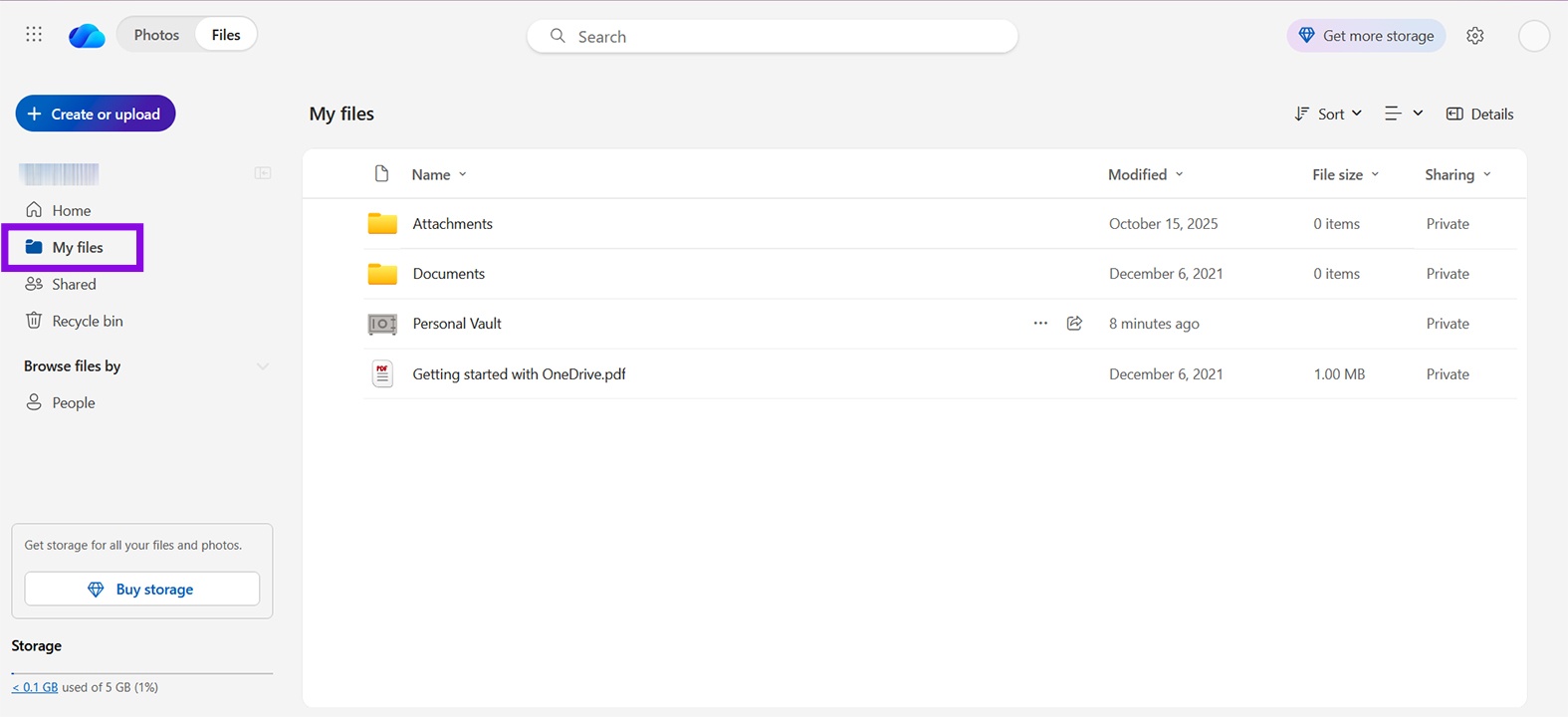
Step 3. You should see your “Personal Vault” as an icon in the main menu. Give that a right-click.
Step 4. Select “Unlock” from the context menu that pops up.
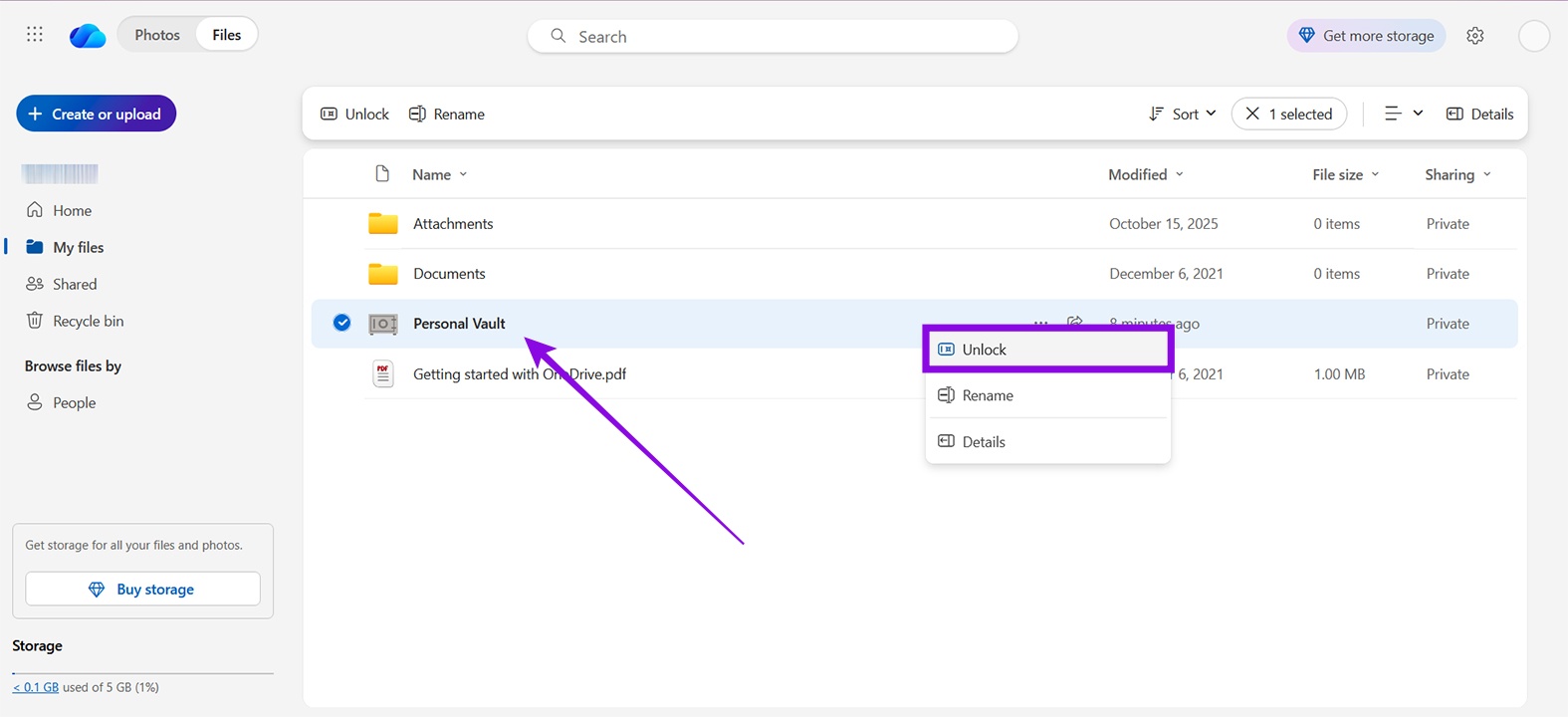
Step 5. You’ll be required to confirm your choice through a confirmation email or another two-factor method.
Step 6. You may also need to unlock the Personal Vault on your PC to complete the syncing process. To do this, open an Explorer window (Win + E) and click the OneDrive shortcut in the side panel.
Step 7. Click on the Personal Vault and complete any security checks or questions required.
Relock and Reauthenticate the Personal Vault
If you’re used to accessing your OneDrive Personal Vault through a shortcut on your Desktop, then relock things manually.
What you need to do is right-click the OneDrive icon in your system tray and select “Lock Personal Vault.” Give the sync a moment to refresh, then reopen the vault and complete the two-factor authentication (2FA) process. This’ll refresh the encryption token and allow the sync engine to resume processing your files.
Check File Name Length
It’s a well-known limitation that OneDrive caps its file name lengths at 255 characters in addition to the regular exclusion of certain symbols that can’t be in file names (# % & * : < > ?, etc.). Just because it hasn’t warned you, doesn’t mean that you’re good to go. Check your Personal Vault’s contents to ensure that none of your file names go over the limit or include forbidden characters.
Check File Size
While we’re on limitations, OneDrive also prevents any file bigger than 250GB from being uploaded. While it’s probably unlikely you have anything of that size in your Personal Vault, just confirm to be sure.
Reset OneDrive
If you suspect the issue is caused by OneDrive on your PC, you can try resetting things from that side. Here’s how:
Step 1. Open the Run Dialog (Win + R) and type “%localappdata%\Microsoft\OneDrive\onedrive.exe /reset” before hitting “Enter” to run the process.
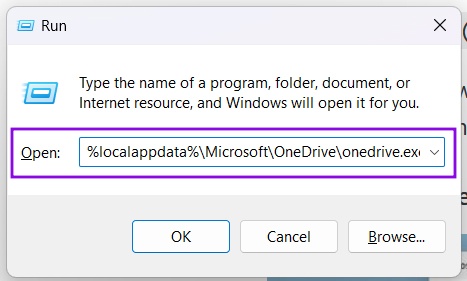
Step 2. Once OneDrive is reset, restart your machine and sign in to OneDrive again, checking if you can access your Personal Vault.
How to Add More Color to Your OneNote
Read Next