How to Digitally Sign Your Excel Macros for Authenticity
So, you’ve finished coding in VBA, and you’re pretty proud of your work. It’s only natural to want to sign it. But far more than the cherry on top, a digitally signed Excel macro is a guarantee that assures clients and other users that no one else has tampered with things.
It’s a professional and security-enhancing feature, and, in this article, we’re going to look at how to digitally sign Excel macros.
Security and Authenticity
What does it mean to digitally sign a macro in Excel? It’s to attach a cryptographically signed digital certificate to a VBA project, showing other users where it has come from and giving assurance that it has not been tampered with. The digital signature doesn’t prevent edits, but any modification invalidates the signature, letting users know the code has been altered. This is a very useful tool, and often demanded by security protocols.
How to Digitally Sign Excel Macros
There are a few different steps involved in obtaining and adding a digital signature to your macros. Let’s get to it:
Obtaining a Digital Certificate
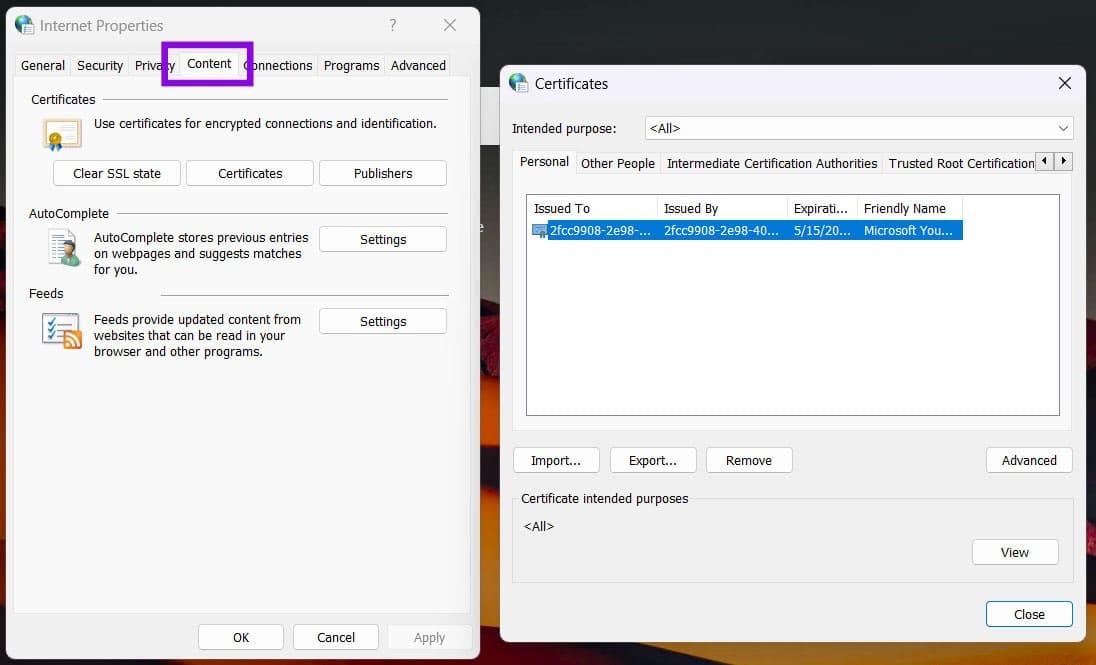
You can create a self-signed certificate for testing using Microsoft’s SelfCert tool, but distributing macros to other users generally requires a certificate issued by a trusted certificate authority. This may involve a fee, but often requires an extensive information check and verification of you and your organization. The verification process can take time.
There are plenty of certification authorities out there that can do this too. Larger organizations have their certificates issued by internal IT departments. There are also private/internal certificates – recognized only within an organization – and publicly trusted certificates recognized on the internet at large.
You can check your digital signature in Microsoft Edge by choosing “Internet options” from “More tools” in the dropdown menu, and clicking the “Content” tab.
Ensure the Right Format
So, you’ve got your digital signature handy and are ready. Before you jump into Excel, digitally sign a macro, and send your workbook off, you’ll need to ensure that your file can support macros in the first place. Here’s how to do it:
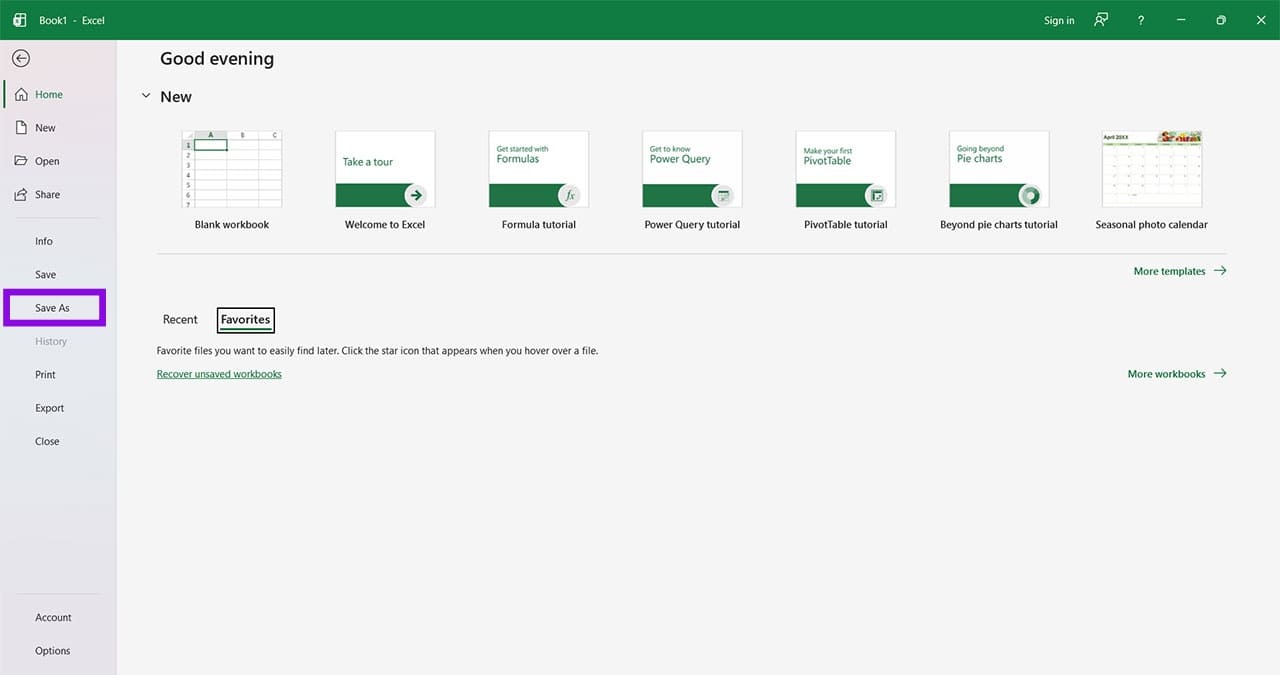
Step 1. Click the “File” tab, and click “Save As” from the sidebar.
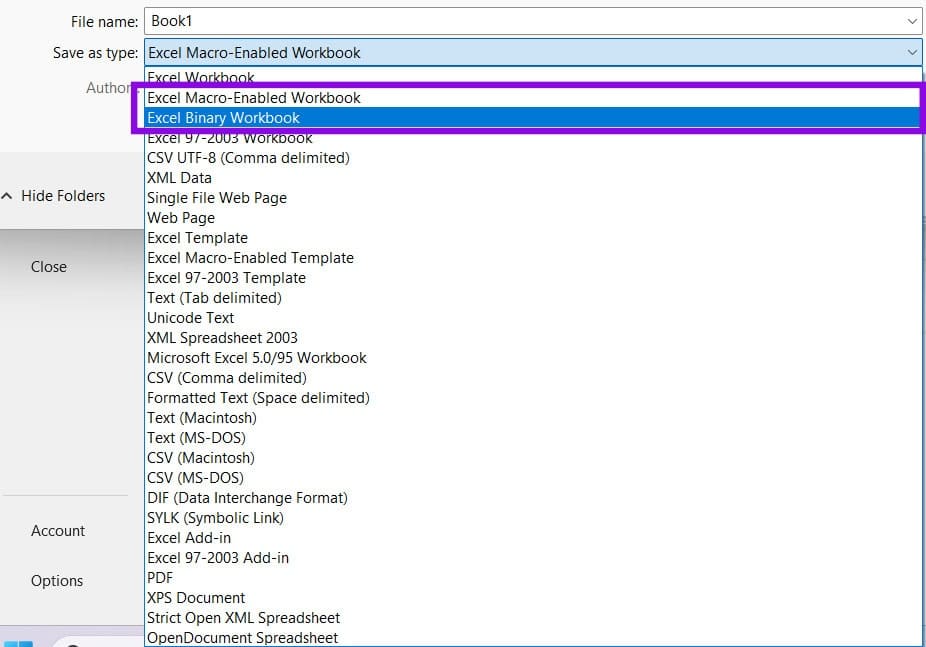
Step 2. Ensure that the file is either saved as an “Excel Macro-Enabled Workbook” (.xlsm) or “Excel Binary Workbook” (.xlsb) to enable macros. Click “Save.”
Signing the Macro
Now you’re ready for the main event. Here’s what to do:
Step 1. In your workbook, press (Alt + F11) to open the VBA editor.
Step 2. Choose your project in the side panel, then click “Tools.”
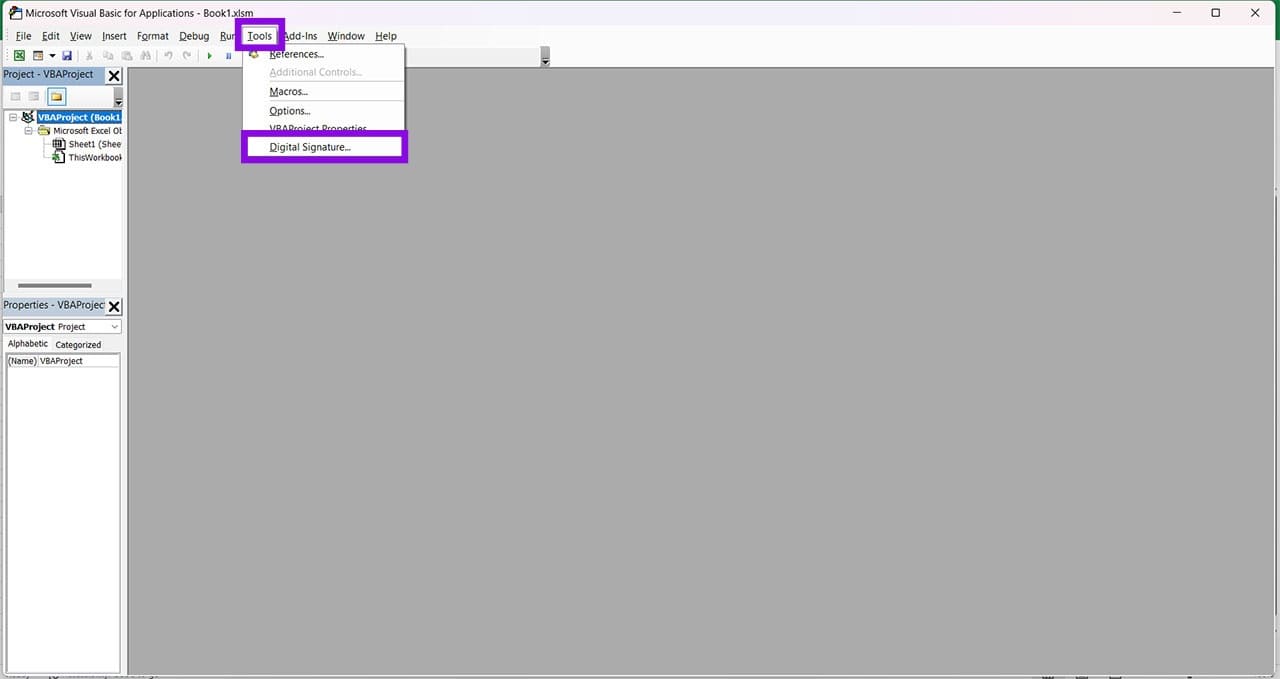
Step 3. Click “Digital Signature.”
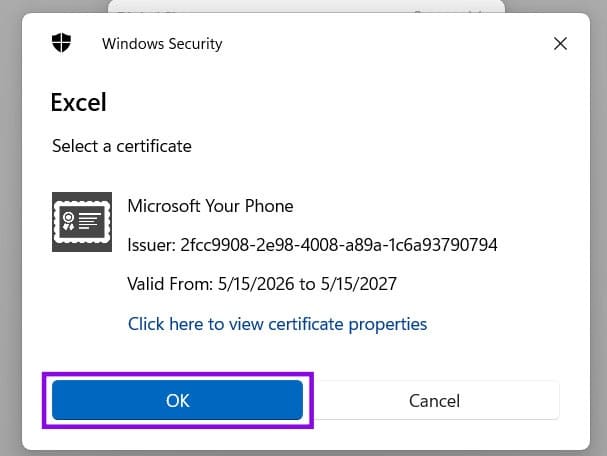
Step 4. In the new window that pops up, if you haven’t previously signed with a certificate (or want to do so with a new one), click the “Choose” button.
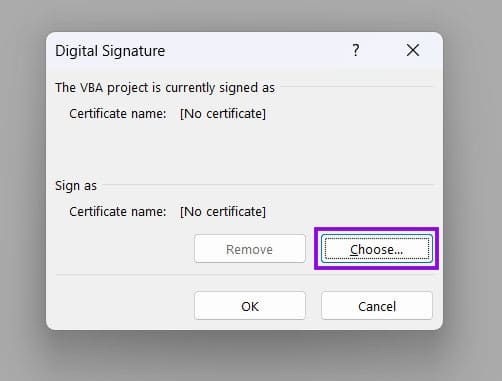
Step 5. Choose your certificate and press “OK.”
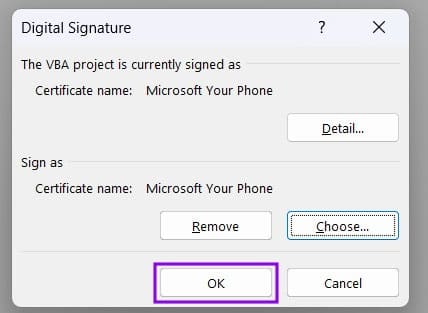
Step 6. Click “OK” again to finalize the whole process.
Step 7. Close the VBA editor and save your workbook. Excel may not display a confirmation that the macro has been digitally signed.
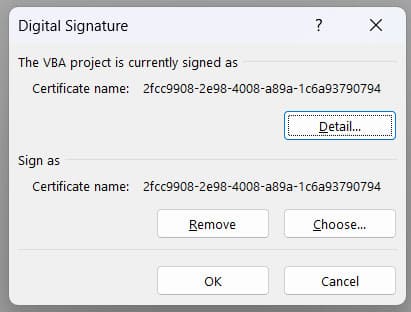
Step 8. You can head back into the VBA and click “Digital Signature” under “Tools” again to see if the signature is active.
What Is Taking Up Space in My Hard Drive?
Read Next