Why Does a Random White Box Pop Up on Desktop? (And How to Fix It)

Windows users have recently reported an issue involving a white box popup on desktop. The white screen popup appears at random and is completely blank, containing no error codes or messages to explain what it is or why it’s there. It’s not believed to be dangerous, but it can still cause inconvenience. With that in mind, this guide explains how to fix the white screen over desktop issue.
What Is the White Box Popup on Desktop?
The white screen popup is quite simply a white box that shows up on the desktop of Windows computers and laptops. It has been recorded on both Windows 10 and 11, according to user reports and independent investigations. Users report that the white popup appears whenever they start, unlock, or restart their devices.
In some cases, the white box disappears relatively quickly and causes no further issues. In other cases, however, users have reported it remains there until they shut down their devices. They can’t interact with it or minimize it, and it may block access to certain desktop apps and icons, causing inconvenience for the user.
Why Does It Appear?
It’s believed that this issue is linked to the Google Chrome web browser. More specifically, a certain process associated with Chrome, called “RunPlatformExperienceHelperOnUnlock,” has been found to cause the white screen over desktop problem. Google hasn’t publicly documented the exact purpose of the task, but it appears to be part of Chrome’s background platform components.
How to Fix the White Screen Popup
Since the white screen issue is linked to the specific Google Chrome process mentioned above, the most effective way to fix it is to disable that process. Users have done this and haven’t reported any negative effects, but have seen the white box disappear since making the change. Here’s how you can do the same:
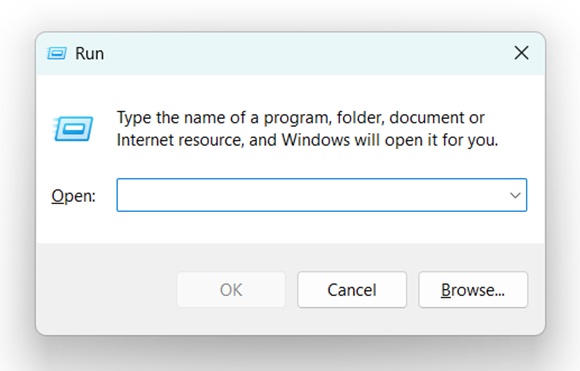
Step 1. Press the “Windows” and “R” keys to launch the “Run” utility.
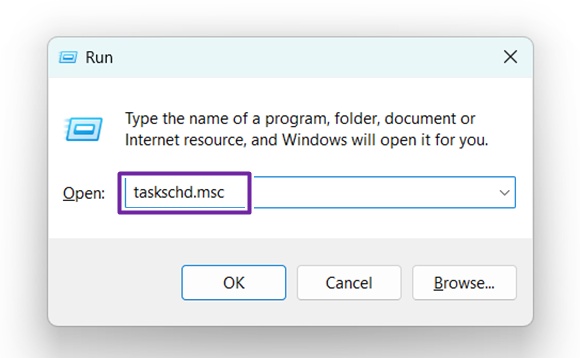
Step 2. Type in the following command and hit the “Enter” key: “taskschd.msc”
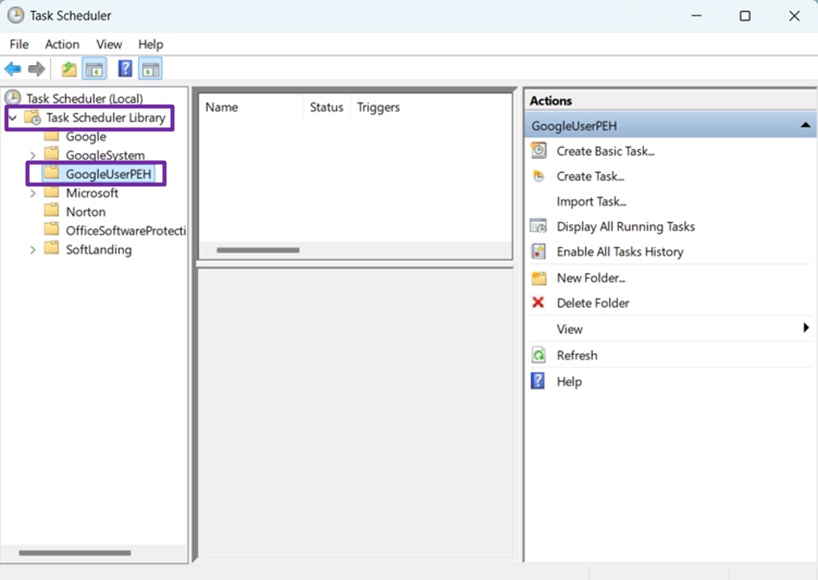
Step 3. The “Task Scheduler” utility should then launch. Using the navigation pane on the left side of the window, open the “Task Scheduler Library” folder, then find and select the folder labeled “GoogleUserPEH.” You may then see the “RunPlatformExperienceHelperOnUnlock” task in the central window. Right-click it and select “Disable” to stop it from running.
Alternate Methods to Fix the White Screen Popup
The above method should fix the white box popup problem and has proven to be the most consistently successful workaround reported by users. If it doesn’t work or the “RunPlatformExperienceHelperOnUnlock” process doesn’t appear in your Task Scheduler, you can also try restarting your device, installing any available system or Google Chrome updates, or uninstalling and reinstalling the Chrome browser.
What Is Cloud Rebuild in Windows 11 and How Do You Use It?
Read Next