Office Apps Not Opening After Update? 6 Ways to Repair Your Installation

You’ve just installed Office on your PC and are eager to get to work, but it seems that Office has other ideas. If you’re struggling with Office apps not opening after update, then this article is for you. We’ve got six ways to fix your installation and get that workflow flowing again.
Office Apps Not Opening After Update – Fixes to Try
Let’s get straight into it. We’ve arranged our fixes to start with simple troubleshooters and slowly move into more advanced territory. If Office won’t open after Windows update, try these.
Restart Everything
Your first stop should be a restart. Start with any Office apps currently open and then move from there to your PC itself. This is a quick way to eliminate small errors that might otherwise push you to more drastic measures.
End Processes
Sometimes an instance of your Office app stays open, preventing another instance from starting. In this case, you can end these processes via Task Manager:
Step 1. Open Task Manager (Ctrl + Shift + Esc).
Step 2. Look for a process of your Office app currently running and click it.
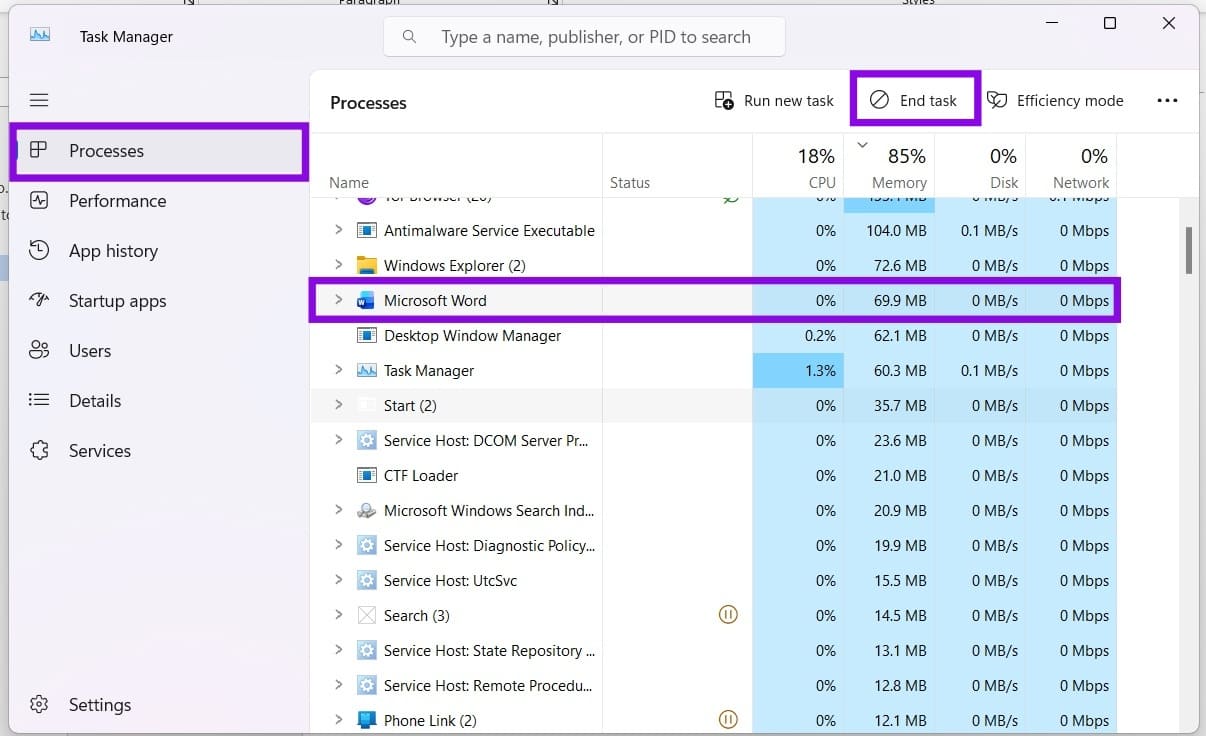
Step 3. Click “End task” near the top of the window.
Step 4. Try opening the app again.
Repair Office via Settings
For Microsoft Office and Microsoft 365, a repair via Settings can be a non-destructive way of fixing problems while retaining app data. Here’s what to do:
Step 1. Open “Settings” (Win + I) and click “Apps” in the sidebar.
Step 2. Click on “Installed apps.”
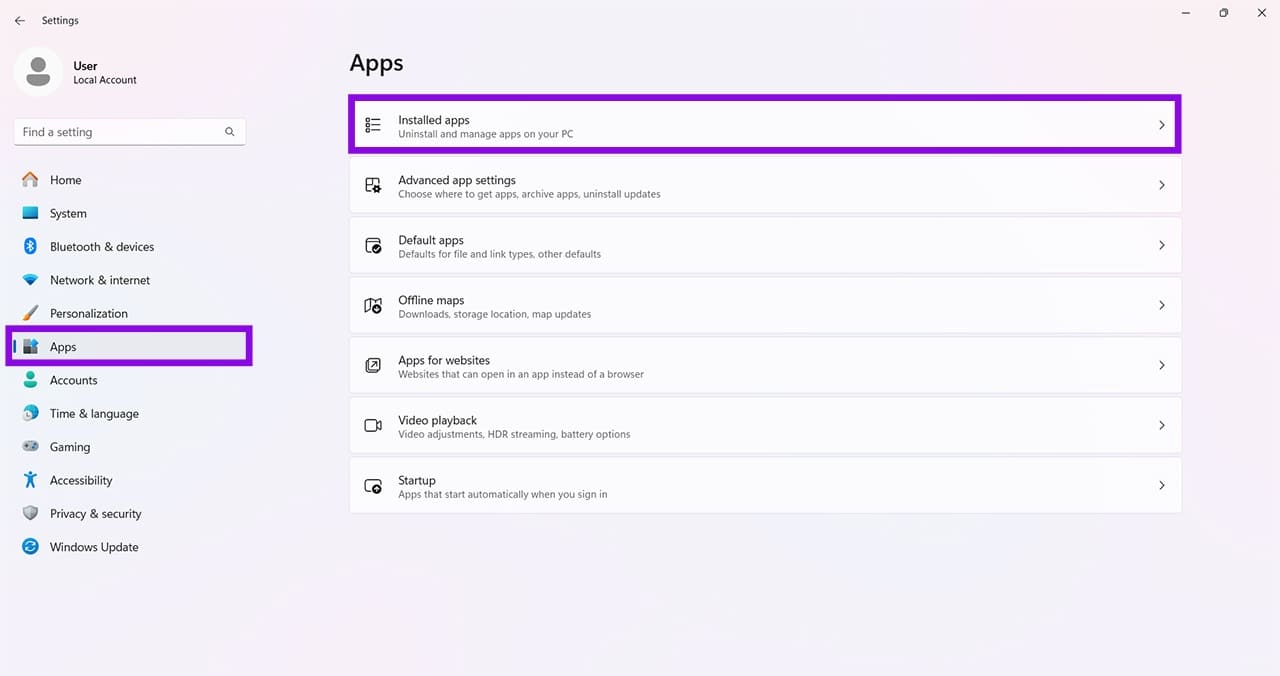
Step 3. Navigate to Microsoft 365 or Office and click the “More” icon (three dots) next to it.
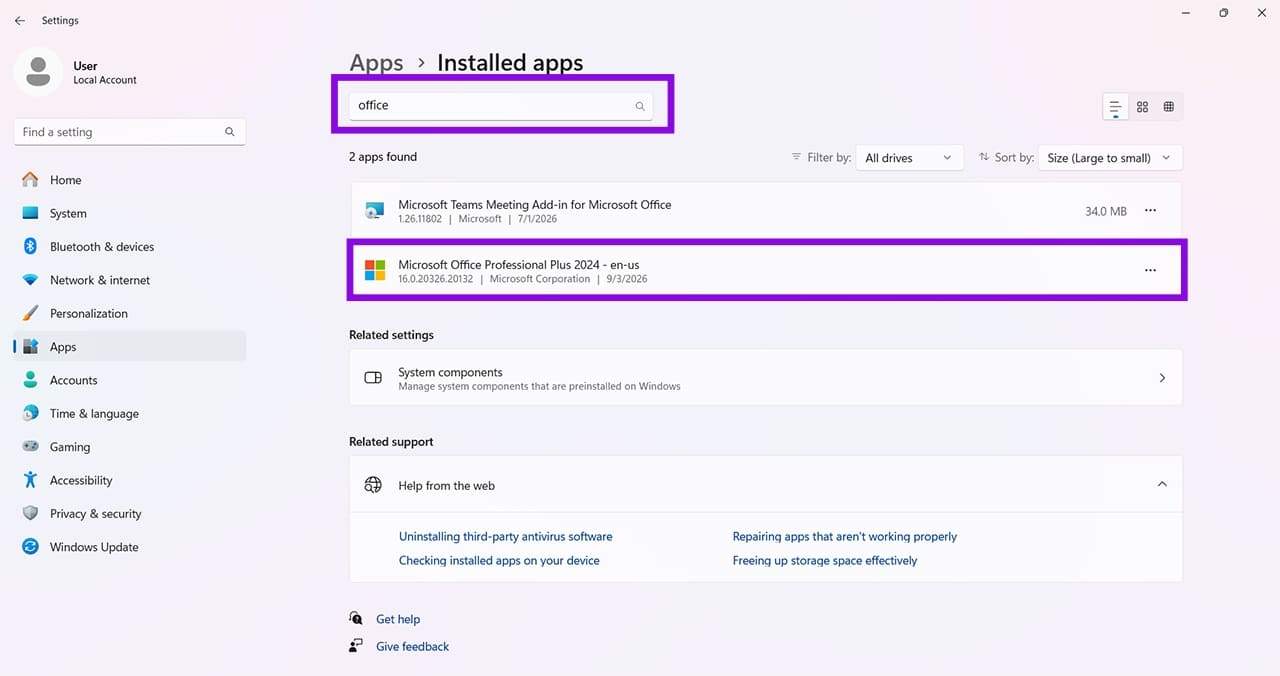
Step 4. Click “Advanced options” from the dropdown menu.
Step 5. In the next screen, under the “Reset” subsection, click the “Repair” button.
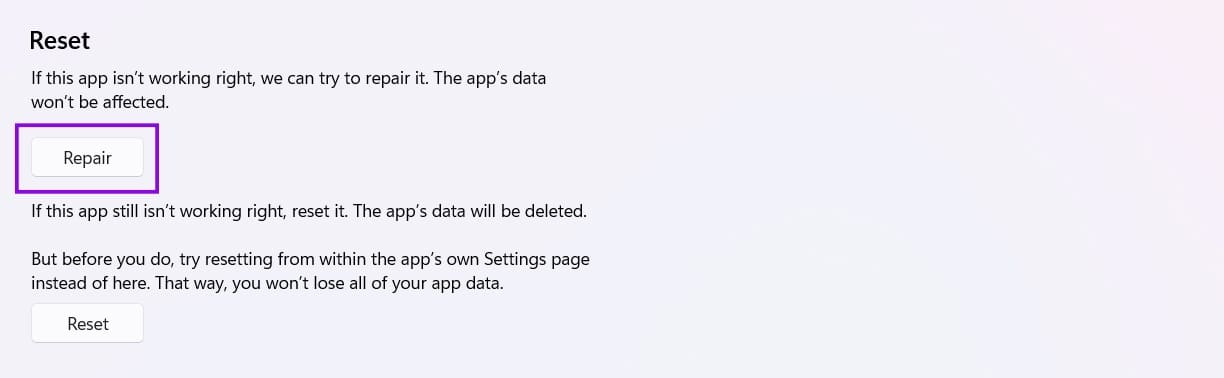
Step 6. Once the process is complete, try opening the app again.
Try Online Repair
Online Repair reinstalls Office files and replaces damaged components. To do this:
Step 1. In the “Installed Apps” section of ‘Apps” in “Settings,” click the “More” icon and choose “Modify.”
Step 2. A new window will pop up. Choose “Online Repair.”
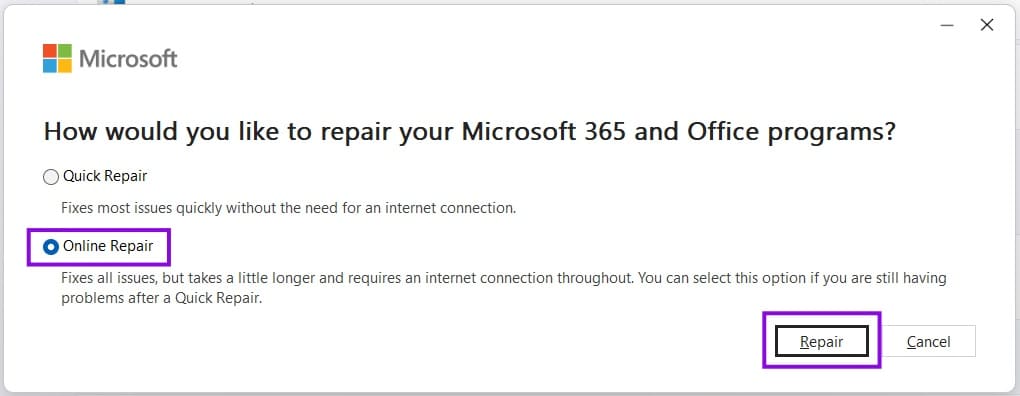
Step 3. Click the “Repair” button to begin the process. Try your app again after this.
Launch the Apps in Safe Mode
An update may render certain Office add-ins incompatible. Starting the app in Safe Mode (not your PC) is a way to confirm if these are the problem. Here’s what to do:
Step 1. Open the Run dialog (Win + R) and type your app followed by “/safe,” then press “Enter.” The three main ones are Excel, Word, and PowerPoint.
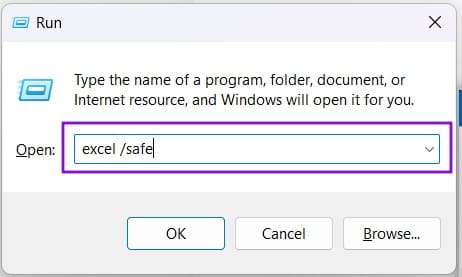
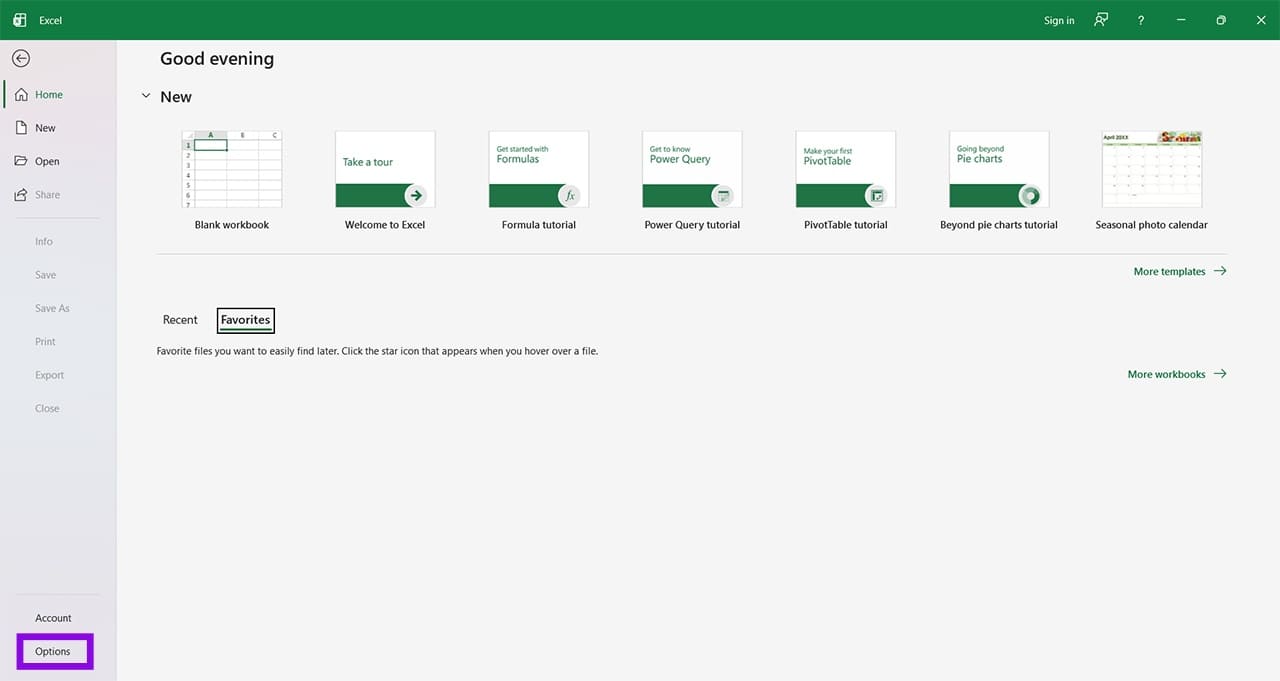
Step 2. If the app opens normally, then you know add-ins are to blame. To disable them, click the “File” tab of your app and choose “Options.”
Step 3. In the Options window, click the “Add-ins” tab.
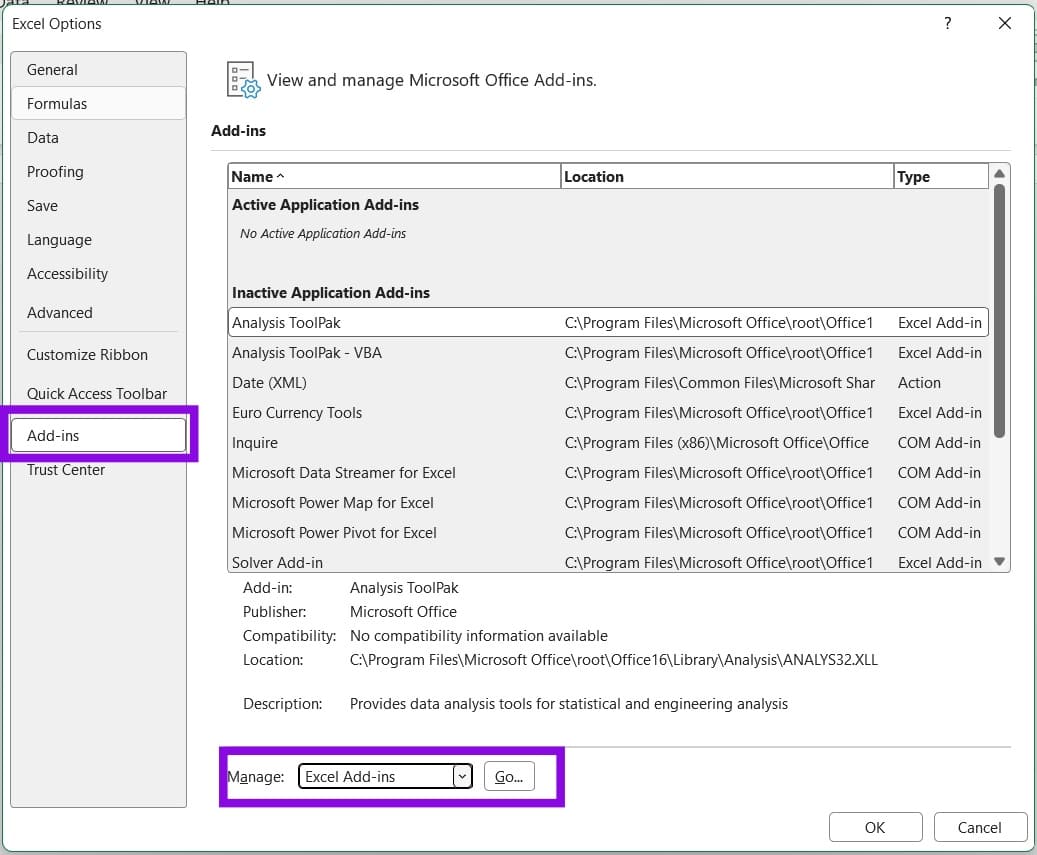
Step 4. Click the “Go” button next to “Manage.”
Step 5. Uncheck all add-ins and click “OK.” You can re-enable them one by one to find the problematic one.
Reset Your App
If you’re still having issues and the Reset option is available, it can provide a clean slate by deleting the app’s data and starting fresh. Here’s what to do:
Step 1. In the “Installed Apps” section of “Apps” in “Settings,” find “Office” and click the “More” icon.
Step 2. Click “Advanced options.”
Step 3. Under the “Reset” section, click the “Reset” button, then confirm the reset.
Step 4. Allow the process to run and then try reopening your Office apps.
How to Export and Backup Windows Drivers Before Reinstalling Windows
Read Next