



Why Does My VPN Keep Disconnecting? 7 Common Causes And Easy Fixes
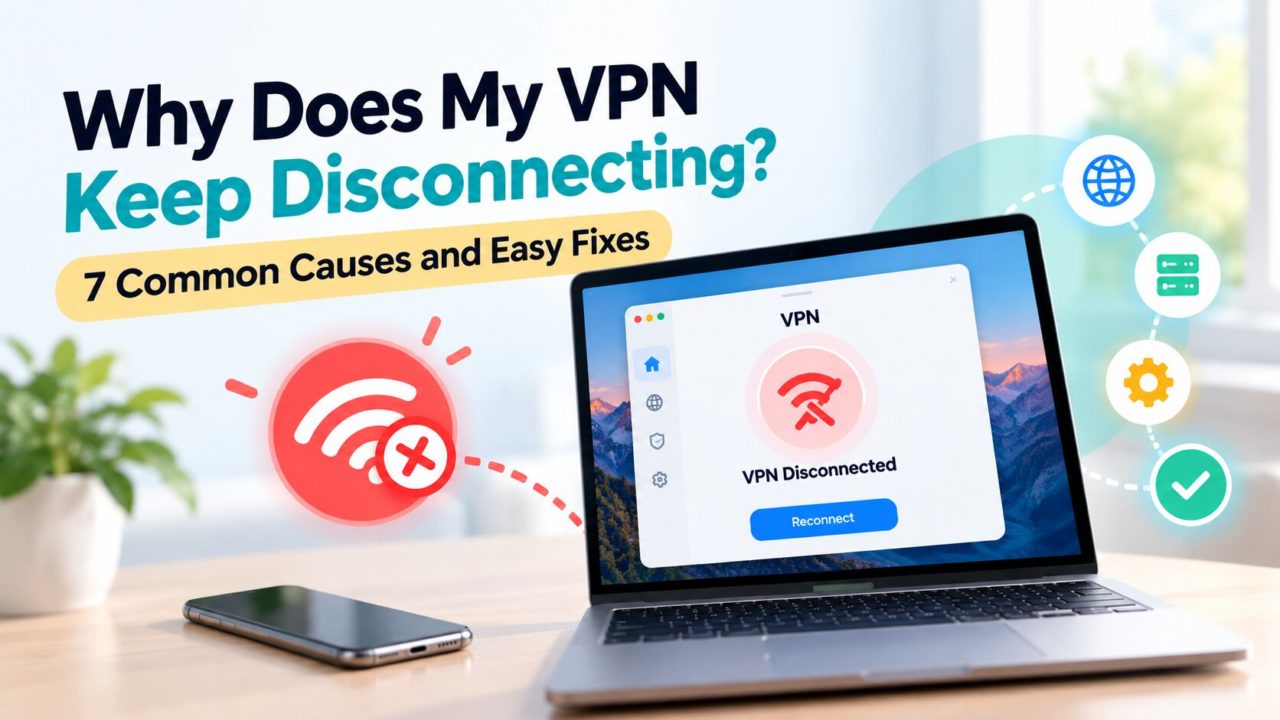
A VPN that keeps disconnecting can quickly become frustrating. One minute you’re browsing normally, and the next, your connection drops. Videos stop loading, downloads pause, and sometimes your internet stops working altogether.
So, why does your VPN keep disconnecting? The most common causes include unstable Wi-Fi, overloaded VPN servers, network switching, and device settings that interfere with the connection. Fortunately, a few simple adjustments can often get things working again.
Why Your VPN Keeps Disconnecting
A VPN creates an encrypted connection between your device and a remote server. When something interrupts that connection, the VPN may disconnect or attempt to reconnect automatically.
The easiest way to identify the problem is to notice when it happens. Does your VPN disconnect when you lock your phone? Only on public Wi-Fi? Or whenever you connect to a particular server?
You can also test another free VPN app, such as X-VPN, to compare how different apps behave on the same network. This can help you determine whether the issue comes from your current VPN software or the internet connection itself.
Here are seven common reasons VPN connections drop.
1. Your Internet Connection Is Unstable
A weak or inconsistent internet connection is one of the biggest reasons VPNs disconnect.
Even brief Wi-Fi interruptions can break the encrypted connection between your device and the VPN server. This often happens when you’re far from your router, using crowded public Wi-Fi, or experiencing network congestion.
If websites and apps are also slow without the VPN, your internet connection is a good place to start troubleshooting.
2. Your Phone Keeps Switching Networks
Smartphones regularly switch between Wi-Fi and mobile data to maintain internet access.
For example, when you leave home, your phone may move from your Wi-Fi network to cellular data. That change can interrupt the VPN connection while it adjusts to the new network.
Some VPNs handle these transitions more smoothly than others. If disconnects mostly happen while you’re moving around, automatic network switching may be responsible.
3. Your VPN Server Is Overloaded Or Too Far Away
VPN servers handle connections from multiple users. When a server becomes crowded, you may experience slower speeds, connection timeouts, or unexpected disconnects.
Server location can also make a difference. Connecting to a server thousands of miles away introduces additional network routing, which may affect connection stability.
Try connecting to a server closer to your physical location. If the problem disappears, the original server or network route was likely causing trouble.
4. Your VPN Protocol Isn’t Working Well With Your Network
VPN protocols determine how your device communicates with the VPN server.
Different protocols behave differently depending on your network. For example, a protocol that works smoothly on home Wi-Fi may struggle with a restrictive office network or an unreliable public connection.
Many VPN apps let you change protocols in their settings. Switching to another available option can sometimes resolve recurring disconnects without changing anything else.
5. Firewall Or Antivirus Software Is Interfering
Firewalls and antivirus programs monitor network activity to protect your device. Occasionally, they may interfere with VPN connections.
This is more likely on computers with strict security settings or multiple security programs installed.
If your VPN connects briefly and then drops, check whether your firewall or antivirus software is restricting the VPN application. Adding the VPN to the software’s allowed-app list may resolve the conflict.
6. Battery-Saving Settings Are Closing Your VPN
Modern devices use battery optimization features to reduce background activity. On some Android phones, aggressive battery restrictions may interfere with VPN apps running in the background. Laptops can also interrupt network connections when entering sleep mode.
A common sign is that your VPN works normally while you’re using your device but disconnects after the screen turns off or the device goes idle. Check your device’s battery and background activity settings to see whether they’re affecting your VPN.
7. Public Wi-Fi Is Restricting Your Connection
Hotel, airport, and café Wi-Fi networks often come with additional restrictions. Some require you to complete a browser-based login before internet access becomes available. Others use network filtering or bandwidth controls that can interfere with VPN connections.
If your VPN works at home but disconnects repeatedly on one public network, the network itself may be the cause. Try completing the Wi-Fi login process first, or switch to mobile data to see whether your VPN stays connected.
How To Stop Your VPN From Disconnecting With X-VPN
If your VPN keeps disconnecting, X-VPN offers several built-in options to help improve connection stability. Start with the app’s settings, then check your device and network if the problem continues.
1. Enable X-VPN’s Stable Connection Feature
X-VPN has a Stable Connection feature designed to reduce frequent disconnections. It considers your location and network conditions to help find a more reliable connection.
To enable it:
- On iOS and Android: Open X-VPN and go to Me > VPN Settings > Stable Connection.
- On Windows and Mac: Go to Settings > VPN Settings > Stable Connection.
Turn it on, reconnect to X-VPN, and check whether your connection stays stable.
2. Connect To A Different VPN Server
Sometimes, switching servers is all you need. Open X-VPN, go to Select Location, and choose The Fastest Server. X-VPN will automatically select a server based on connection performance.
You can also manually select another available location. Try a nearby server first, then see whether the disconnects continue.
3. Try A Different VPN Protocol
Different VPN protocols can perform differently depending on your network.
X-VPN offers automatic protocol selection, which chooses a suitable protocol for your connection. If you’re still experiencing interruptions, try switching manually.
- On mobile: Tap Auto on the X-VPN home screen to view available protocols.
- On desktop: Go to Settings > VPN Settings > Protocol.
Try another available option, such as UDP or TLS, and test the connection for a few minutes.
4. Adjust Your Device’s Battery Settings
If X-VPN disconnects when your phone is locked or your laptop goes to sleep, battery-saving settings may be interrupting its background activity. On Android, open your phone’s app settings, find X-VPN, and check its battery restrictions. Allow background activity if it’s being limited.
For laptops, review your sleep and power-saving settings to make sure they’re not interrupting the network connection.
5. Restart X-VPN And Your Router
Temporary network issues can sometimes be resolved with a quick restart. Disconnect X-VPN, close the app, and restart your device. If you’re using home Wi-Fi, restart your router as well.
Once everything is running again, open X-VPN and reconnect.
6. Update X-VPN And Check Security Settings
Keeping X-VPN updated can help prevent compatibility issues and connection errors. Download the latest version from your app store or the official X-VPN website.
If you’re using Windows or Mac, also check whether your firewall or antivirus software is blocking X-VPN. Add the app to the allowed applications list if necessary.
7. Test Another Network Or Contact X-VPN Support
Still having trouble? Try connecting X-VPN through a different Wi-Fi network or mobile data.
If it works on the second network, the original connection or router settings may be causing the interruptions.
For persistent issues, X-VPN also offers 24/7 customer support through Live Chat. You can access it from the app’s Help Center and get assistance with your connection settings.
Why Your Internet May Stop Working When The VPN Disconnects
Sometimes, when a VPN disconnects, your entire internet connection appears to stop working. This may be caused by a feature called a Kill Switch.
A Kill Switch blocks internet traffic when the VPN connection unexpectedly drops. This helps prevent your device from sending data outside the encrypted VPN connection.
For example, if your VPN disconnects during a browsing session, the Kill Switch may temporarily stop internet access until the VPN reconnects.
If you notice this behavior, check whether your VPN’s Kill Switch is enabled. The feature doesn’t prevent disconnections, but it provides an extra layer of privacy protection when they happen.
Final Thoughts
If your VPN keeps disconnecting, start with your internet connection and VPN server. These are two of the easiest things to check.
If the issue continues, try changing your VPN protocol, updating the app, or reviewing your device’s battery and firewall settings.
Pay attention to when the connection drops. That small detail can help you find the cause much faster and get back to browsing without constant interruptions.