Windows Won’t Boot After Point-in-Time System Restore – How to Fix

Microsoft includes System Restore as a way to return your PC to an earlier point before something went wrong. Unfortunately, there are times when that too can cause problems. In this article, we’re here to help provide you with some fixes to help when Windows won’t boot after point-in-time restore.
What Causes This Error
Problems with System Restore points primarily have to do with driver issues. Driver problems can occasionally cause startup issues after a System Restore, but Microsoft doesn’t state that System Restore restores the system while leaving the related drivers behind.
What to Do When Windows Won’t Boot After Point-in-Time System Restore
If you’re struggling with a point-in-time error, Windows RE provides several recovery options. There are many ways to enter Recovery Mode, but if you can’t boot up, the easiest way to go about this is to force-restart your machine with the Power Button two or three times. If Windows does not enter recovery automatically, you can stop the startup process by holding the power button until the PC turns off, then repeat.
Once you’re in Recovery Mode, you’re ready to start troubleshooting.
Disable Driver Signatures
This is your first stop in fixing a point-in-time restore. Windows enables this feature to ensure that any unsigned or unverified drivers are blocked. This is an important security feature, but temporarily disabling driver-signature enforcement can help you figure out whether an incompatible or unsigned driver is keeping Windows from starting.
Here’s what you need to do:
Step 1. In Windows RE, choose “Troubleshoot.”
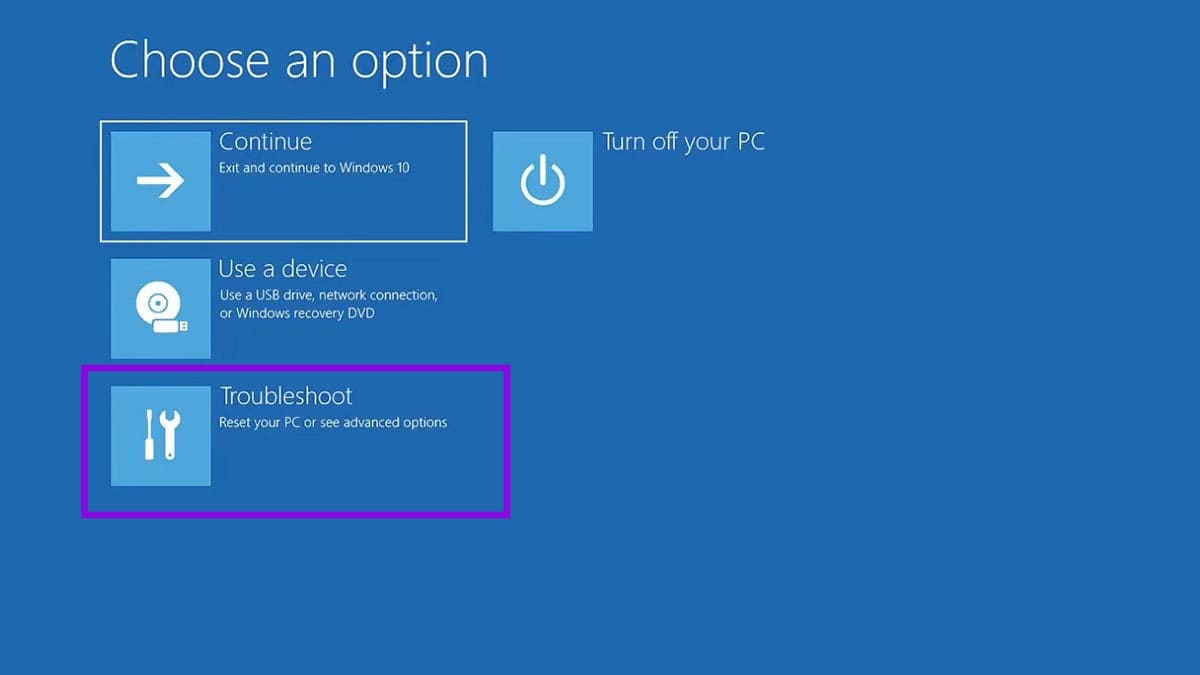
Step 2. On the next screen, choose “Advanced options.”
Step 3. Choose “Startup Settings.”
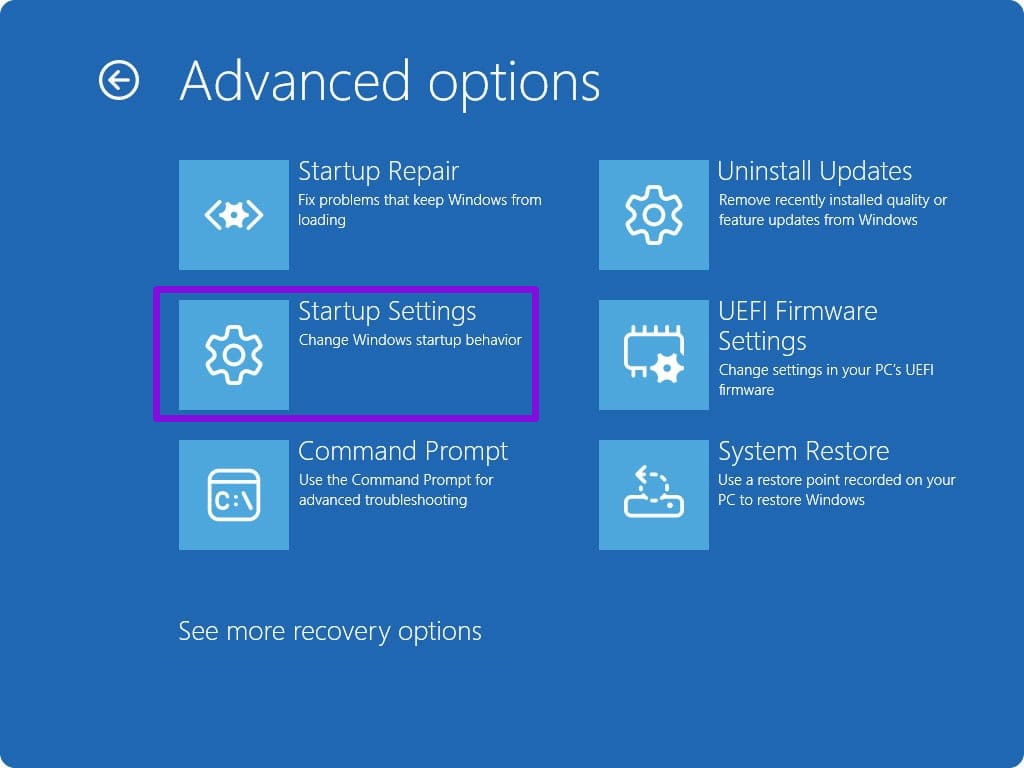
Step 4. Select “Restart.”
Step 5. When the “Startup Settings” menu appears, press 7 or F7 to select “Disable driver signature enforcement.”
Step 6. Let the process continue, and Windows will restart. See if this resolves the issue. If not, it’s time to try the next troubleshooter.
Using Advanced Recovery
This option opts for a System Restore using Advanced Recovery. If Windows won’t start, you can use Windows RE to run System Restore without booting into Windows. If the built-in recovery environment isn’t available, you can also use Windows installation media to access recovery tools. Have your bootable device plugged in and follow these steps:
Step 1. When RE starts up, click “Troubleshoot.”
Step 2. Click “Advanced options.”
Step 3. On the next screen, choose “System Restore.”
Step 4. Choose the restore point you want to return to and let the process run.
Step 5. Your PC will restart. See if this resolves the issue.
Seek Help
If neither of these two options is working, then it may be best to seek help from a professional technician or repair service. The failure to restore to a certain point means that your data is at risk, and therefore it’s best not to delay and seek out help as soon as possible.