10 Settings That Will Boost Your Xbox Cloud Gaming
Streaming console-quality games straight to a browser or phone is impressive when it works, but it’s also frustrating if it stutters, freezes, or lags behind your input. If you’re looking into how to improve cloud gaming Xbox users have come to love, the good news is that most of the fix is in mundane things and Cloud Gaming settings that most people never touch.
10 Settings on How to Improve Cloud Gaming Xbox

1. Switch to a Wired Ethernet Connection
Connecting your PC or laptop directly to your router with an Ethernet cable removes Wi-Fi interference, wall obstruction, and signal degradation. It’s by far the most consistent improvement for any cloud gaming settings. If a wired connection genuinely isn’t possible, connect to your router’s 5 GHz band instead of 2.4 GHz. It’s faster and far less congested, though it has a shorter range, so sit as close to the router as you reasonably can.
2. Check Your Region Settings
Xbox Cloud Gaming runs on servers located around the world. The physical distance to the server you’re connected to directly affects your gaming experience. Xbox Cloud Gaming automatically connects you to the best server for your location, so make sure your Windows and Xbox account region settings match where you’re actually located. This helps ensure you’re connected to the nearest available server and can reduce unnecessary latency.
3. Use Microsoft Edge and Enable Clarity Boost
If you’re playing through a browser, Edge has a few optimizations built specifically for Xbox Cloud Gaming, including a feature called Clarity Boost that sharpens the video stream without adding latency. It’s available once you use Xbox Cloud Gaming by going to the “More actions” menu and enabling the feature.
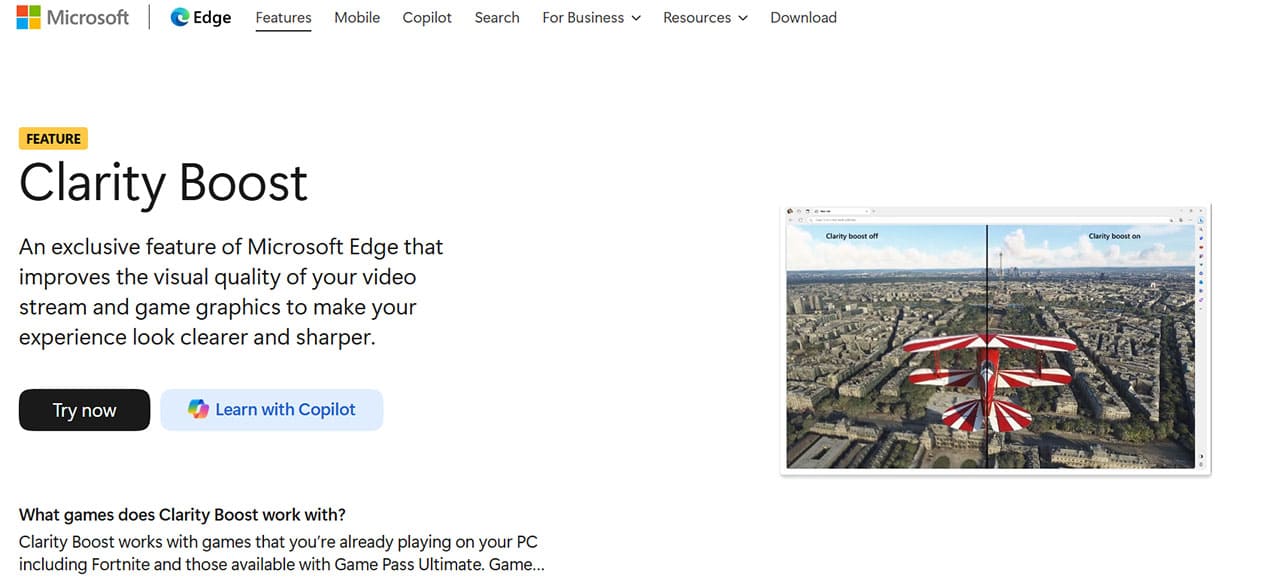
If you don’t see the option, make sure Edge is fully updated first.
4. Turn On QoS for Gaming Traffic on Your Router
Quality of Service (QoS) settings, found in most modern router admin panels, let you prioritize traffic from a specific device over everything else on the network. This is a bit advanced, but you need to log into your router’s settings, find the QoS section, and set your gaming PC or device as the highest priority.
5. Disconnect Idle Devices and Enable Data Saver on Mobile
Every connected device competes for the same bandwidth, so pause or disconnect anything that isn’t actively needed before a session. This includes smart TVs, phones syncing in the background, and other laptops; all count. On phones and tablets, you can enable “Data Saver” or “Low Data Mode,” which reduces how much bandwidth background apps consume, leaving more available for the game stream itself.
6. Lower In-Game Graphics Settings
Many games still have graphics options even when running through the cloud. Lowering resolution, turning off anti-aliasing or shadow detail, and reducing texture quality can noticeably smooth out performance, particularly on less powerful phones and tablets. You need to change this per-game, since the demanding settings vary from title to title.
7. Disable VPNs and Ad Blockers Before Gaming
A VPN adds an extra routing hop between you and Microsoft’s servers, typically costing a few dozen milliseconds of additional ping, which can be enough to make cloud gaming feel sluggish. So, disconnect any VPN programs before starting a session.
Browser extensions can also slow down page rendering, so you can try an incognito or private browsing window, which disables extensions by default to see if performance improves.
8. Use a Wired Controller Instead of Bluetooth
Bluetooth adds a small amount of input latency on its own, and that delay stacks on top of the network latency inherent to cloud streaming. Connecting the controller via USB cable eliminates that.
9. Clear Your Browser Cache and Keep Software Updated
In Chrome or Edge, press “Ctrl + Shift + Delete,” set the time range to “All time,” check “Cached images and files” and “Cookies and other site data,” and clear the cache. This can speed up page load time.
10. Try Better xCloud for Manual Bitrate and Resolution Control
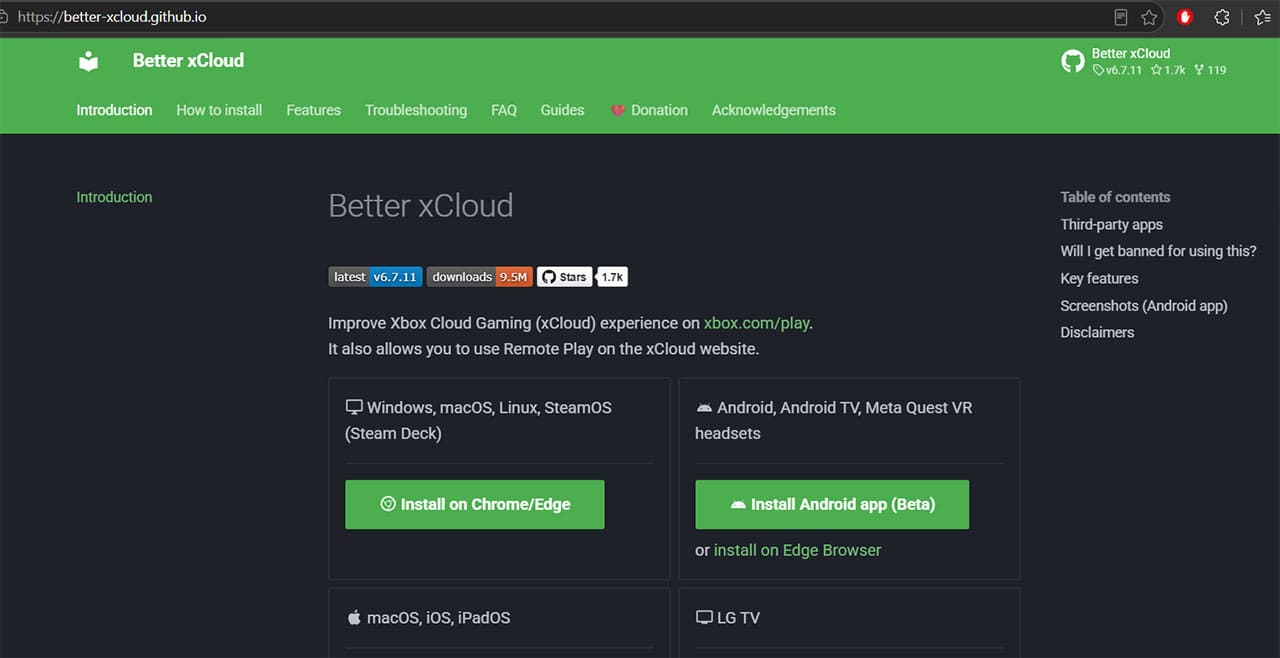
For more control than Xbox Cloud Gaming offers by default, Better xCloud is a free, open-source browser script that adds manual bitrate and resolution settings, real-time ping and FPS diagnostics, and expanded mouse and keyboard support. It’s unofficial and not supported by Microsoft, so use it at your own discretion, but it’s widely used specifically for the kind of fine-tuning this list is about.
If you’ve gone through this list and cloud gaming is still lagging, check “Down Detector” or the official Xbox Support status page – sometimes the bottleneck is server load on Microsoft’s end rather than anything on yours, and no amount of local tweaking will fix that.
How to Digitally Sign Your Excel Macros for Authenticity
Read Next