How to Embed Fonts in Microsoft PowerPoint Presentation
If you’ve ever had to make a PowerPoint presentation on a PC other than your own, you may have run into an issue where all your carefully chosen fonts have shifted on the slides or, worse yet, are completely different from the ones you chose. Thankfully, there’s a way to embed fonts in PowerPoint (PC) that we’ll be showing you how to do in this article.
The Problem of Fonts
Fonts are a tricky thing. To work, many custom or downloaded fonts need to be installed on a PC to be used and recognized. The only problem is that there are millions of fonts out there, with more being devised every day. Licenses and usage rights also play a role in keeping certain fonts off of other PCs, such as corporate fonts.
When it comes to PowerPoint, embedding fonts into a presentation is a useful way to bundle them with the file. Not only do you not have to worry about another PC having access or rights to certain fonts, but they are also secure, only downloadable by the other PC if the font license permits it. This ensures that any trademarked font stays safe, but can travel outside the office.
How to Embed Fonts in PowerPoint (PC)
So, you’re ready and eager to get your fonts embedded. The process itself is very simple and doesn’t take long. Here’s what you need to do:
Step 1. Open up your presentation in PowerPoint.
Step 2. Click the “File” tab and select “Options” from the sidebar.
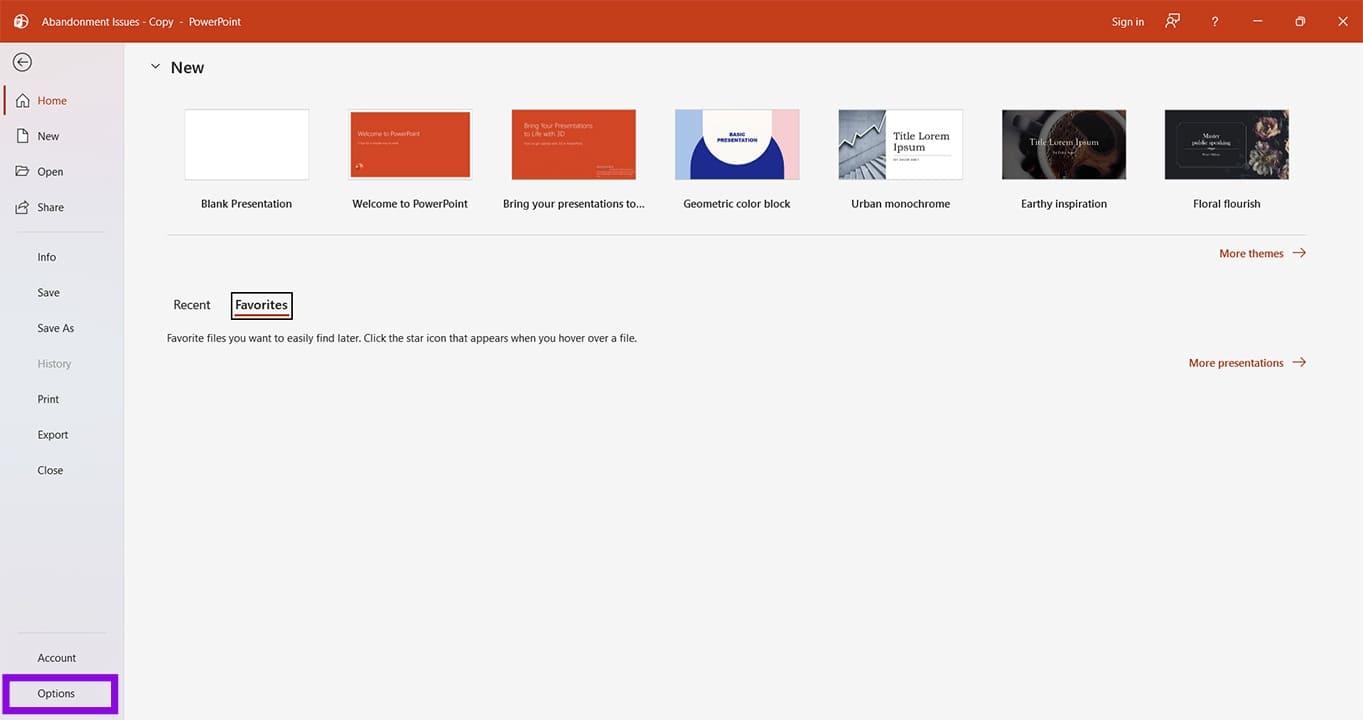
Step 3. In the Options window that pops up, click the “Save” option in the sidebar.
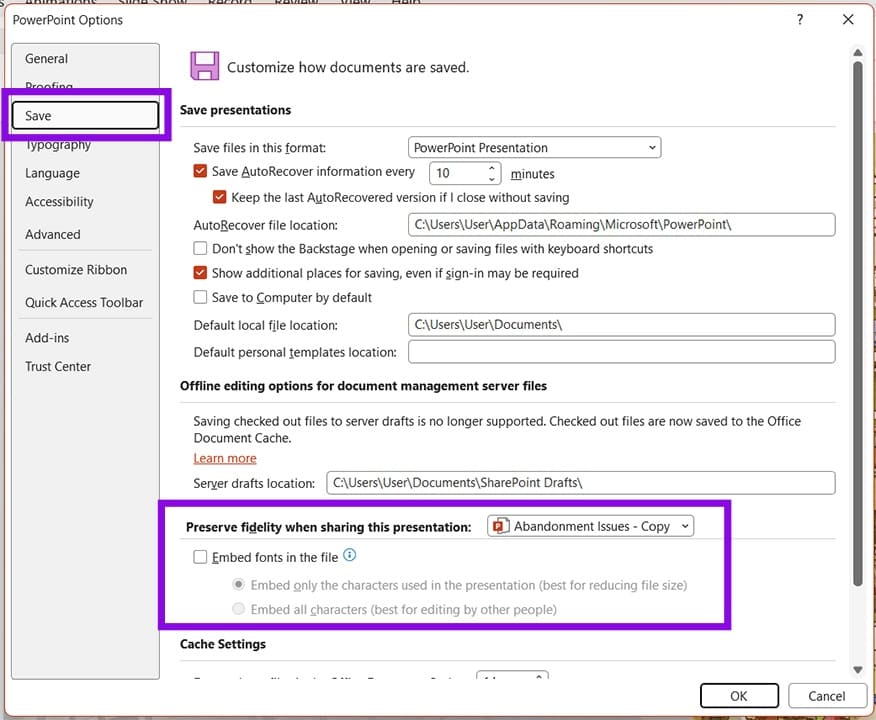
Step 4. Under the “Preserve fidelity when sharing this presentation” subsection, check the “Embed fonts in the file” box.
Step 5. Below this box, you can choose between embedding only the characters in the fonts used in the presentation (which can help with file size) or the entire font file, making it possible to edit on the fly, useful for quick changes.
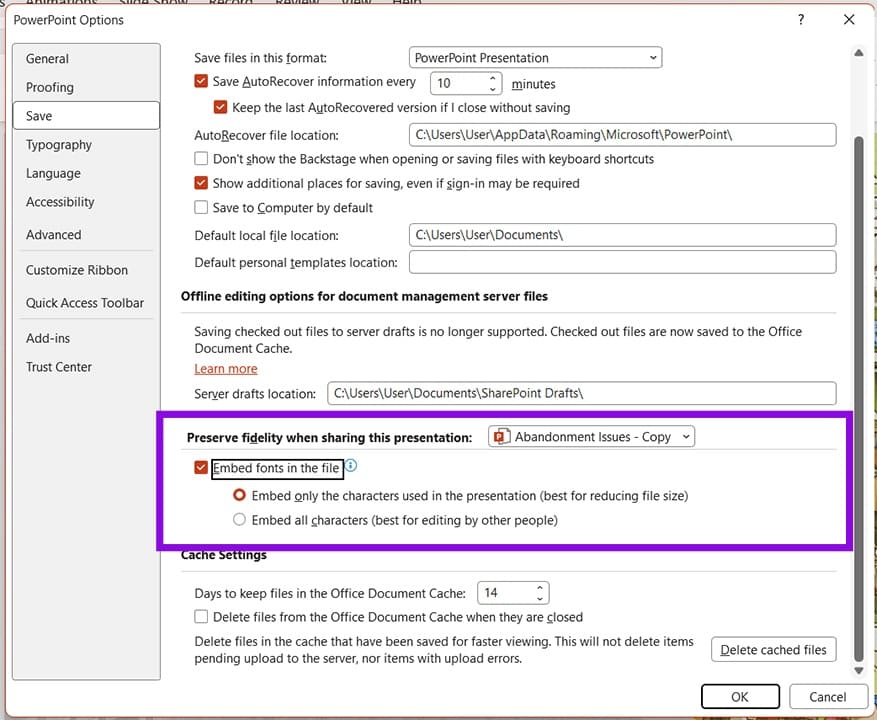
Step 6. Once done, click the “OK” button to finalize the embedding.
Step 7. When you save your presentation next, the fonts (or characters) will be embedded with it.
Using Standard Fonts
If the whole embedding process seems a little daunting to you, then it’s a good idea to choose any of the preset fonts that come with PowerPoint by default. The odds are pretty good that another PC will have the fonts that you’ve chosen for your presentation by default.
Popular default fonts like Aptos, Arial, and Calibri are all safe bets to use in your presentation.
Adding Fonts in Another Presentation
Embedding your own fonts is all well and good, but what if you receive another presentation from someone else that doesn’t have the fonts it’s supposed to? In this case, you can try replacing or installing the fonts manually. If you can’t go to the internet to download them, you can replace them in the app. Here’s how:
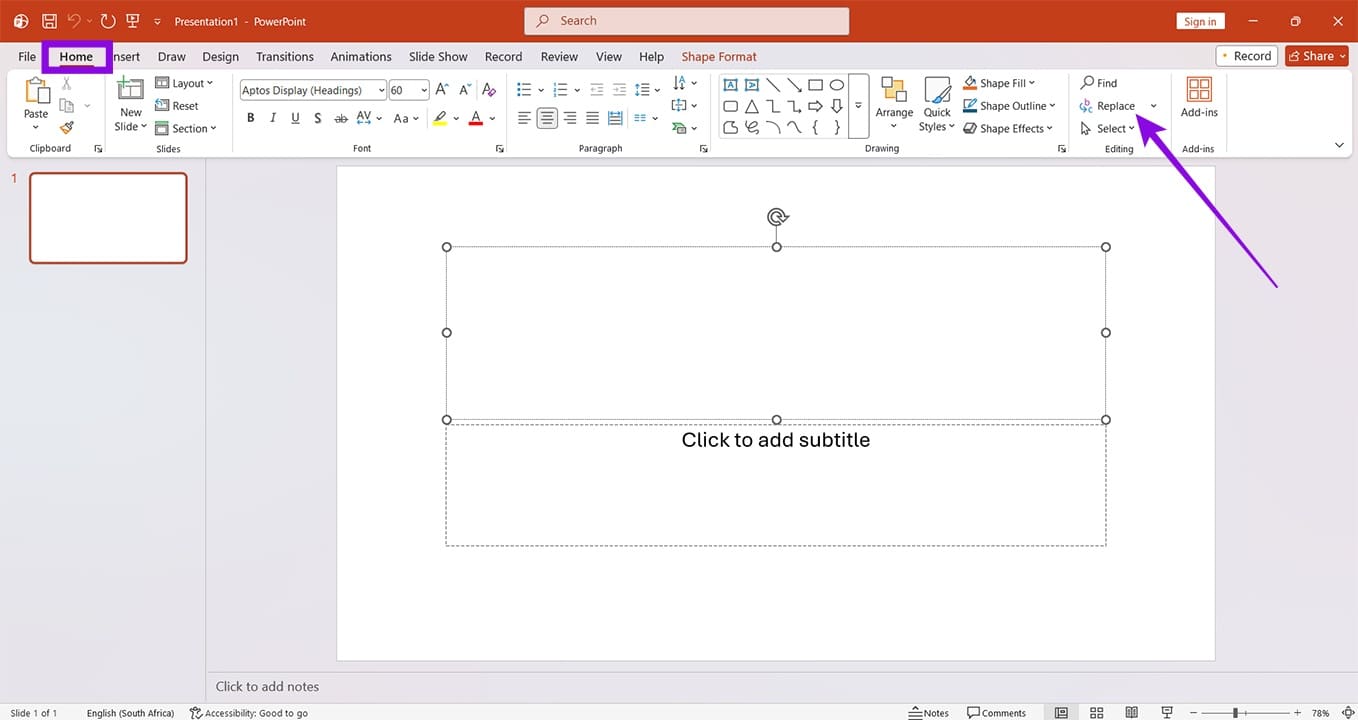
Step 1. In the presentation, click the “Home” tab and select “Replace” in the “Editing” subsection.
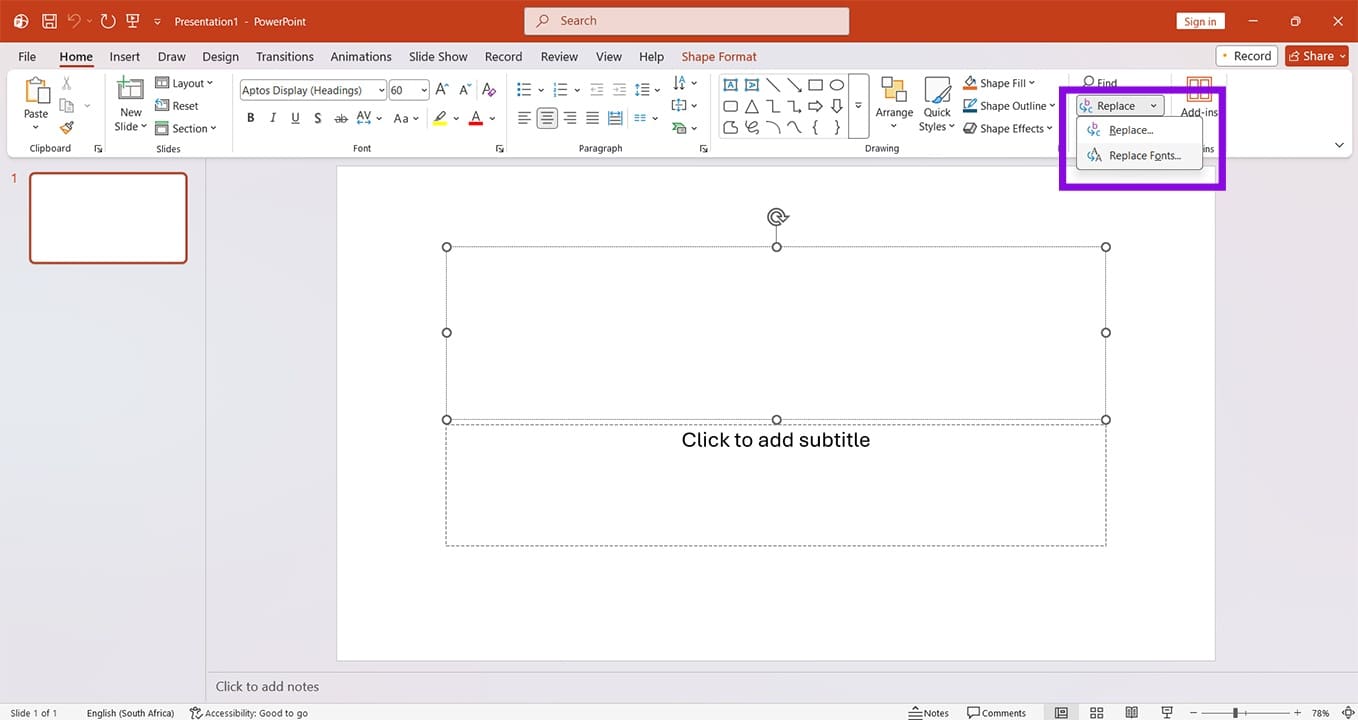
Step 2. Select “Replace Fonts.”
Step 3. Select the font currently in place you want to change and the suitable font to change it to via the dropdown menus.
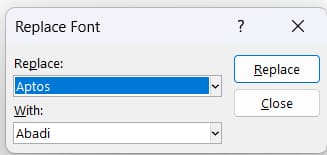
Step 4. Click “Replace” to finalize.
How to Fix PS5 Error Code CE-107891-6
Read Next