5 Methods to Check Microsoft Office License
If you want to check that your copy of Microsoft Office is functioning correctly, its activation status, or just what version of the software you have, the good news is that there are many ways to check your Microsoft Office license. In this article, we’ll be showing you how to do just that in five ways, be it 365 or Office.
How to Check Microsoft Office License
Let’s get straight into it. Below, we’ve got five methods for checking your Microsoft Office License status:
Via the Your Microsoft Account
A useful way to check your Office license, downloaded or subscription-based, is via your Microsoft Account. It’s pretty easy to do too:
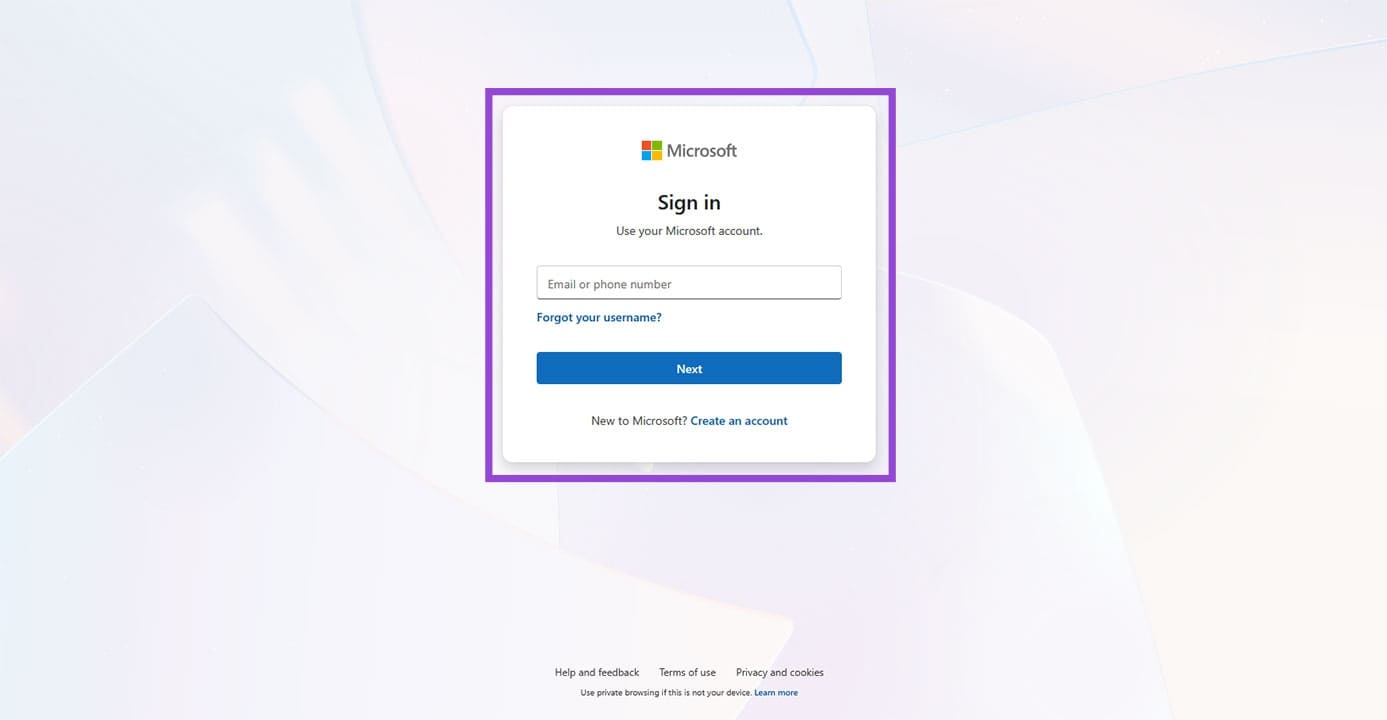
Step 1. Head to Microsoft in any browser and click the “Sign in” option in the top-right.
Step 2. Enter your login details. Perform any account verification required.
Step 3. In your account profile, click “Subscriptions” in the sidebar.
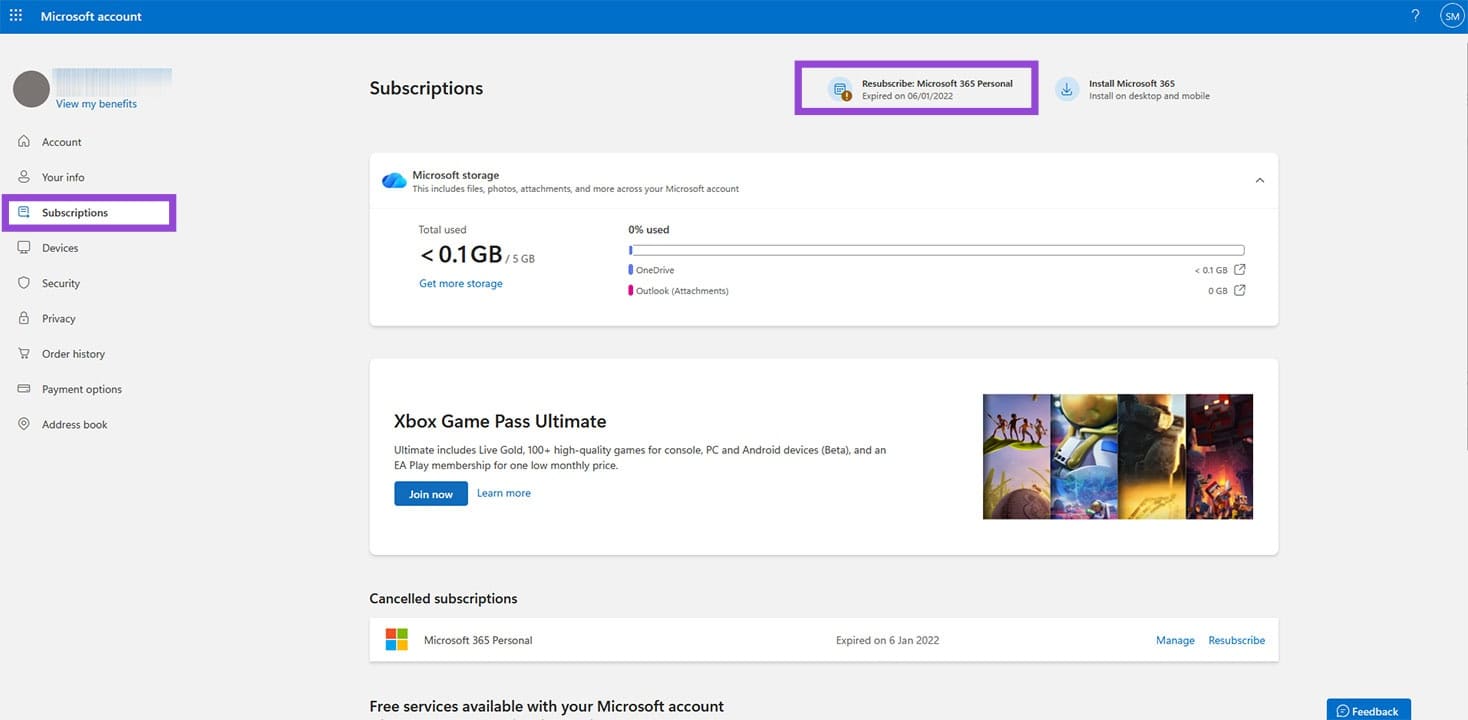
Step 4. Your Microsoft 365 subscription or Office download will be visible in this section, in addition to its current status.
Check Your In-App Account
If you’re using the Desktop version of Office, a quick way to check your license is through the “File” tab. Here’s what to do:
Step 1. Click “File” in the Menu Bar.
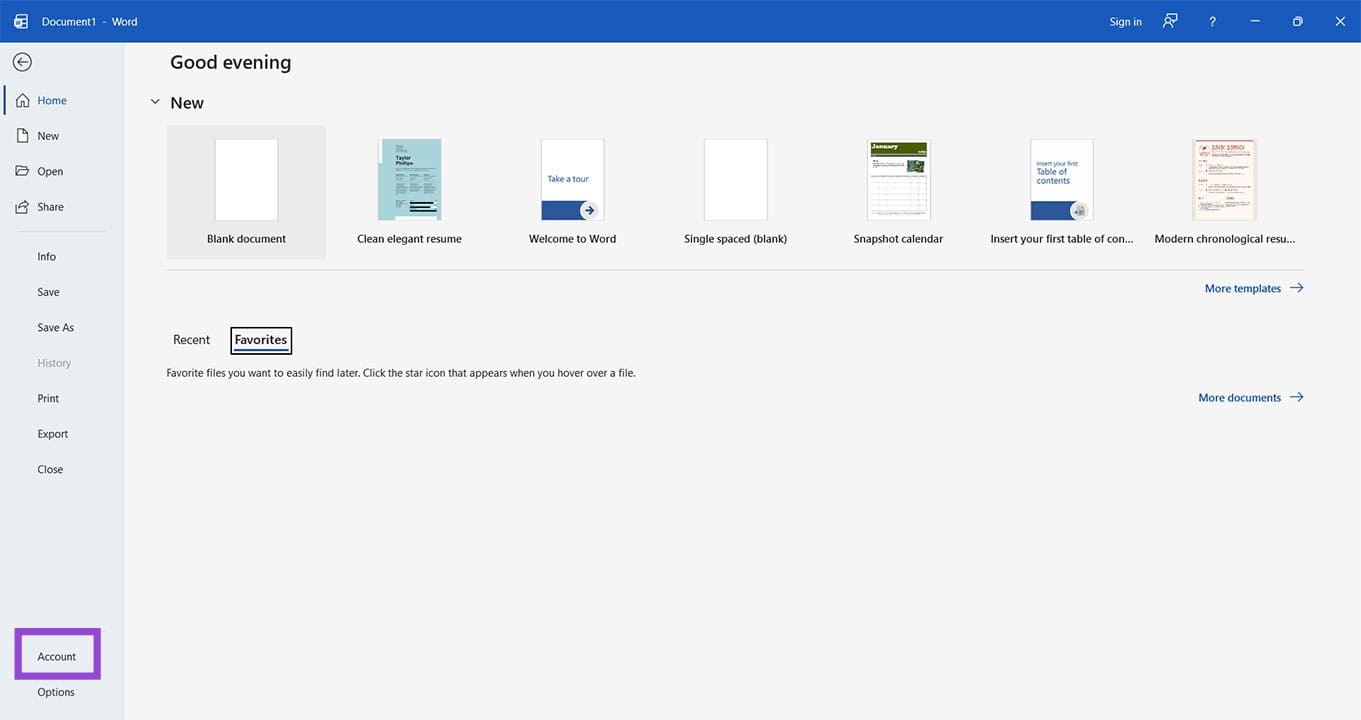
Step 2. Click the “Account” option in the sidebar.
Step 3. You’ll see the version and activation status of your copy of Office under “Product Information” in the main window.
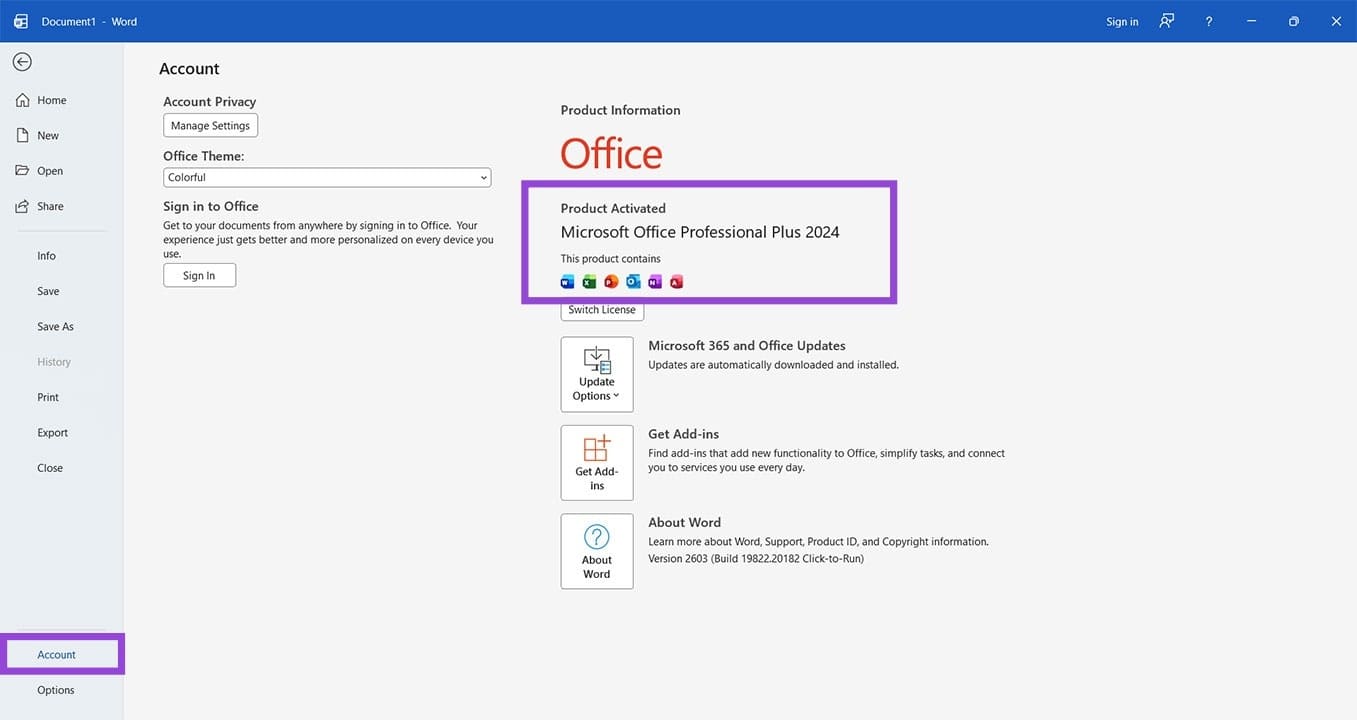
Step 4. If you’re looking for more information, click “About Word” for your Product ID and more in-depth details.
Check via Command Prompt
Another way to check your Desktop License is to use the Command Prompt and text-based commands to do so. Here’s how:
Step 1. Open the Run Dialog (Win + R) and type “cmd” into the box before hitting (Ctrl + Shift + Enter) to run as Admin.
Step 2. Navigate to the Office Folder and type one of the following commands, then hit “Enter.”
For 64-bit Office (Standard): cd “C:\Program Files\Microsoft Office\Office16”
For 32-bit Office (on 64-bit Windows): cd “C:\Program Files (x86)\Microsoft Office\Office16”
Step 3. In the correct directory, type the following command – “cscript ospp.vbs /dstatus” – and hit “Enter.”
The Command Prompt will display your license details. Look for “License Name” or “License Status.” “Retail” will refer to a Retail License, and “Volume” refers to a Volume License.
Via Windows Settings
If you have an Office license tied to your User Account, then besides the website, you can also check its status and type via the Settings menu. Here’s how:
Step 1. Open Settings (Win + I) and click “Accounts” in the sidebar.
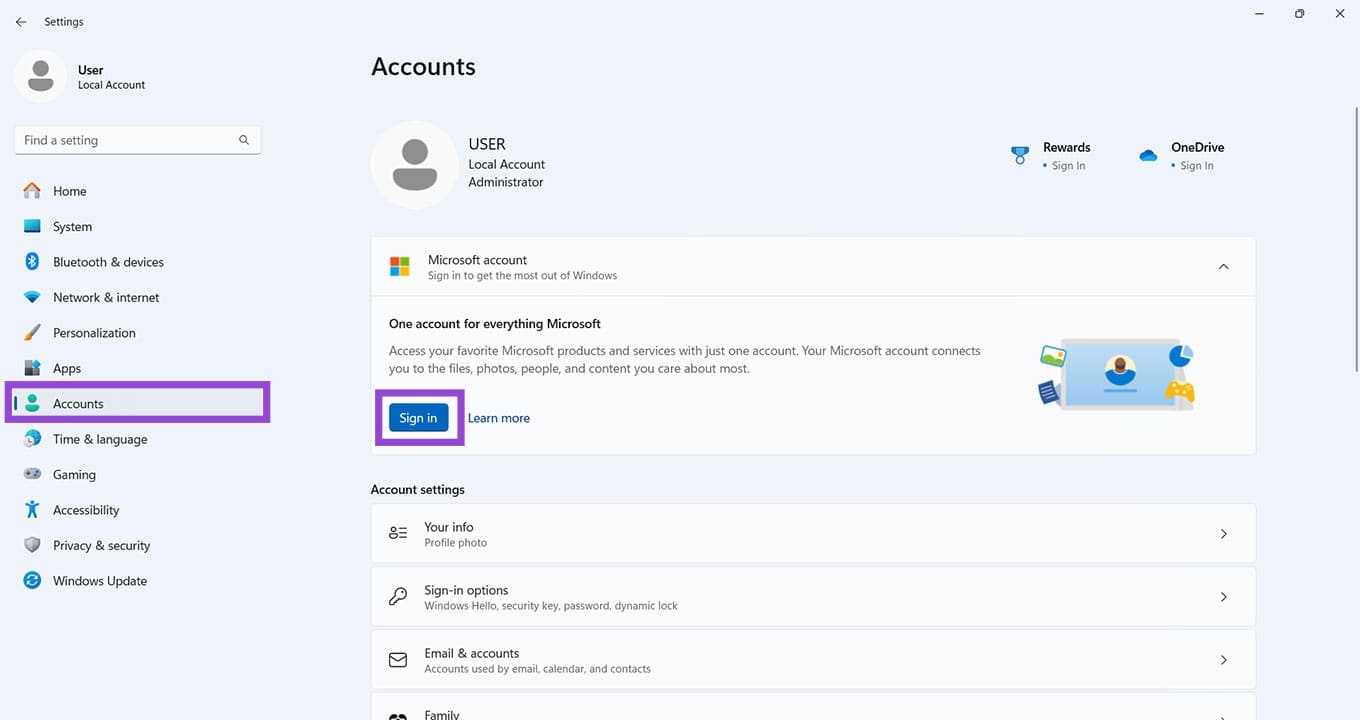
Step 2. Ensure that you’re signed into your account on your PC. If not, click the “Sign in” button below your account profile to do so.
Step 3. If your copy of Office is tied to a Work or School account, navigate down to “Access work or school” and click it.
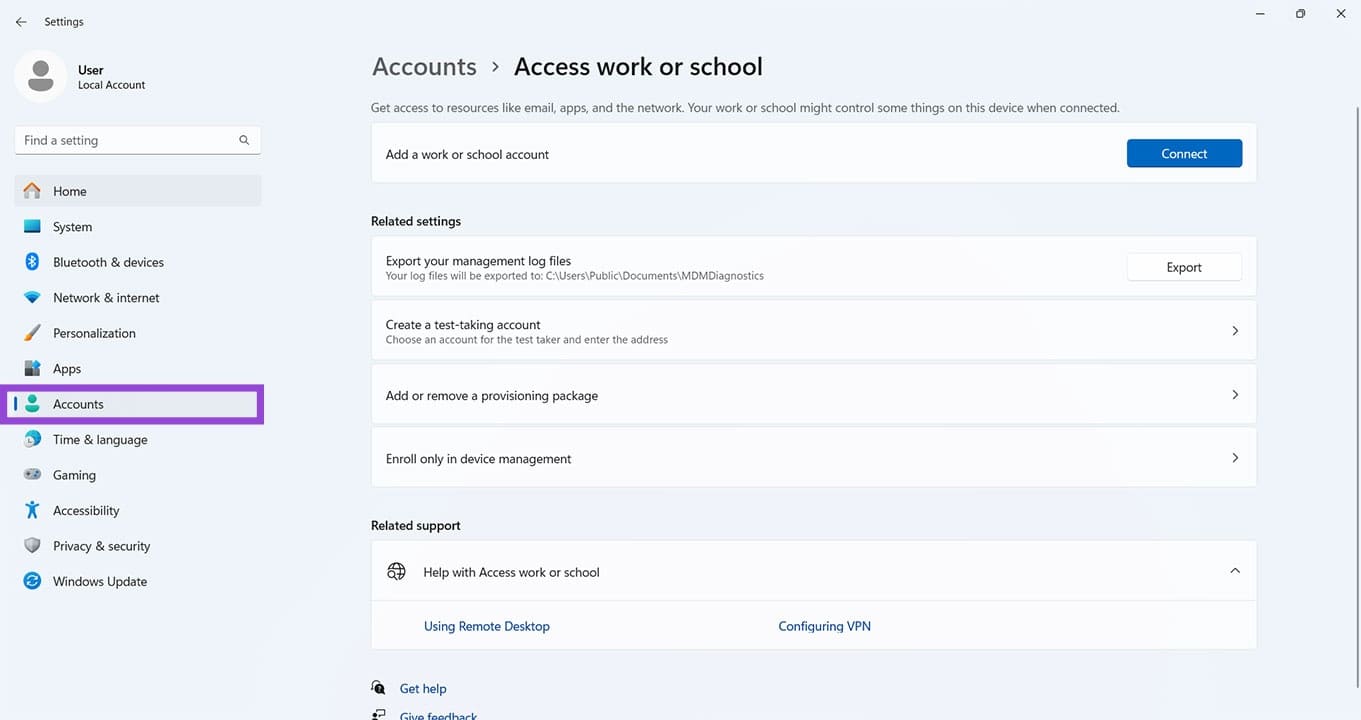
Step 4. In the next menu, you should be able to see your Microsoft Office license status easily.
Contact Microsoft Directly
If you really are stuck for options, then you can also try contacting Microsoft directly. Be sure to have your proof of purchase and profile details handy for account verification. If you’re signed in to your Microsoft account, you can use the “Get Help” app to contact Microsoft support.
How to Enable the Drag Tray on Windows 11 PC
Read Next