How to Pause on Chromecast When Streaming to TV
It’s easy to pause a DVD or Blu-Ray player when you want leave the room to go get snacks, but what about Chromecast? When streaming to a TV, there are plenty of ways to pause Chromecast, and therefore plenty of ways to pause your show. In this article, we’ll be giving you an overview of how to pause Chromecast when streaming to TV.
How to Pause Chromecast When Streaming to TV – Different Methods
Below, we’ve assembled some of the most common methods for pausing your stream, depending on the device and any extra tools you have available:
Pausing on Your PC
If you’re using a desktop or laptop computer to stream to your TV, you’ll be using the Chrome browser to get the job done. Here’s how to pause things:
Step 1. Click the Cast icon in the video player or Chrome toolbar, or open Chrome’s menu and choose “Cast.”
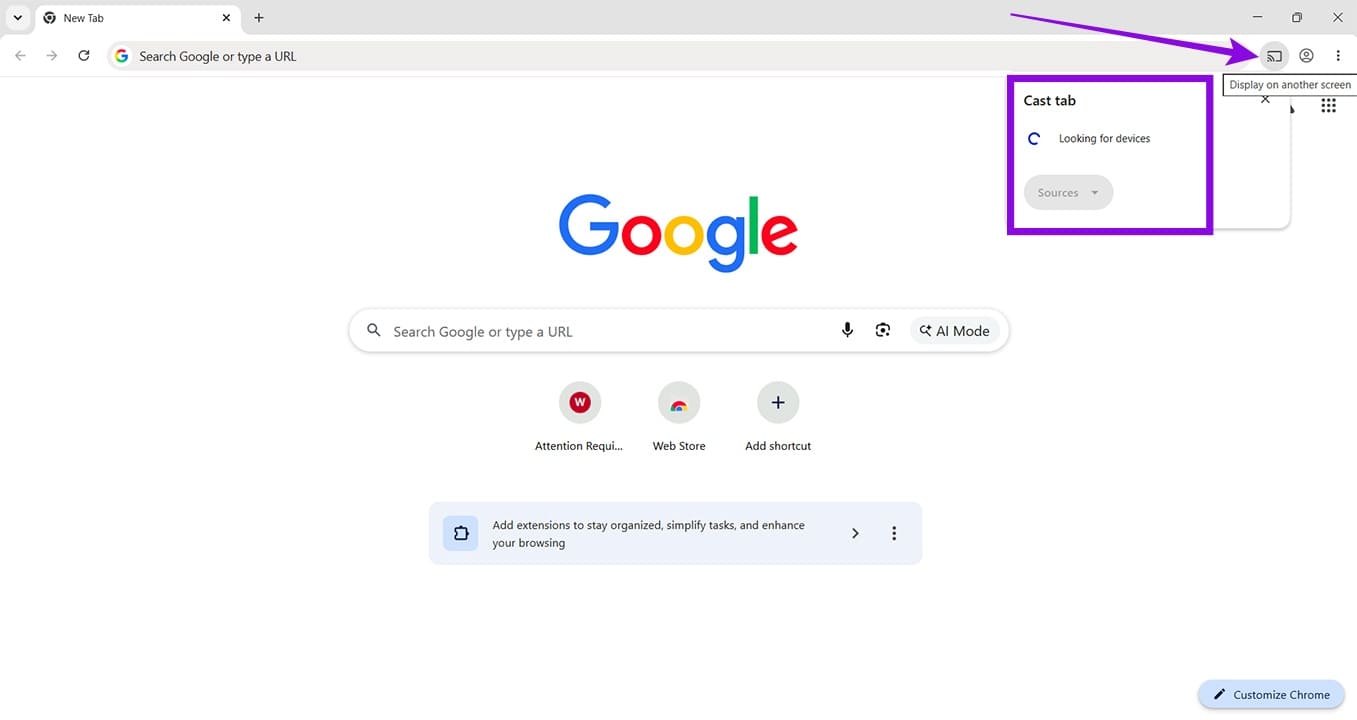
Step 2. Eligible devices will then be shown. Pause the media that’s currently playing in your Chrome browser.
Step 3 (Optional). In the “Cast” menu, select “Stop Casting” to end the stream completely. If you don’t pause or stop the cast, in some cases, the media itself might keep playing independently. This is a good way to make sure things are stopped.
Pausing the App on Your Smart Device
Chromecast is also supported on many apps like YouTube, Netflix, and Spotify. If you want to pause Chromecast videos, you can do so through the app. Here’s what you need to do:
Step 1. Open the app you’re streaming with. You should see the Chromecast icon that indicates the stream. Tap the icon to reveal the device you’re connected to.
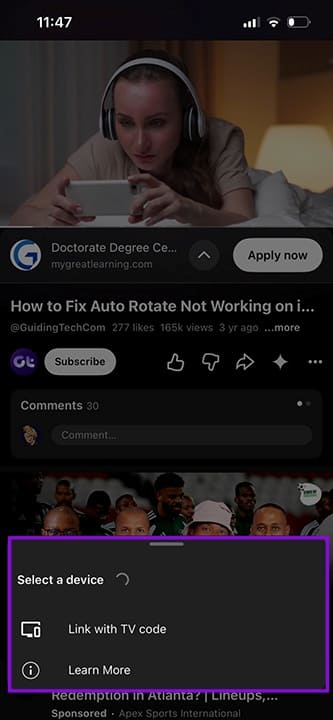
Step 2. Tap the “Pause” button in your app to temporarily halt the stream.
Step 3. When you want to resume, just click the “Play” button and let the show resume.
Using Your Remote
If you have a newer Smart TV that supports Chromecast, you might have the option on your remote control to pause the action directly. If not a direct option, then the “Pause” button itself might do the trick. Simply give it a try next time you’re streaming or consult your TV manual.
By Voice
If you have Google Home, Google Nest, or both, then you can use a voice command to control any device that is synced with the network, including your Smart TV. Providing that both devices are connected to the same Wi-Fi network, you can simply ask the app or the device to pause Chromecast, and the TV should do so. In the same way, you can ask it to resume using a voice command through your Google smart speaker, display, or compatible streaming device.
Third-Party Apps
If you’re looking for more control or specifics that Chromecast isn’t giving you, you can use a third-party streaming app installed on your smart device and TV to do the same job. There are plenty of options available to try.
Why Can’t I Pause Chromecast
If you’re having difficulty with pausing your stream, there are a few possible causes:
- Wi-Fi – Check that the Wi-Fi network is working, stable, and that both the casting device and the Chromecast are connected to the same network.
- Control – Someone else may be controlling Chromecast from their device.
- App support – The app itself doesn’t support full Chromecast functionality.
If you’re having trouble, try restarting, updating, and double-checking all devices involved.
How to Embed Fonts in Microsoft PowerPoint Presentation
Read Next